Characters and continuity
consistent characters in AI video, AI character consistency
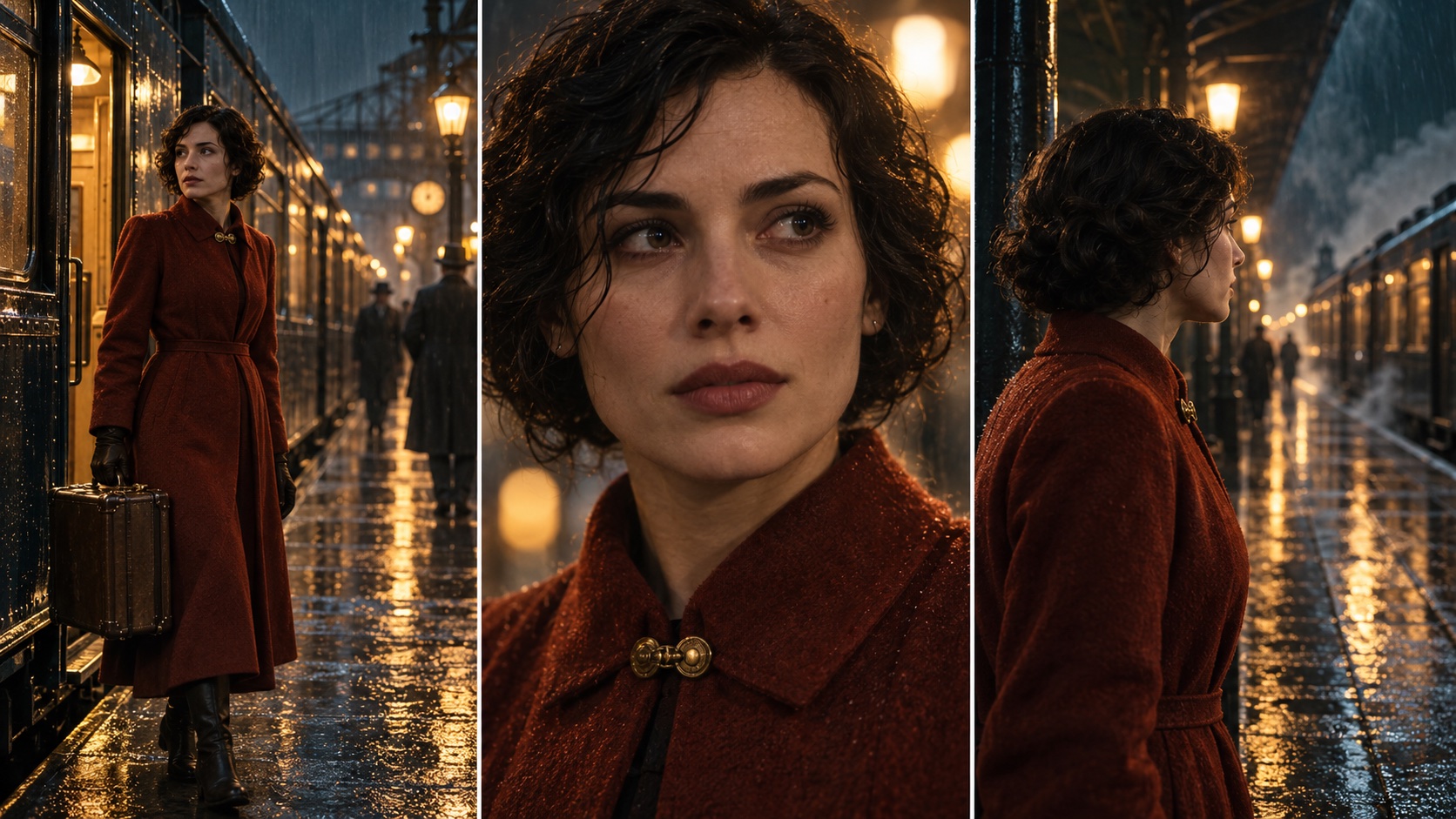
A woman arrives at a station wearing a red coat. In the next shot, her hair is longer and the coat has a different collar. Both images might look convincing, but the cut makes her look like someone else.
Keeping consistent characters in AI video means checking those joins as you build the scene. A written description and a reference sheet give the model something to follow. You still have to decide whether the person in the new shot belongs with the footage you have already kept.
Choose the appearance before you need twenty shots of it
Start with the details the story gives you. Fill in what the camera will show but the text leaves open. For the woman at the station, you might settle on short curly hair and a rust-red wool coat with a brass clasp. Write those choices into her character description in Chapterframe.
Keep her immediate actions in the take direction. Waiting beside a bench belongs to this shot; it should not become part of every later description of her. Separating appearance from action also makes it easier to spot a contradiction when you edit the scene.
Generate a character sheet and inspect the views together. Look closely at the profile after the front view. Does the nose change shape? Does the coat fastening move? A sheet can contain its own inconsistencies, so choosing an attractive front portrait is only part of the review.
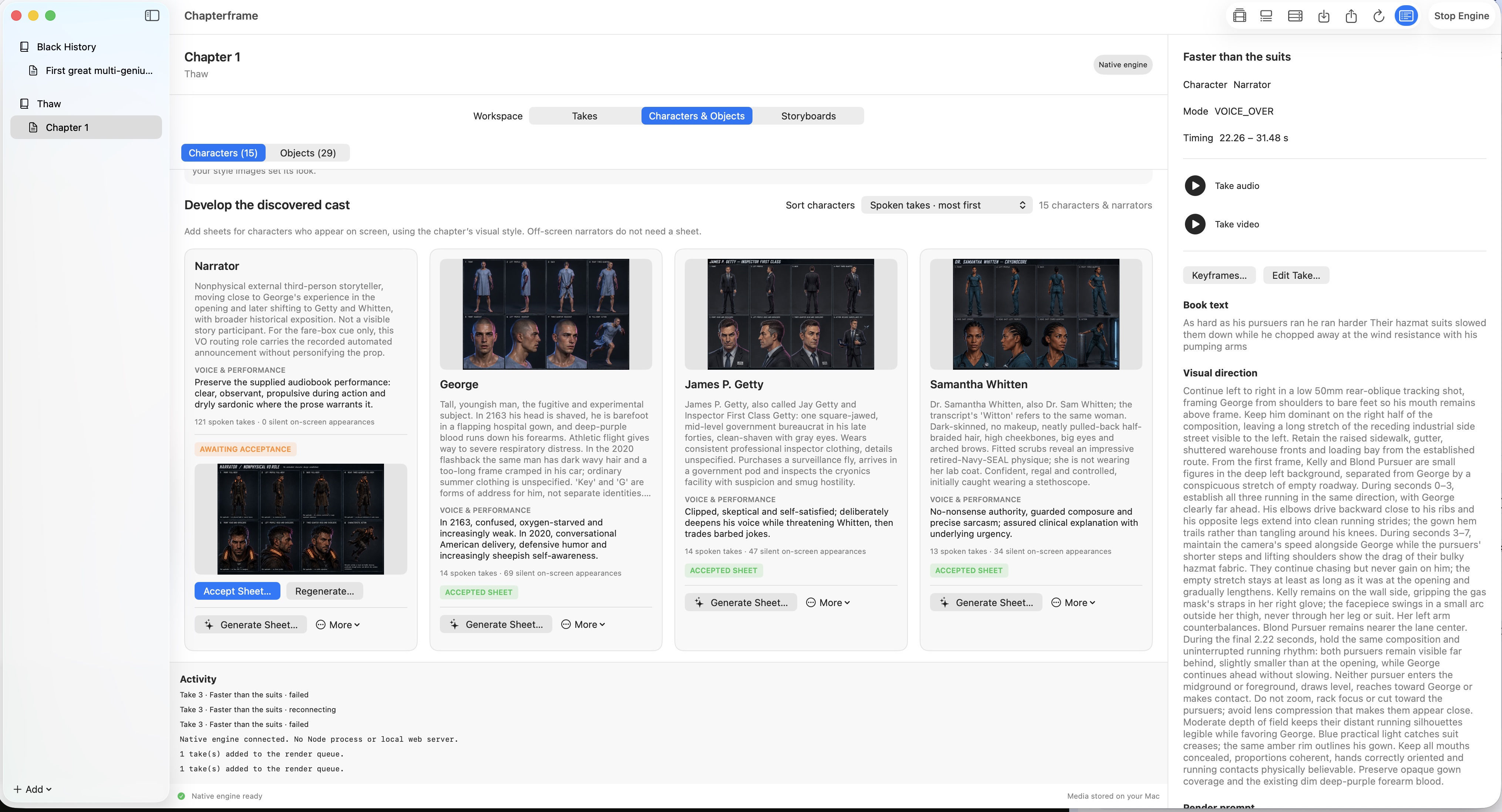
In the Mac app, a new sheet waits for acceptance. Accept Sheet lets you choose the takes that should use it as an identity reference. If you want another attempt, regenerate the sheet and compare it with the accepted version. Earlier generated sheets remain available for review.
Keep a record of changes in costume
The red coat may be wet when the woman reaches the platform. Later, she takes it off inside the carriage. Those changes should follow the action. A dry coat appearing halfway through the platform scene is a continuity error; a different outfit the following morning can be intentional.
Keep notes about where a change happens, with a reference image you can compare against. The BFI's look inside costume designer Jenny Beavan's archive includes costume continuity files with photographs and written details arranged through the film. That is a useful example when deciding what to record for your own cast.
In Chapterframe, review the references attached to the affected takes when you change a costume or accept a new sheet. If the old look already works in the opening scene, check which later takes need the replacement before applying it.
Give a recurring prop its own attention. If the woman leaves her bag on the bench, the next shot should show her without it. An object sheet records the bag's appearance; the take direction needs to explain where she puts it.
Compare the shots that are hardest to match
Try a close-up and a wider view before rendering the full scene. Include a profile if you expect to use one. These views give you more to judge than several nearly identical portraits.
Compare each keyframe with the accepted sheet and its neighboring take. Check the face at a size where you can see it. Changes in lighting will affect color, but they should still make sense within the scene: a coat under a warm carriage lamp can look different from the same coat outside in the rain.
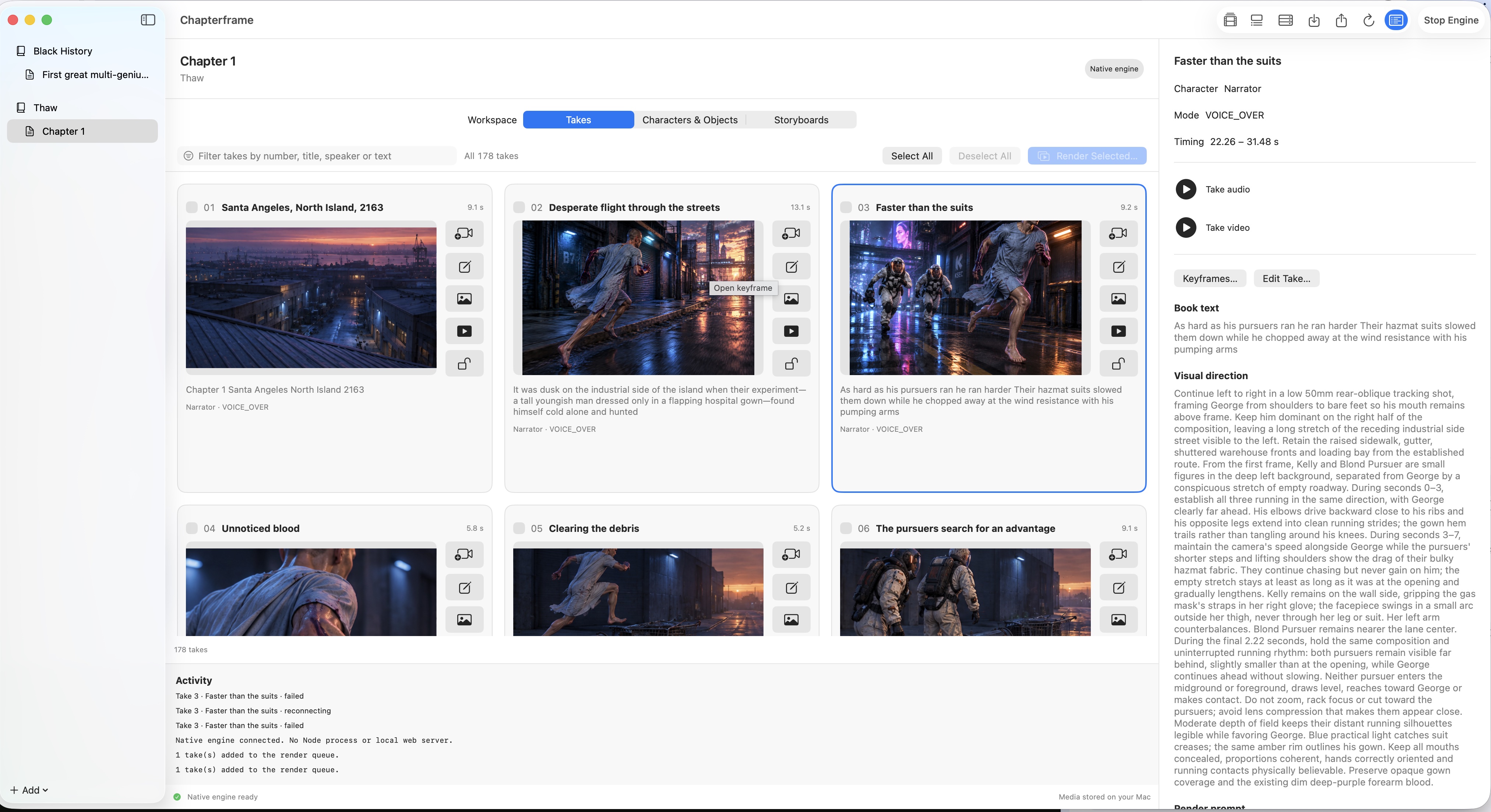
If one keyframe looks wrong, inspect its instructions and linked references. An old costume description can conflict with a new sheet. A character linked to a take where they should be absent can also confuse the intended cast. Correct the input you can identify, then generate another version of that take.
Once the stills work together, render a short sequence. Watch for changes during motion as well as at the cut. A face may start correctly and change as it turns away. Keep the versions that hold up through the shot, and review a replacement in sequence before moving on.
Use Stage to work out where people are
A familiar face can still seem misplaced if the character jumps to the other end of the platform between shots. Plan the geography as you plan the appearance.
Chapterframe Stage uses 3D figures and set geometry to rehearse the scene. Place the bench and the carriage entrance, then look through the planned camera as the woman moves between them. You can inspect whether the next camera angle gives the audience enough information to follow her.
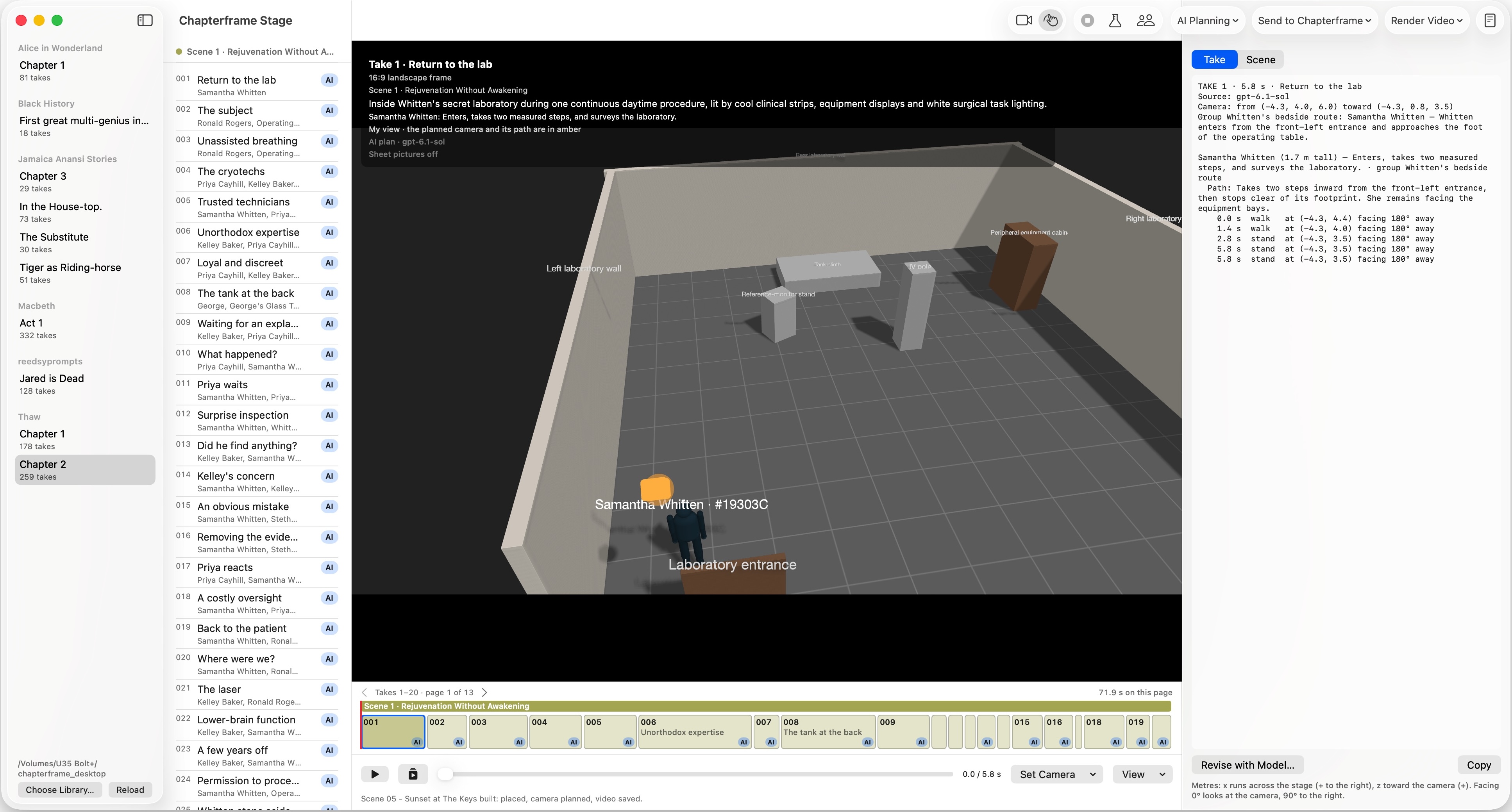
Stage helps you judge spacing and movement. Facial resemblance still needs to be checked in the generated images and video. Spend time on the parts that need it: you might plan the location for a whole chapter, adjust an entrance scene, then refine the camera for one difficult take.
Carry the reference into the next chapter
When adding a chapter in Chapterframe for Mac, you can bring in characters and objects from an earlier chapter, including their descriptions and reference images. Review those choices against the new passage. The same character may be older in a flashback's return to the present, or have changed clothes since the previous scene.
Before starting a large batch, render a shot from the new chapter and watch it after the end of the previous one. That cut is where you will notice whether the person still looks familiar. Keep notes about intentional changes so you can distinguish them from mistakes when you return to the project.
Try it with a sample cast
Open a sample project in Chapterframe for Mac and inspect its character sheets. Choose a short sequence to review, then use Stage to check the planned positions.
Your free trial starts when you first open the app and lasts seven days. AI provider, GPU rental and storage charges are separate. After the trial, activate a purchased license to keep creating; otherwise the app becomes read-only.
Choose a sample project or see the purchase pricing and subscription details.