Rendering costs
AI video rendering cost, affordable AI filmmaking

A cheap render becomes expensive when you have to make it again six times. Perhaps the character changes halfway through the shot, or the camera reveals something the audience should not see yet. The provider has done the work and charged for it, even though you cannot use the result.
To estimate AI video rendering cost, count the footage you keep as well as the attempts you generate. Chapterframe gives you places to review the planned takes and their reference images before submitting video jobs. Those decisions affect how much work you send to a paid renderer.
Put a price on a usable shot
Suppose a GPU costs $1.50 an hour and completes 24 renders during one hour of active rendering. The GPU time works out to $0.0625 per attempt. If you keep 12 of those renders, the same hour costs $0.125 per usable shot.
Now suppose setup and idle time add another half hour at that rate. The bill reaches $2.25, or about $0.19 for each of the 12 shots you kept. Storage and transfer charges would be added where applicable, along with any separate image or language-model calls.
These are worked examples using the site's planning assumptions, not measured results or a current rental quote. The 24-render figure is the upper estimate for the calculator's compatible accelerated pipeline. Your model, output settings and actual server performance determine what you can finish in an hour.
Use the rendering cost calculator to explore a starting budget, then replace its assumptions with results from a short scene. Record how long the server was rented and how many shots survived review. Divide the total charges by the number you kept.
Compare the same finished scene
A hosted service may charge for generated seconds or consume credits from a subscription. A rented GPU charges for the time you have it running. Compare both routes using the same intended duration and output settings, then watch the results. A lower price is useful only if the footage works for your film.
For a subscription, divide the bill by the usable clips you actually make during the billing period. A plan with a large allowance may be economical for regular work and expensive for a month when you finish one scene. For a GPU rental, include the time spent preparing the machine and waiting between batches.
Model availability is another part of that choice. Renting a GPU does not give you a self-hosted copy of every model sold by a hosted provider. Check that the workflow you want can run on the selected server before comparing its hourly rate with a hosted generation price.
Fix the shot before paying to animate it
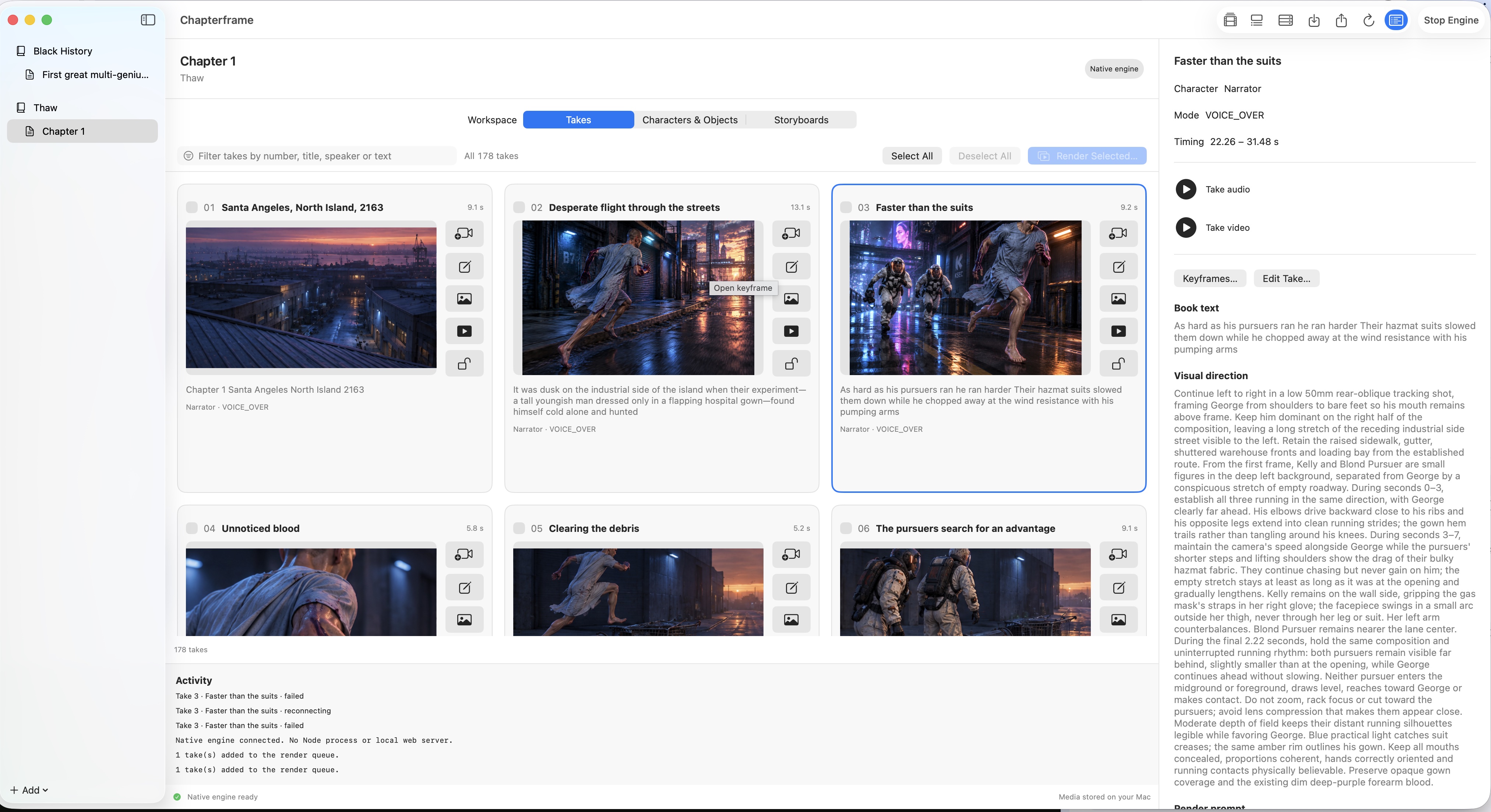
Start with a scene you can review closely. If someone must hide a letter before another character enters, check that the take gives them enough time. Generating a longer video will not fix a direction that leaves the action unresolved.
In Chapterframe, inspect the take text and camera direction beside the keyframe. Check the references attached to the shot. If the character has the wrong coat in the still image, correct it there before making video. The character consistency guide explains how to review those references across a sequence.
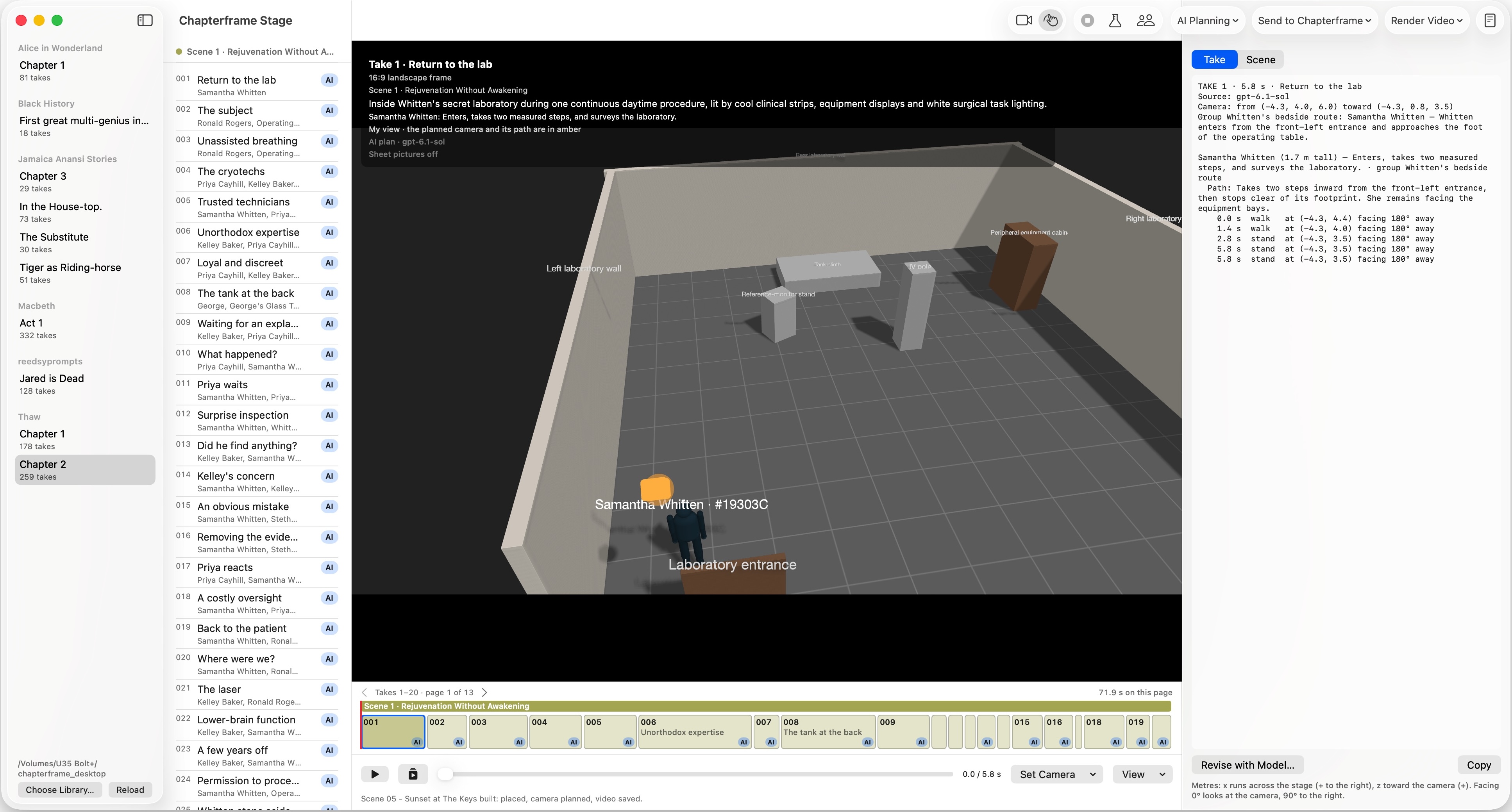
Use Chapterframe Stage when the problem is where people stand or what the camera can see. Rehearse the entrance with simple 3D geometry. You can spend time on a difficult take while leaving the rest of the scene as planned.
After a small batch finishes, watch the takes in order. Keep the versions that work and render only the shots that need another attempt. Chapterframe supports selected-take rendering and keeps earlier versions available for review.
Keep rented capacity busy, then release it
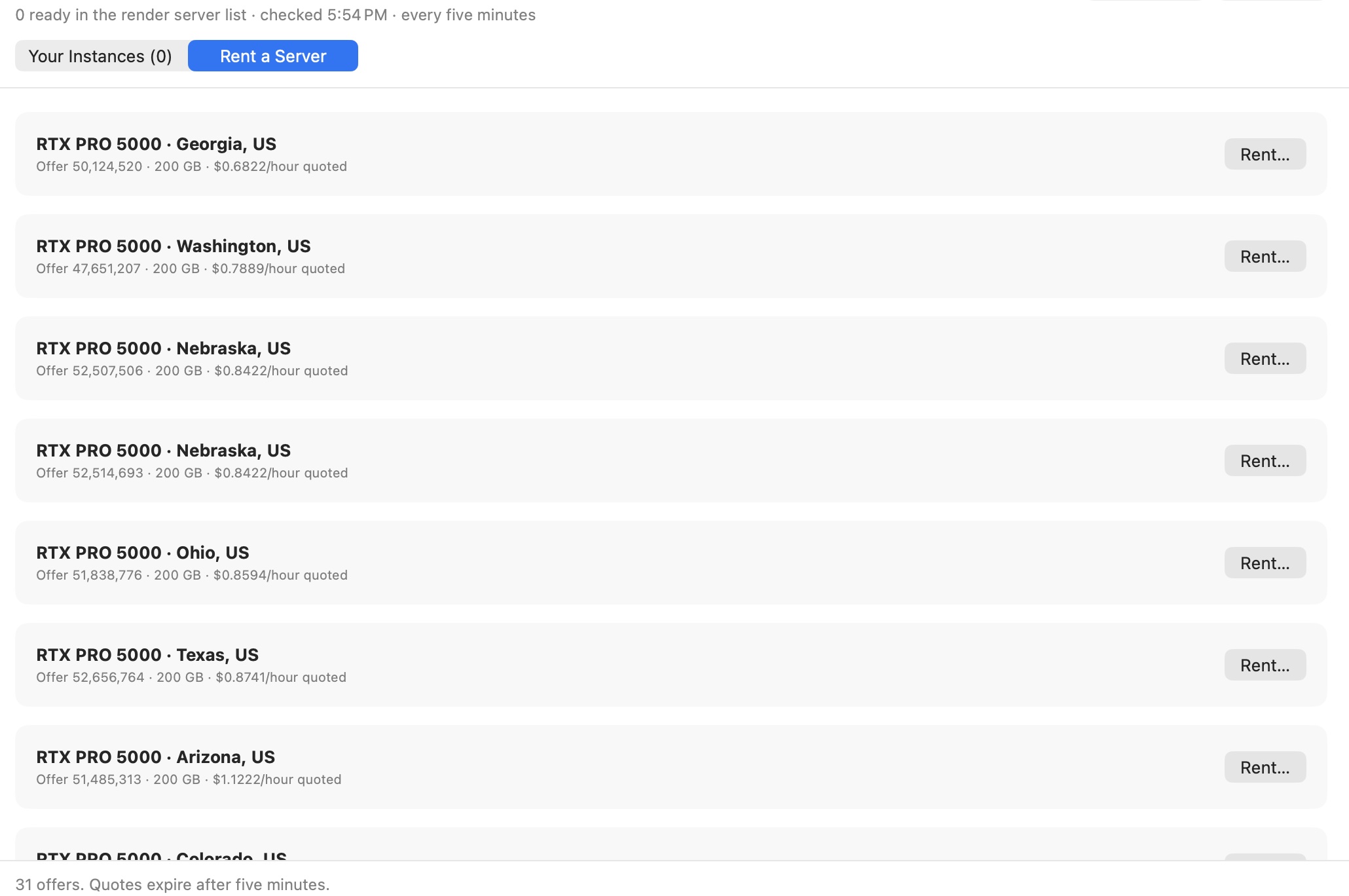
Prepare a batch before renting several servers. Chapterframe can group ready servers into a render pool, but a larger pool also increases the hourly spend. Add capacity when you have work ready for it and a reason to finish sooner.
Read the full rental quote. Vast's pricing documentation explains its compute, storage and bandwidth charges. Stopping an instance still leaves storage charges; deleting it ends the instance's storage billing. Save the outputs you need before removing its remote disk.
Chapterframe for Mac records an idle limit when you rent a server. Its automatic cleanup requires the app and native engine to remain running. Check the instance list when you finish, especially before closing the app, and confirm that rentals you no longer need have been deleted.
Budget for the scene you will finish
Keep the Chapterframe license cost separate from generation charges. Your provider accounts and GPU rentals have their own bills. A first test scene gives you a way to estimate those usage costs before committing to a chapter.
If the budget is tight, choose a shorter passage and finish it. Review where the retries occurred. A recurring problem with entrances may call for more rehearsal in Stage; an inconsistent face may need a better reference sheet. Spend the next batch on a specific correction you can judge.
Try a small scene in Chapterframe
Download Chapterframe for Mac and open a sample project to inspect its takes and references before starting your own render batch. Chapterframe Stage is included.
Your free trial starts when you first open the app and lasts seven days. AI provider, GPU rental and storage charges are separate. After the trial, activate a purchased license to keep creating; otherwise the app becomes read-only.
Choose a sample project or see the purchase pricing and subscription details.