Sound and performance
AI video sound effects, add sound effects to AI video
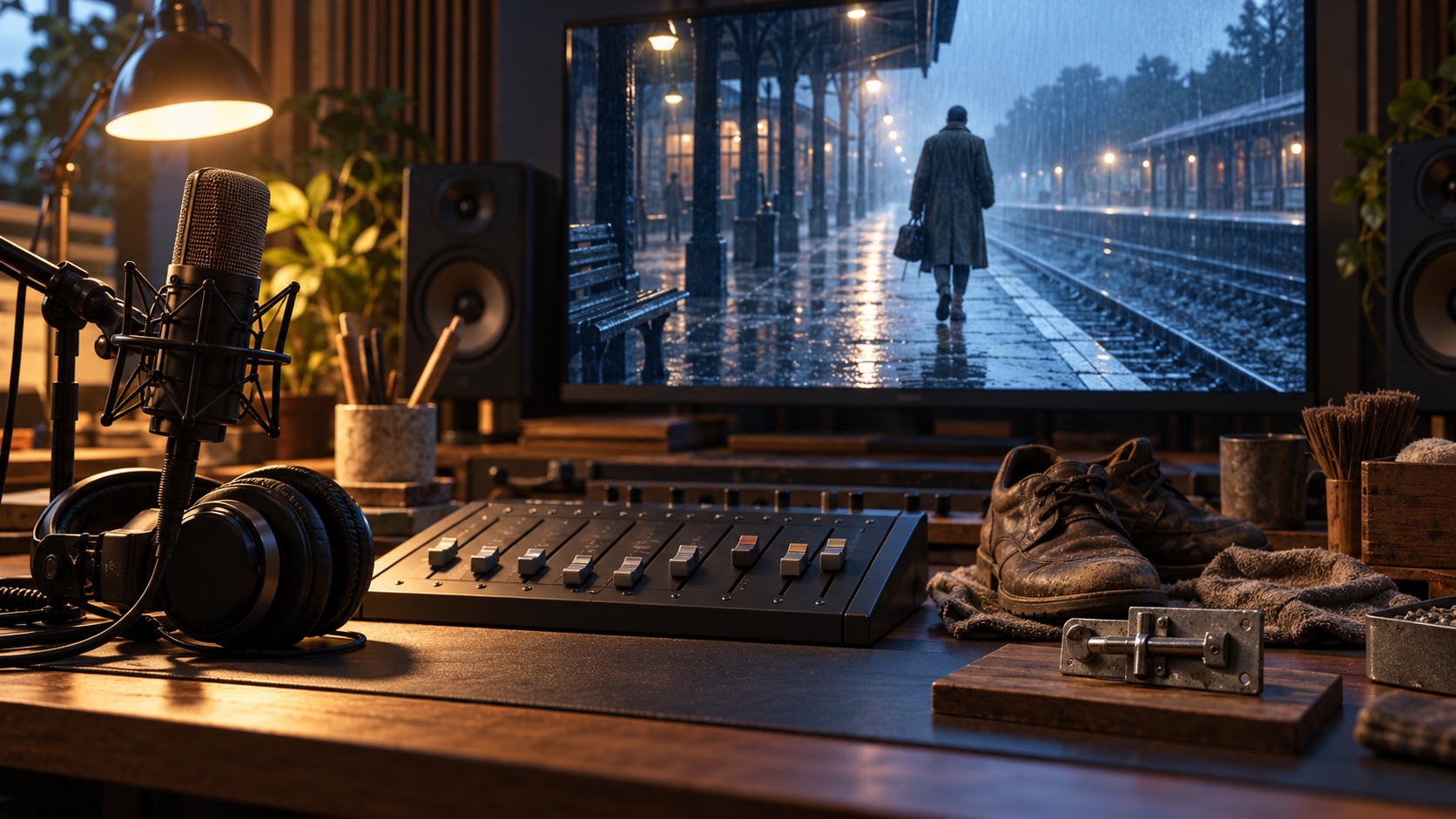
A door closes behind a character. A small latch click may be enough to tell the audience that the room is now private. A loud slam would give the same action a different meaning.
Sound effects are optional in Chapterframe. You can build a scene around the original narration or dialogue and leave it there, or add effects where they help explain an action or establish a place. You do not have to add sound to every visible movement.
Keep narration and effects separate
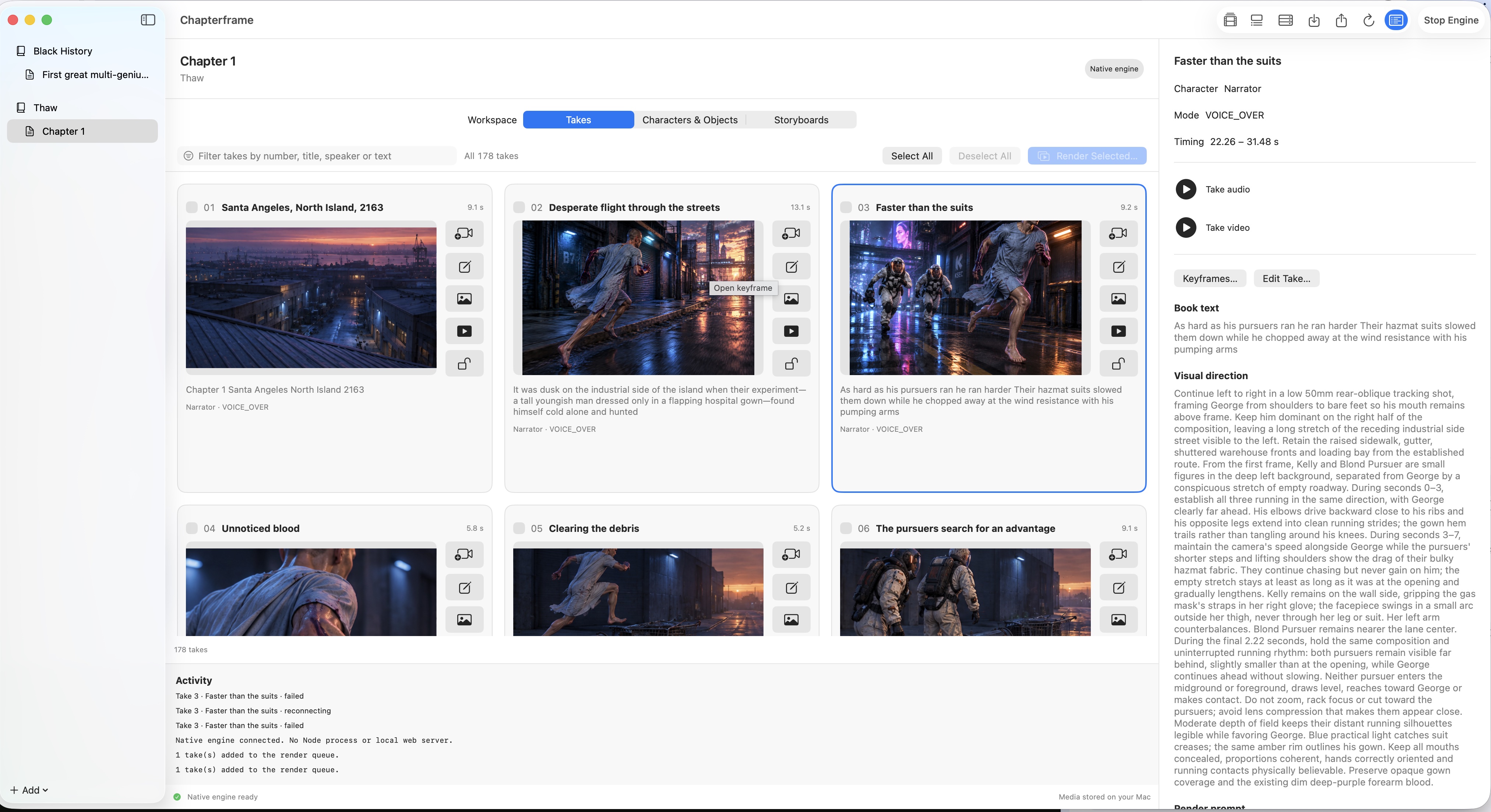
Chapterframe keeps the source voice recording separate from the renderer's audio, which can contain effects, ambience and music. You can mute the narrator while keeping that background audio, or mute the renderer audio while keeping the narration. Muting either layer does not delete the other.
That separation lets you compare versions of the same scene. Listen once with the narrator and effects together, then mute the background to hear the original performance on its own. You can restore the background without generating the video again.
In the Mac app, the controls distinguish Voice-Over from Video Audio. Video Audio covers the renderer's soundtrack as a group; it is not a separate switch for every footstep or musical instrument within that soundtrack. Sound-effects tracks added separately have their own mix settings.
The take's mute choices carry into playback and video export. Keep the project and its source media if you want to return to those choices later; a finished exported movie is a mix, not a replacement for the editable project.
Choose what the viewer needs to hear
Start by listening to the voice. A quiet passage may already carry the scene. If a sound would explain something the picture leaves uncertain, decide where it belongs and how prominent it should be.
Suppose someone waits on an industrial street. A distant machinery hum can establish the location. When they begin running, footsteps can make the movement feel closer. Both sounds need space beneath the spoken words.
Adobe's guide to sound effects for video explains different kinds of effects, including Foley and ambience. It is a useful starting point when deciding whether a scene needs a specific action sound or a continuing background.
Describe the sound in plain language
When preparing sound cues, write what should be heard. "Faint breeze and distant machinery hum" gives the audio generation a direct description. A long account of the camera passing over a warehouse makes the intended sound harder to identify.
Keep separate events in separate cues when their timing differs. A background hum may continue through the take, while footsteps begin several seconds later. Give each cue the duration it needs and place it against the action.
Chapterframe can also prepare sound direction in the video prompt before rendering. Review that direction with the take: a mention of rain should not remain after you have changed the scene to a dry interior. If the prompt already contains audio instructions you want to keep, check the overwrite choice before applying another sound-effects pass.
Listen for unwanted voices
A video renderer can return speech even when the scene is intended to sit under your existing narration. Layering that voice beneath the original can make the words difficult to follow.
For supported silent-picture workflows, Chapterframe uses a vocal-removal pass to try to keep the renderer's music and effects while removing unwanted dialogue. Listen to the result. Separation can leave traces of a voice or change the surrounding sound, so judge the processed audio before keeping it.
If that background does not work, mute Video Audio and keep the source narration. You can make that choice without throwing away the picture or the original recording.
Check the sound across neighboring takes
An effect that fits one shot can become distracting when repeated at every cut. Listen through a short sequence without stopping. Notice whether the background suddenly changes level, or whether footsteps continue after the character stops.
Compare the mix with and without effects. If the scene becomes easier to follow when they are muted, revise the cues or leave them out. A quiet moment can be the right choice.
Watch the exported file too. Confirm that the selected audio layers are present and that muted material stays out. Export modes can treat narration differently; the long-form film guide covers reviewing the assembled movie.
Try the scene both ways
Open a chapter in Chapterframe for Mac and compare its original performance with the optional background audio. Keep the mix that suits the scene.
Your free trial starts when you first open the app and lasts seven days. AI provider, GPU rental and storage charges are separate. After the trial, activate a purchased license to keep creating; otherwise the app becomes read-only.
Choose a sample project or see the purchase pricing and subscription details.