Story adaptation
long-form AI video, how to make a full-length AI movie
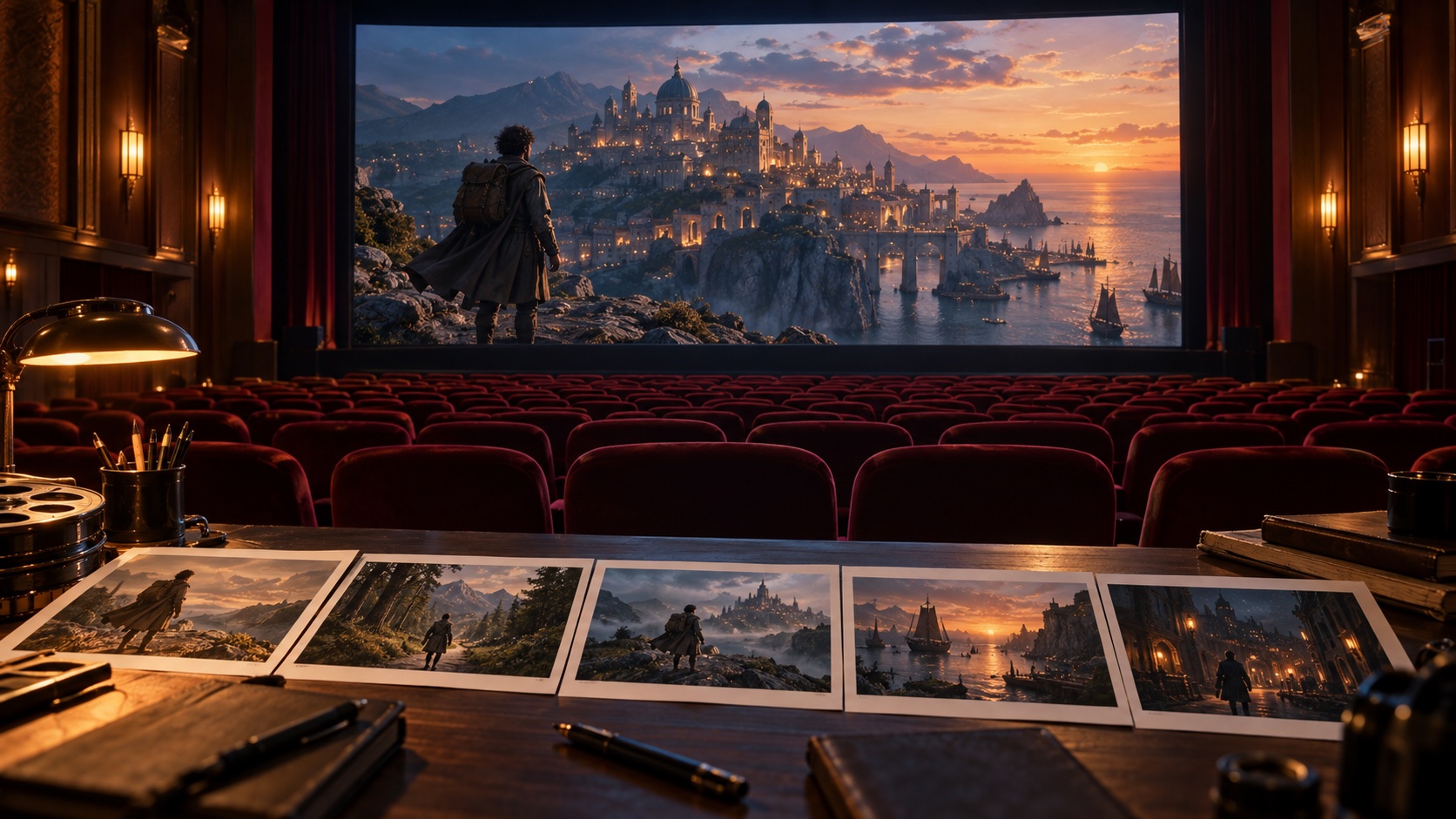
By the time you reach the final scene, the audience needs to remember why a letter from the opening mattered. The person carrying it must still be recognizable, and the journey between those scenes has to hold their attention. A longer film gives you more room to develop a story, but it also gives mistakes more time to accumulate.
To make long-form AI video, build sequences you can watch and revise. In Chapterframe, the work is organized into books and chapters, with individual takes holding the direction and generated media for each shot. That gives you a place to fix a moment without losing its position in the story.
Decide what the full film needs to tell
Start with an intended ending. If the film follows someone delivering a letter, decide what happens when it arrives. Work back through the scenes that make that ending understandable. A detour may be worth keeping because it changes the relationship between two travelers; another may repeat something the audience already knows.
An audiobook adaptation brings a separate timing decision. Keeping the complete recording ties much of the running time to that performance. A shorter adaptation needs decisions about which passages to retain and where the pictures can carry the story. Make those choices while you can still change the plan cheaply.
One Chapterframe project used about 425 takes for 24 minutes of finished footage. That works out to roughly 3.4 seconds per take, or about 18 takes per finished minute. At the same pace, a 90-minute film would need about 1,594 takes: 425 multiplied by 90 divided by 24. Use roughly 1,600 finished takes as a planning estimate for a film with similar pacing, then allow for rejected generations and alternate versions. A film with longer shots will need fewer takes; faster cutting will need more.
Use your first scene to estimate the actual workload. Our novel adaptation guide covers choosing material and turning a passage into actions you can put on screen.
Finish a scene before expanding the project
Choose a passage with a beginning and an outcome. It should include something you expect to repeat throughout the film, such as a conversation between the main characters or a narrated sequence with movement.
Work through that scene until you can watch it with sound. Inspect the take boundaries if you are using a recording. Review the character references, then judge the keyframes together before rendering video. This first sequence can expose a problem that would otherwise spread through hundreds of takes.
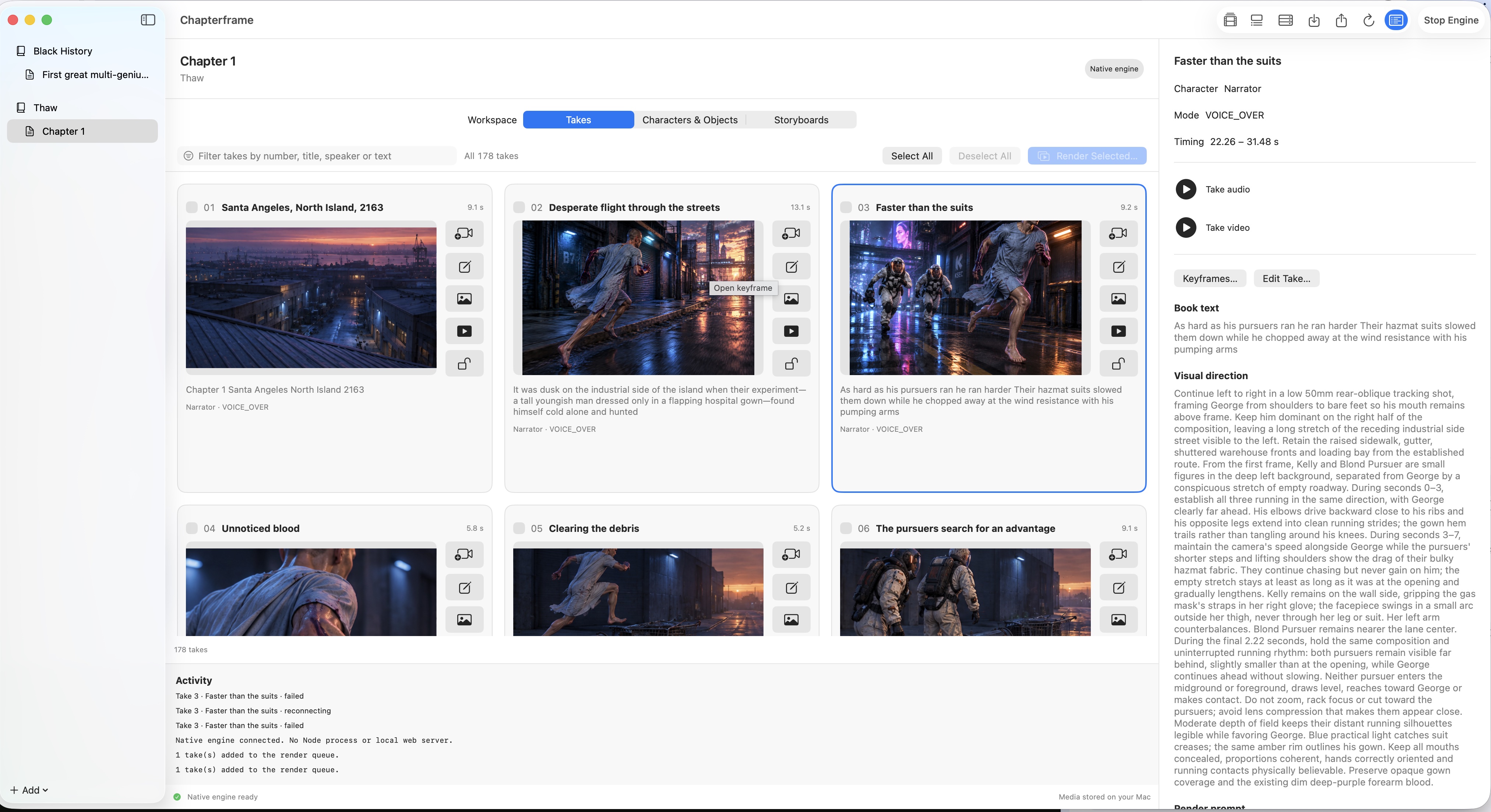
Suppose a traveler looks right in the wide shots but changes appearance in every close-up. Fix the reference and test those close-ups before continuing. If the movement feels rushed, revise the timing. Keep notes about what you changed so you can use the same approach in later scenes.
Carry decisions across chapter boundaries
A chapter is a useful unit of work, but the viewer will watch the cut between chapters too. The traveler cannot arrive with a different bag unless something in the story explains the change.
Chapterframe for Mac can bring characters and objects from an earlier chapter into a new one, including their descriptions and reference images. Review what you import against the new passage. Keep a record of intentional changes, such as an injury or a costume worn after a time jump.
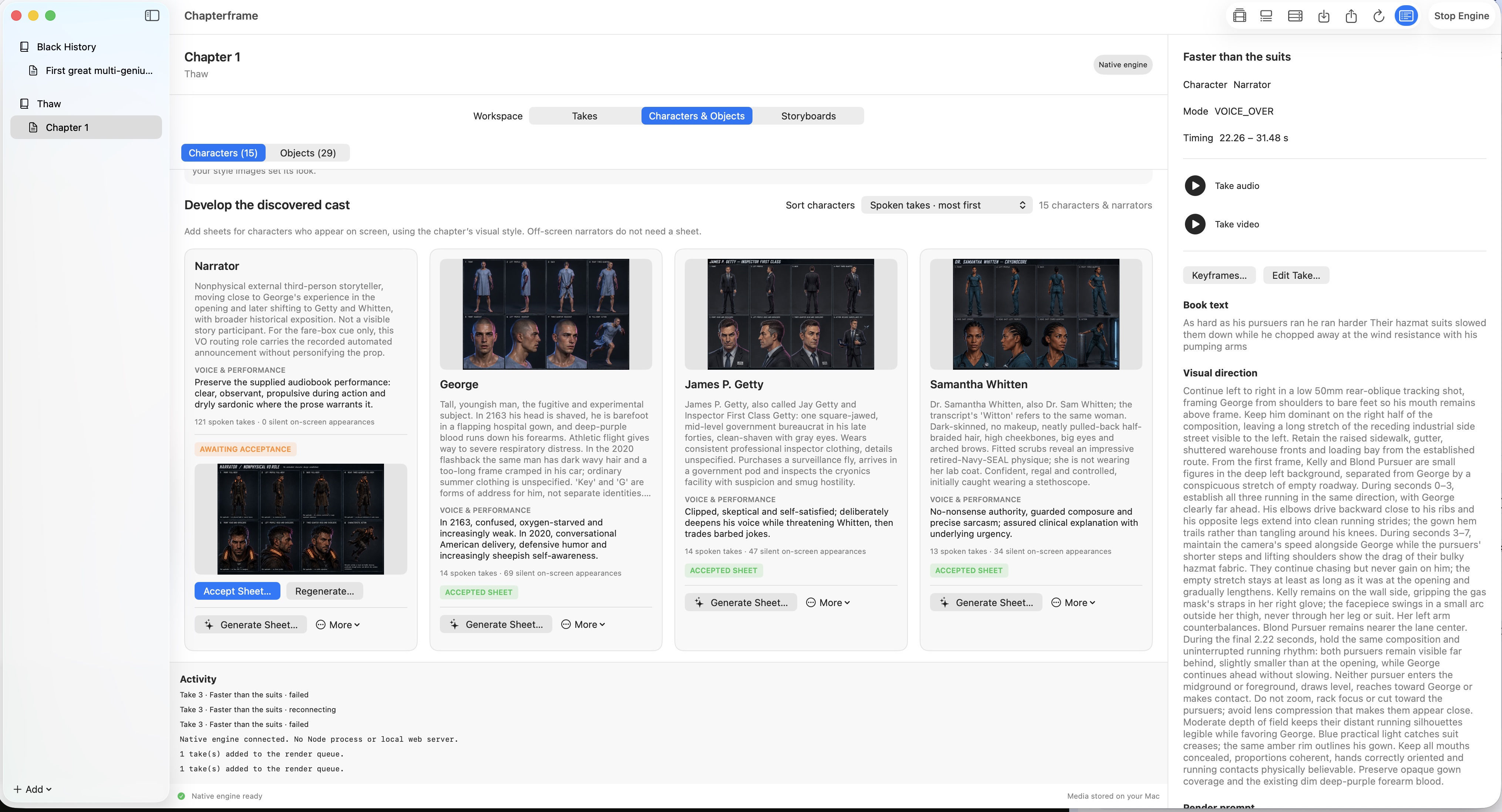
Choose a few shots to compare whenever you start a new chapter. Include a close view of the returning cast and a view of any familiar location. The character consistency guide explains what to inspect when the same person appears under different lighting or from a new angle.
Keep copies of your library and media as the project grows. A chapter ZIP is useful for transferring a snapshot; a full backup needs the database and media files, including the versions you may want to revisit.
Rehearse the scenes that are difficult to follow
An exchange in a doorway can become confusing if the camera jumps sides or someone crosses the room between cuts. A chase makes those relationships harder to track over several shots.
In Chapterframe Stage, use simplified 3D figures and set geometry to inspect the planned movement. Look through the camera for the next take before you render it. Check whether the viewer will understand where the traveler went and who can see them.
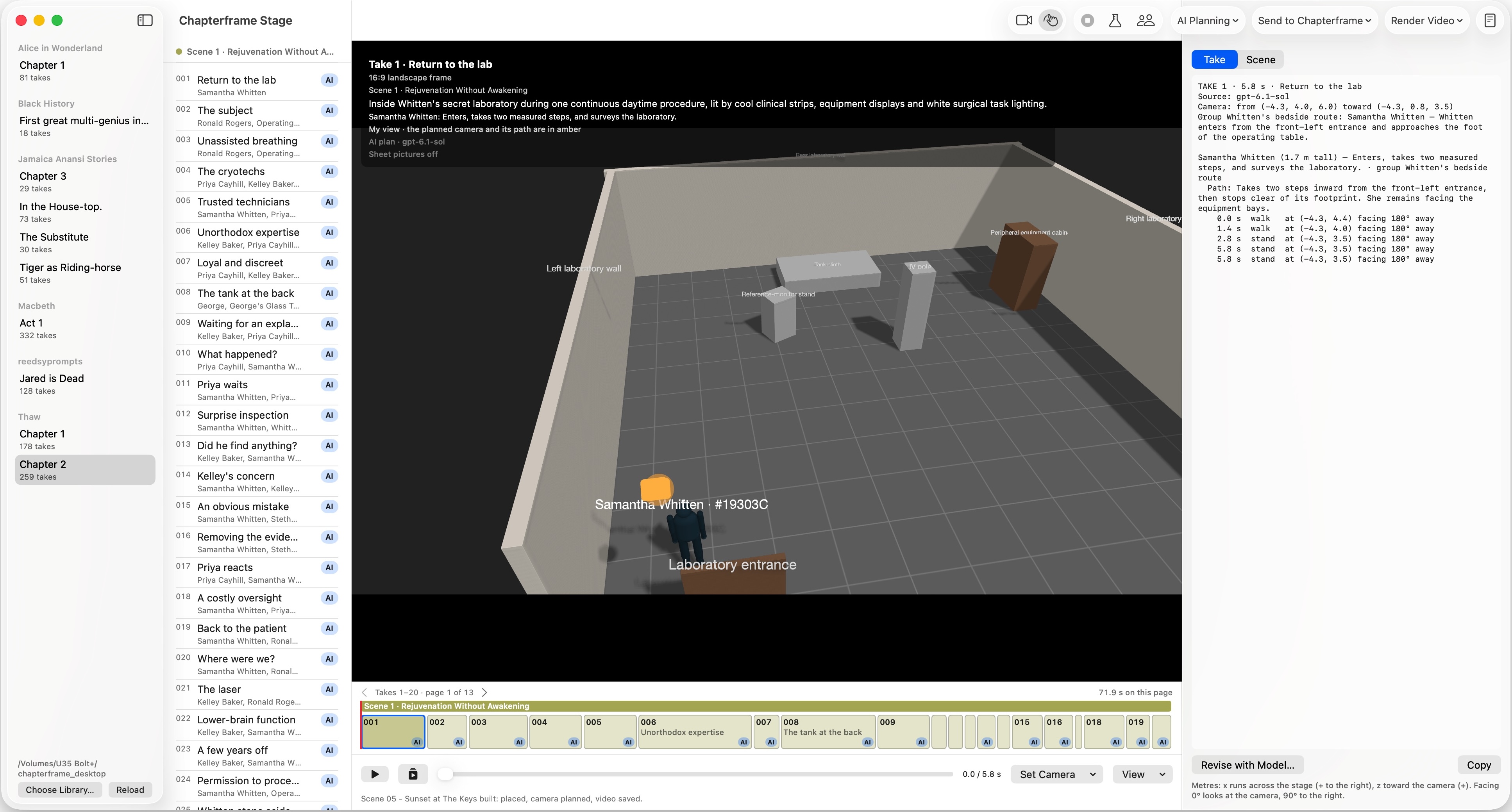
You can work at the scale the scene needs. Set out the location for a chapter, spend longer on a scene with several entrances, or adjust a single take where the camera loses the action. Simple geometry is enough to reveal many of those problems before final images exist.
Render in batches you can review
Queue a sequence, then watch it before submitting the next large batch. A wrong reference or repeated camera instruction is easier to correct when it affects a handful of shots.
Chapterframe lets you render selected takes and review earlier versions. Keep the shots that work while revising their neighbors. When a replacement finishes, watch the cut into it and the cut out of it; a better isolated image can still be the wrong choice for the sequence.
Measure the cost of those revisions. Count usable shots and include the attempts you rejected. The rendering cost guide walks through a budget that includes retries and idle GPU time. Provider charges are separate from the Chapterframe license.
Watch an assembly before polishing every shot
Once enough scenes are available, assemble them and watch without stopping to fix details. Write down where you lose track of the story or wait too long for something to happen. Those notes may call for a missing reaction shot, a shorter scene or a different order.
Adobe's explanation of a rough cut describes this early editing stage, when the sequence and shape of the film are still being worked out. It is a useful point to review the story before spending more time on individual shots.
Chapterframe's standard video export joins the selected primary renditions in chapter order and can cover a chapter or a whole book. Movie Mode asks a text model to plan a condensed cut. Treat that result as an edit to review: a shorter running time does not tell you whether the story still makes sense.
Check the sound when choosing an export mode. Movie Mode handles narration differently from the standard assembly, keeping dialogue while excluding overlaid narration from non-dialogue takes. Listen to the exported result and inspect any audio warnings before deciding to keep that cut.
For the final review, play the actual exported file from beginning to end. Listen across chapter joins and look for missing footage. Check the credits and ending as carefully as the opening. Save that export with a version name so you can distinguish it from the next revision.
Start with one complete scene
Try Chapterframe for Mac with a sample chapter. Inspect its takes and references, then open Stage to see how the scene is planned.
Your free trial starts when you first open the app and lasts seven days. AI provider, GPU rental and storage charges are separate. After the trial, activate a purchased license to keep creating; otherwise the app becomes read-only.
Choose a sample project or see the purchase pricing and subscription details.