Rendering costs
GPU render farm for AI video, Vast.ai video rendering
You have reviewed a chapter's keyframes and have a batch of takes ready to render. One server can work through them, but you would like to see the sequence sooner. A GPU render farm lets several servers work on different takes at the same time.
Chapterframe for Mac can rent and set up Vast.ai servers, then add ready machines to a render pool. You choose the capacity and pay the rental charges through your Vast account. The pool handles compatible rendering workflows; renting hardware does not give you access to every model available from a hosted video service.
Prepare the work before renting the machines
Review the takes you intend to submit. Check the selected keyframes and their character references. A wrong costume will still be wrong when ten servers have finished rendering it.
Start with one server and a small batch if you have not used the workflow before. Confirm that the server becomes ready, that a take completes and that the result downloads and plays. Use that batch to judge whether adding capacity will help the work you have waiting.
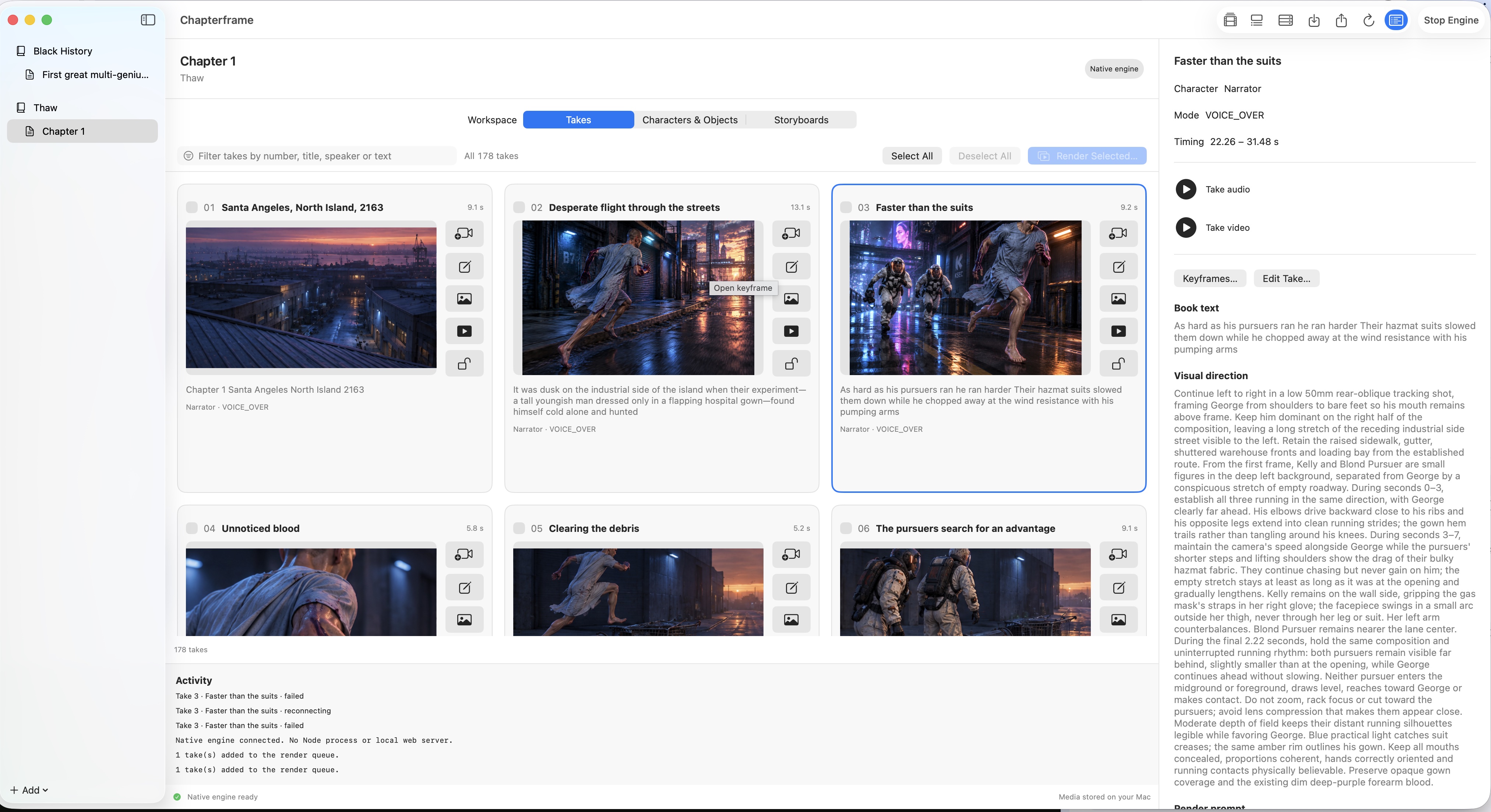
Keep revision time in the budget. A fast batch is useful only if its shots work together. The rendering cost guide explains how to count rejected attempts when estimating the cost of usable footage.
Read the offer beyond the hourly price
Connect your Vast account in the Mac app and open the rental browser. Compare the available GPU memory with the needs of your selected workflow. Check the reported reliability and network information too, especially when large model files or finished videos need to move between machines.
The offer cards include a readiness history where Chapterframe has one. A previous successful rental means that the physical machine became ready within the recorded deadline. It gives you some history to consider; it cannot guarantee that a new rental will behave the same way. Missing history should remain an unknown.
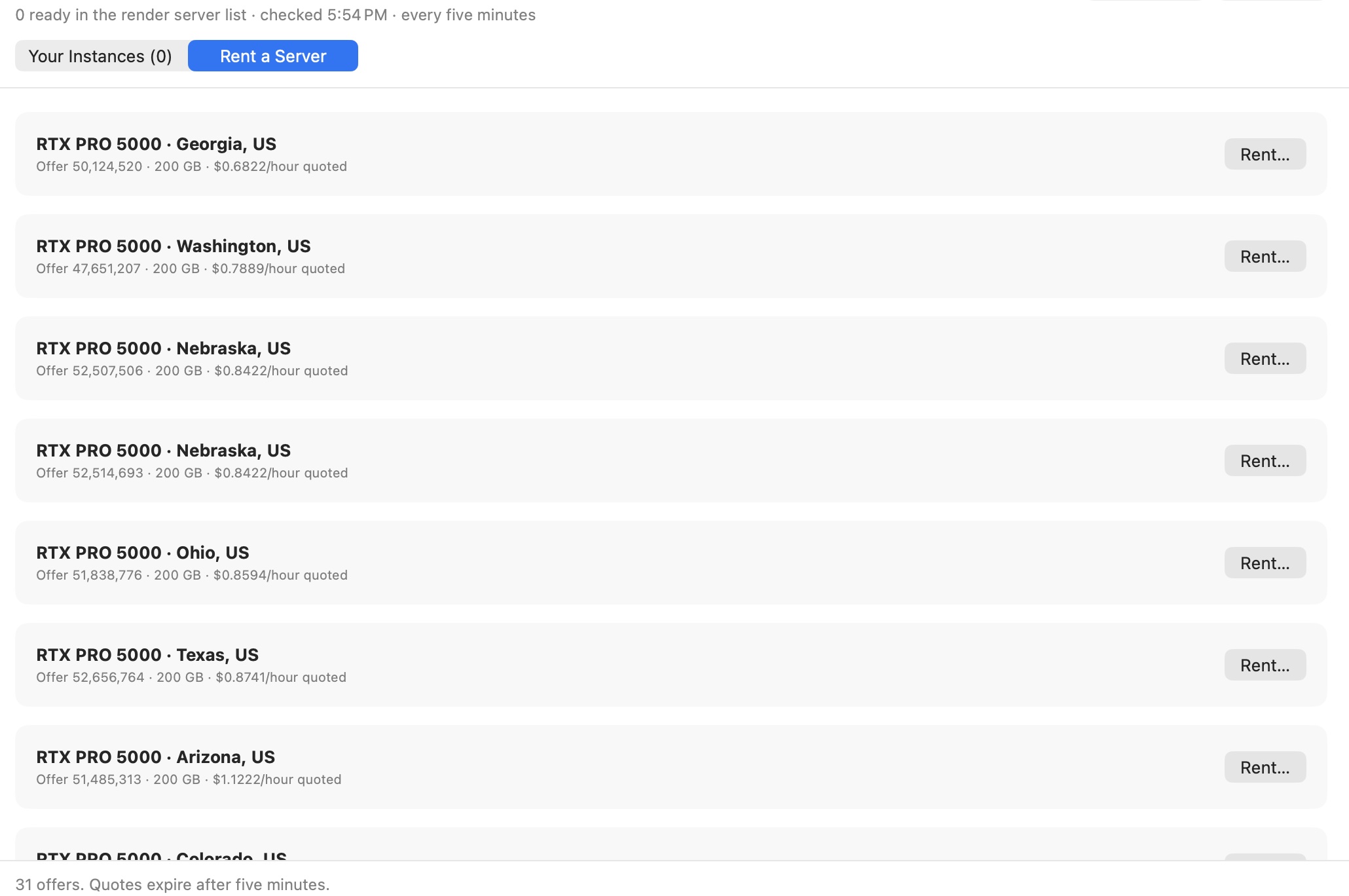
Read the complete quote before confirming. Vast's pricing documentation explains how host-set compute rates combine with storage and bandwidth charges. Use the current offer for your budget.
Name the pool and set its job limit
Use Render pool name to group the servers you want working together. Give the pool a name you will recognize when choosing where to send a batch.
Concurrent jobs per server controls how much work Chapterframe can send to each machine at once. The default is two. It is a limit, not a promise that two jobs finish twice as fast. Jobs share the machine's resources, so watch how your workflow behaves before raising it.
You can select several offers and choose Rent & Set Up Selected. Review the combined hourly quote. Chapterframe tracks the rentals and their setup progress separately, so you can see which machines are preparing and which are ready to work.
The app uploads and starts its server setup automatically. A rental appearing as running in Vast does not yet mean the rendering service is ready. Chapterframe checks the prepared service before admitting it to the ready render pool.
Follow each server through setup and rendering
Watch the setup status when a machine takes longer than expected. Instance cards show recent log lines, and individual refresh controls let you request current details. Check the receipt time on cached information if a refresh has failed.
Once the pool is ready, submit your selected takes and follow their jobs in the render queue. If one job appears stalled, inspect its recorded status before submitting another copy. A disconnected client can lose contact while the remote machine continues working.
For the next batch, compare actual completion times with the first one. More servers can finish independent takes sooner, but they also increase the hourly bill. If you are still editing the remaining prompts, those machines may spend time waiting for you.
Choose an idle limit before you rent
Destroy node after idle hours is recorded for each Mac rental. The default is 0.5 hours, or 30 minutes. A value of zero disables automatic expiry.
The Mac app and native engine must stay running for Chapterframe's automatic cleanup to operate. Active work and unresolved jobs can hold a server past the idle limit while the app tracks their outcome. Check those jobs if a machine remains present longer than expected.
At the end of a session, confirm that the outputs you need have downloaded and review the remaining instances. Deleting a rental removes its remote disk. Stopping an instance still leaves storage charges under Vast's billing rules, so verify that rentals you intend to remove have actually been deleted.
Closing Chapterframe does not end a Vast rental. Check your Vast account as well as the app when you finish, particularly if setup or deletion reported an error.
Try a small render batch
Open a sample chapter in Chapterframe for Mac and inspect its takes before setting up your first render server. Add capacity after you have reviewed the first results.
Your free trial starts when you first open the app and lasts seven days. AI provider, GPU rental and storage charges are separate. After the trial, activate a purchased license to keep creating; otherwise the app becomes read-only.
Choose a sample project or see the purchase pricing and subscription details.