Story adaptation
script to storyboard, AI storyboard from a script
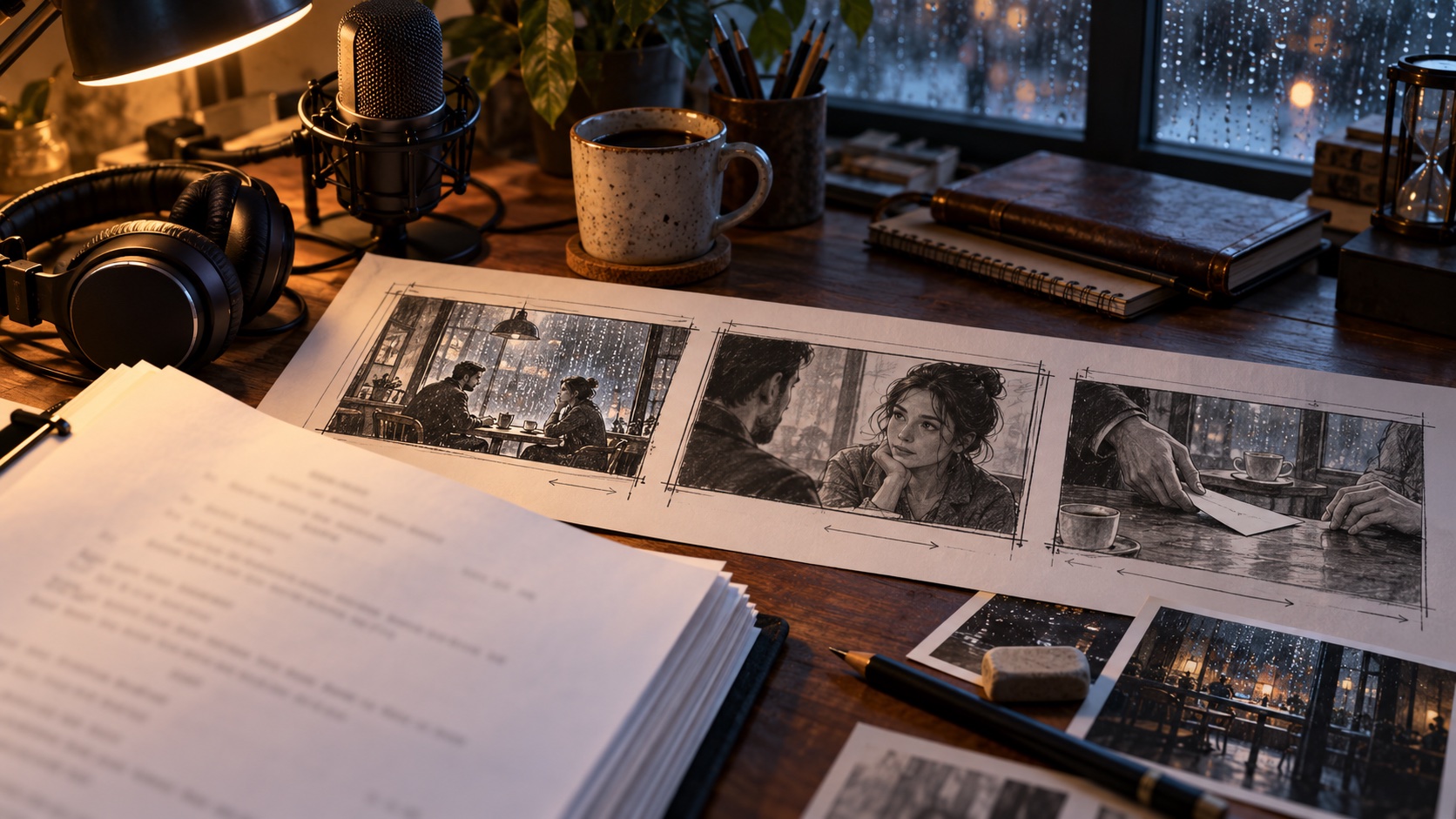
A line such as "I thought you would come" can sound relieved, bitter or almost indifferent. The words on the page leave room for that decision. Once you hear a performance, you have something more specific to build the shot around.
Chapterframe's script-to-storyboard workflow starts by turning the script into audio. That recording becomes the source for chapter processing, where the app develops the characters and divides the performance into timed takes. You then review the character references and build the storyboard around those takes.
Listen to the script before planning the pictures
If you have text and no recording, generate the chapter audio first. Chapterframe can use delivery instructions and optional expression cues to attempt emotion in the reading. Those cues can include a pause or a sigh where the passage supports it.
We do our best to give generated speech emotional expression, but it is not as good as a well-acted recording of the script. An actor can make a line sound reluctant while the words seem confident, or wait just long enough for a reply to feel difficult. Generated delivery can miss that intention even when every word is pronounced correctly.
If you already have an acted recording, use it with the matching script. If you generate the audio, listen through the scene before committing to the pictures. Check whether the delivery fits what the character wants. A line that sounds cheerful in a tense exchange needs attention before you build a close-up around it.
For example, two people meeting in a cafe might exchange only a few words before one puts a letter on the table. A pause in the recording can give that action room. If the reading rushes straight into the next line, the planned action may feel hurried too.
Develop the characters from the source performance
Chapterframe uses the source audio and its timed transcription alongside the supplied text to develop the chapter's character catalog and take plan. Review who is speaking and where narration belongs. A narrator describing someone should not automatically become a person visible in the scene.
The recording provides timing and delivery. The script provides story details, including any stated appearance. Review the proposed character descriptions and fill in visual choices the source leaves open. A voice alone cannot tell you what coat someone wears.
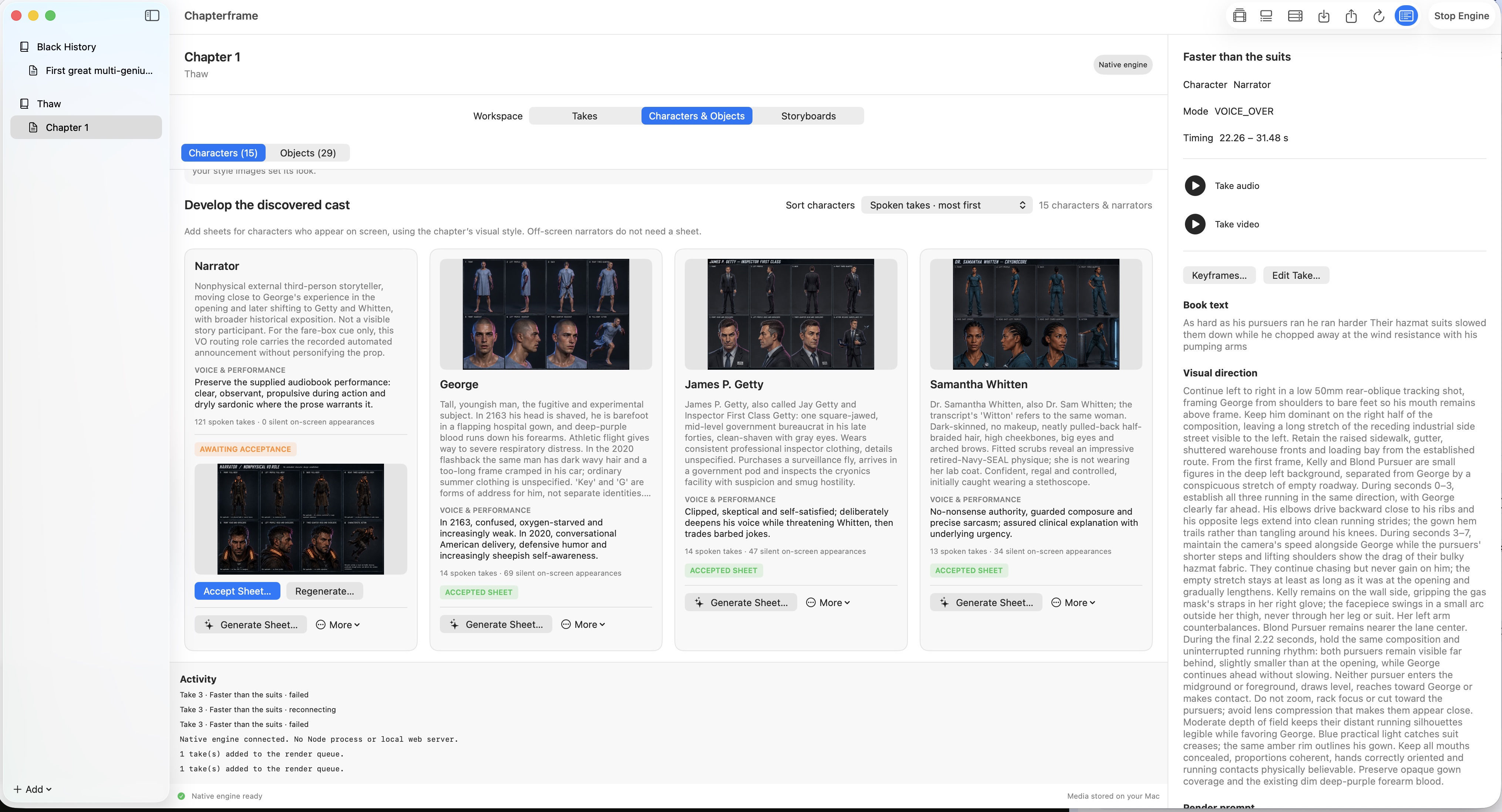
Generate and inspect the character sheets. Compare the views and accept the version you want the relevant takes to use. If one of the cafe characters has a distinctive jacket, check that it is consistent across the sheet. Our character consistency guide covers this review in more detail.
Turn the recording into shots you can judge
Listen to the extracted take audio. Correct a boundary if it clips the start of a word or carries a reply into the wrong take. The storyboard needs to fit the actual duration of the performance.
Then decide what the viewer should see during each passage. In the cafe scene, you could show the speaker delivering the line or hold on the listener as they recognize the letter. Those choices reveal different information. Write the action and camera direction for the version you want to try.
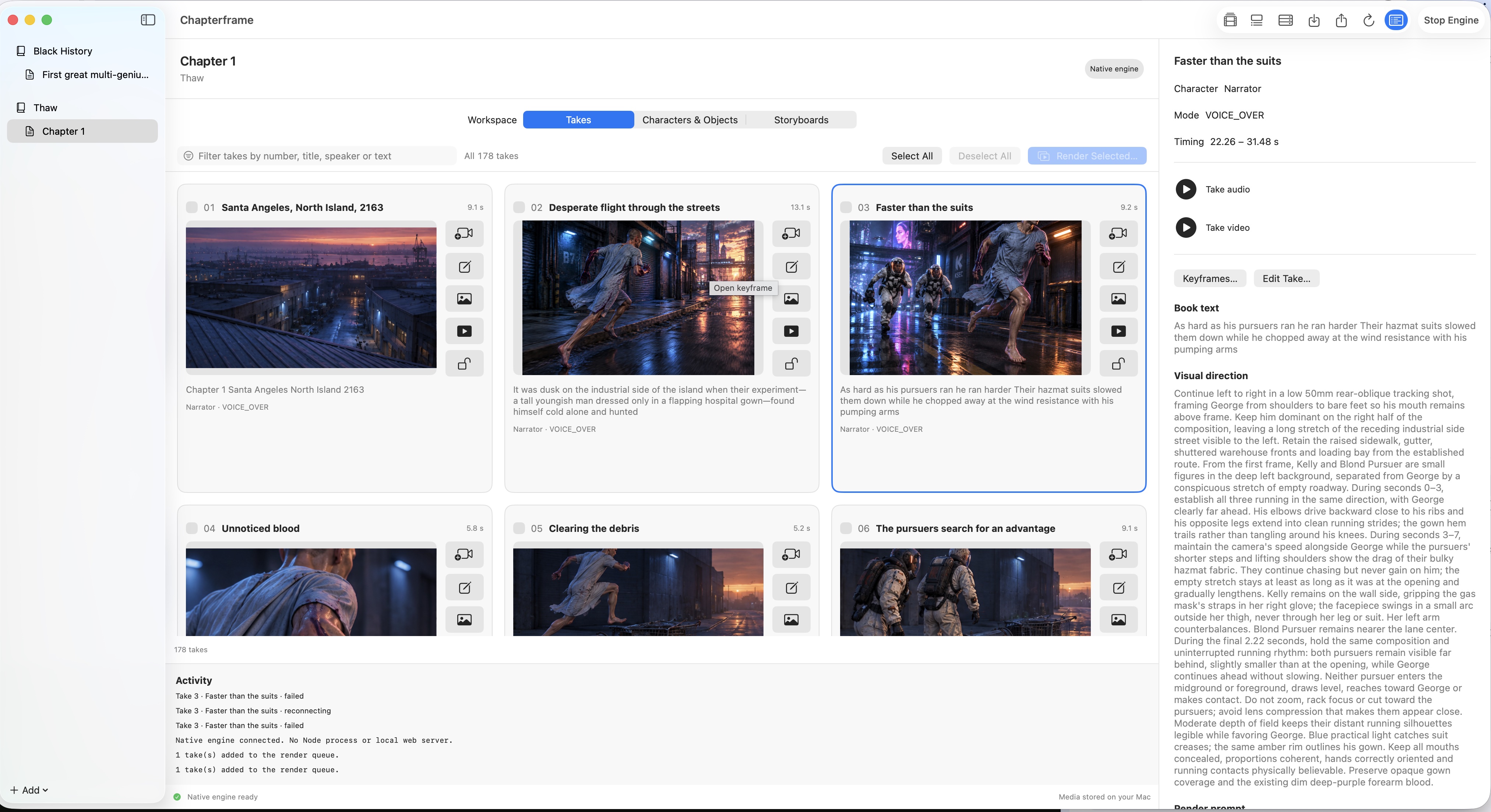
Keep the direction achievable within the take. A short reply may leave time for one glance. Asking for an entrance followed by a long walk and a prop exchange within that same interval gives the renderer too much to fit.
Read the storyboard as a sequence
Chapterframe can generate storyboard sheets for groups of takes and extract panels as keyframes for review. Check how the images work together before accepting them. A good-looking panel can still place the letter in the wrong hand or reveal its contents too early.
Adobe's introduction to storyboarding explains how drawings and shot choices communicate a scene before production. Use that same test here: can you follow the exchange from one panel to the next?
Play the audio while reviewing the pictures in order. Does the listener react before hearing the news? Does the letter reach the table during the pause? Fix the timing or direction where the sequence disagrees with the performance.
Use Stage when a picture leaves movement unresolved
A still frame may show the letter on the table without explaining how it got there. Chapterframe Stage lets you rehearse positions and camera views with simplified 3D figures and set pieces.
Place the characters around the table and inspect the planned view for the exchange. Check whether a shoulder hides the action, or whether the next angle makes the characters appear to swap seats.
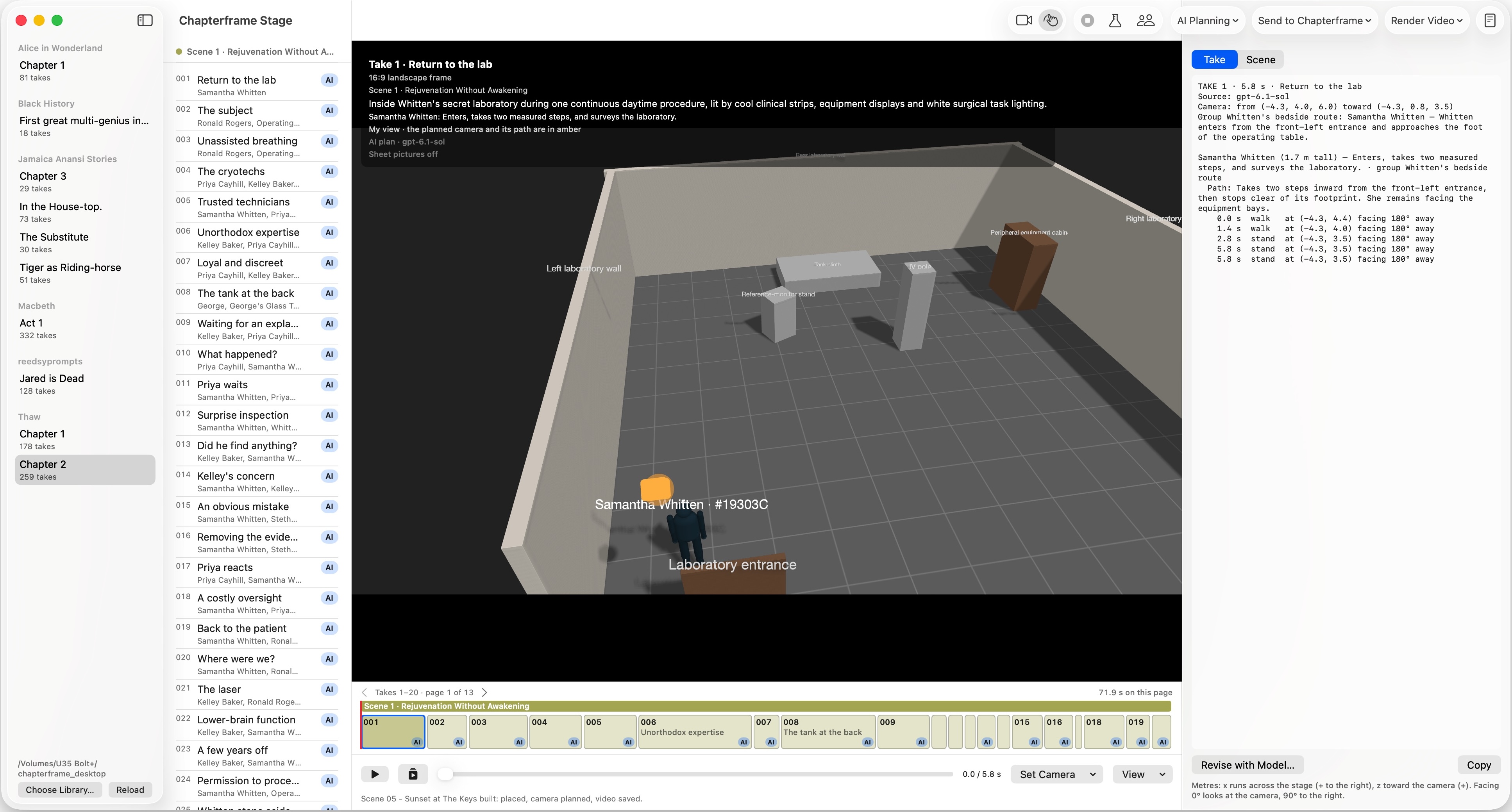
You can plan across a chapter and then spend more time on one scene or take. Once the storyboard and audio work together, render a short sequence and watch it with sound. Keep the takes that work and revise the moments that need another attempt.
Try a scene from your script
Download Chapterframe for Mac to work through the audio, character references and planned takes. Chapterframe Stage is included.
Your free trial starts when you first open the app and lasts seven days. AI provider, GPU rental and storage charges are separate. After the trial, activate a purchased license to keep creating; otherwise the app becomes read-only.
Open a sample project to explore an existing chapter, or see the purchase pricing and subscription details.