add ai generated audio to video
add ai generated audio to video: the last check should happen on the exported file. Chapterframe lets you choose the export’s audio source so you can check that the intended soundtrack survives. Playback inside an app can use different audio choices from the export, so a scene that sounds right during review may lose its effects if you select only the original recording. Export two or three takes first and listen across their cuts.
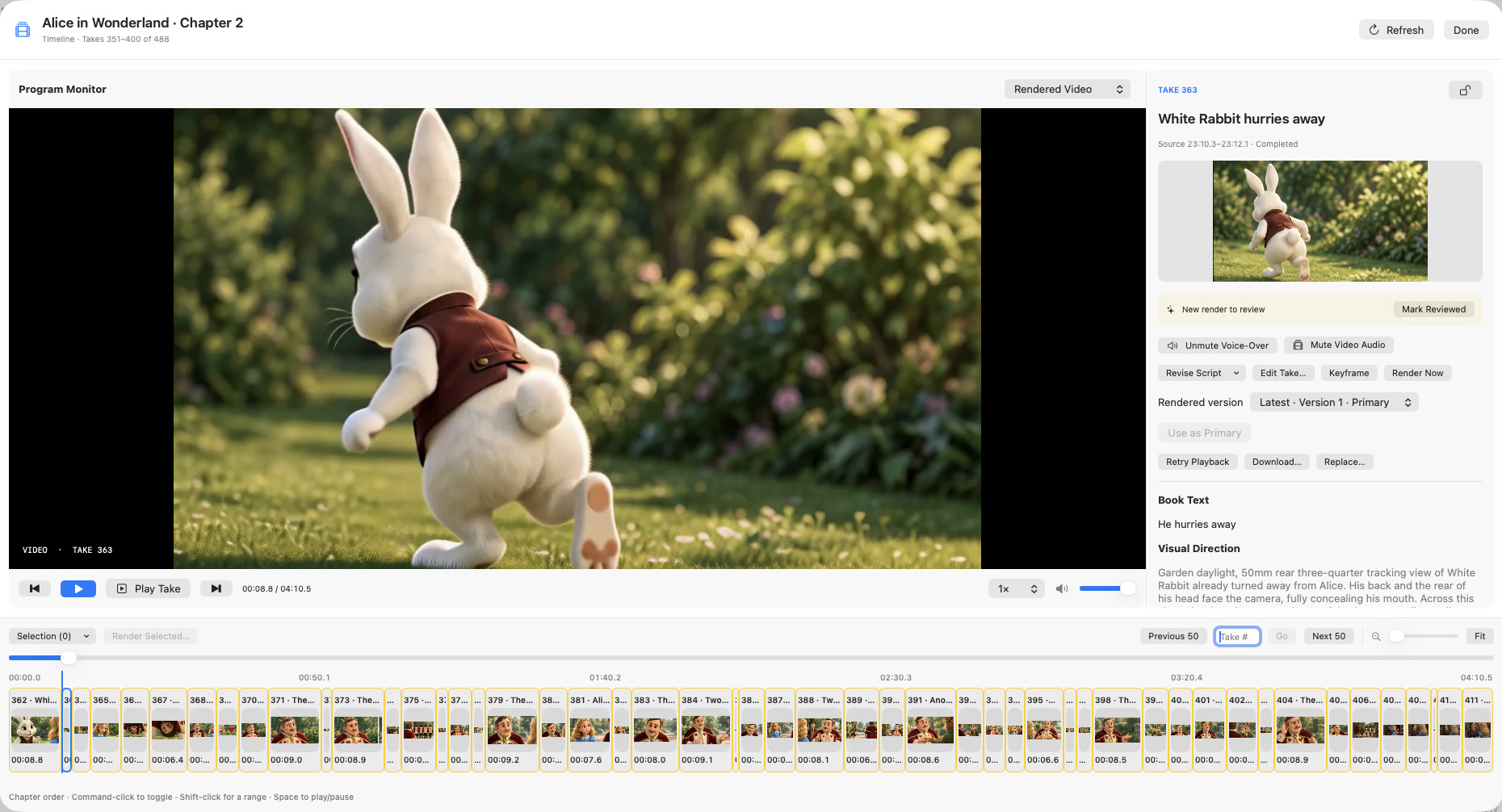
Chapterframe supports generated narration during chapter preparation and optional sound cues for compatible video renders. For Standard export, choose the audio source intentionally: Video audio uses encoded sound with fallback for missing or silent tracks, while Original audio uses the current take recording. The export lesson explains the choice. Keep that short test MP4 as your reference before exporting the complete chapter.