Scene planning
3D previsualization for AI filmmaking, AI video camera control
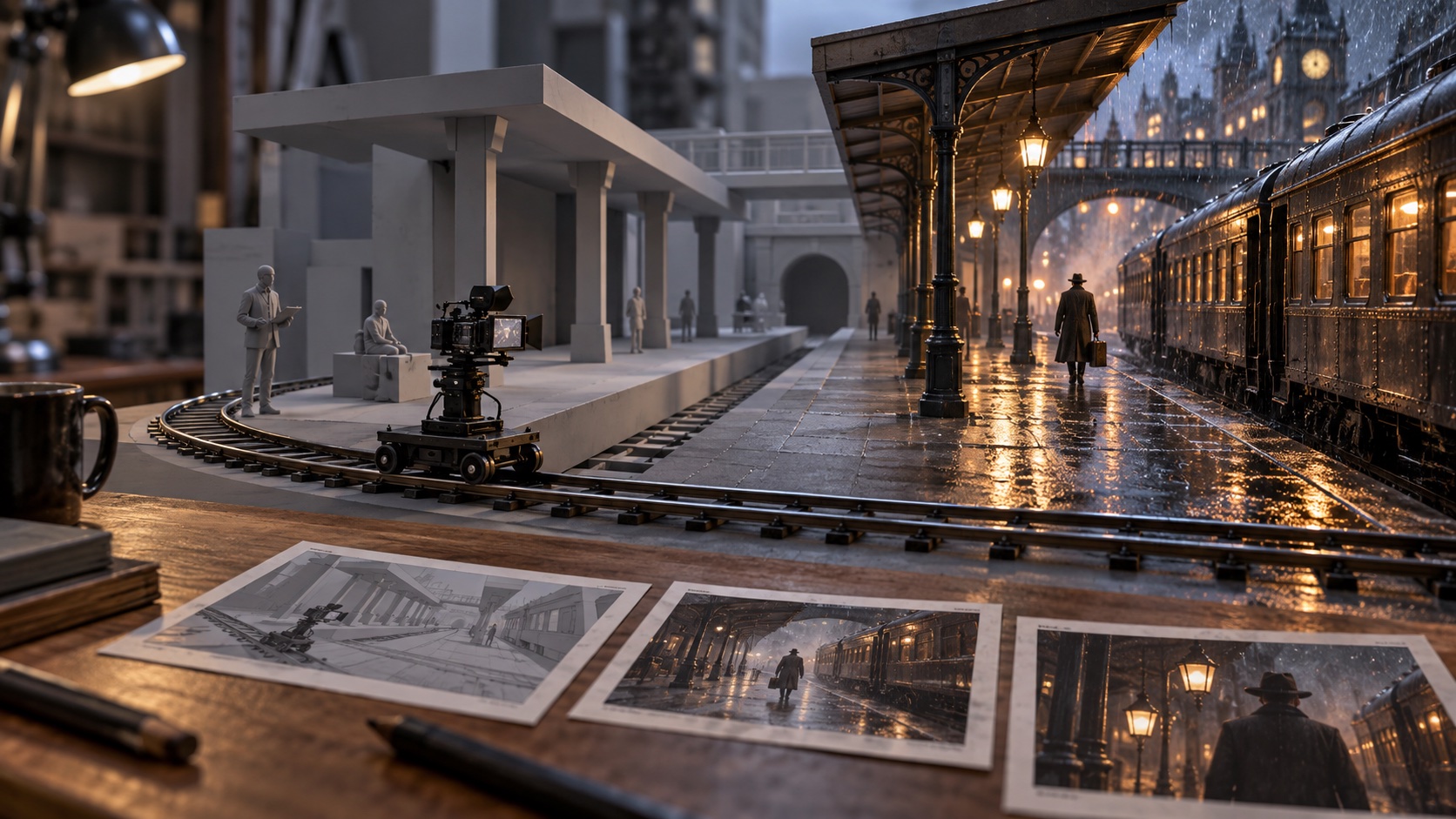
A traveler walks behind a column as the camera follows along a platform. For a moment, the column hides them. When they reappear, the camera needs to be in the right place to catch their reaction. Describing that shot in words leaves several decisions for the video model to make.
Chapterframe Stage lets you work out the shot in 3D before asking for finished video. You can use the scene to create storyboard keyframes, or generate a 3D reference video and use that to guide the final render. The choice depends on what needs to stay controlled during the take.
Start with the storyboard approach
Try the storyboard route first. Arrange the scene in Stage and inspect the camera view. If your main concern is who appears in the frame and where they stand, a good keyframe may give the renderer enough guidance.
When sending the takes to Chapterframe, choose Keyframes Only. Chapterframe makes keyframes from the 3D scenes, and those takes render in storyboard mode. The 3D video is not used to constrain their movement.
This is a useful starting point for a seated conversation or a view of someone waiting at a doorway. You can establish the composition and let the video model develop the small movements within it. Review the result before deciding that the shot needs a more detailed motion plan.
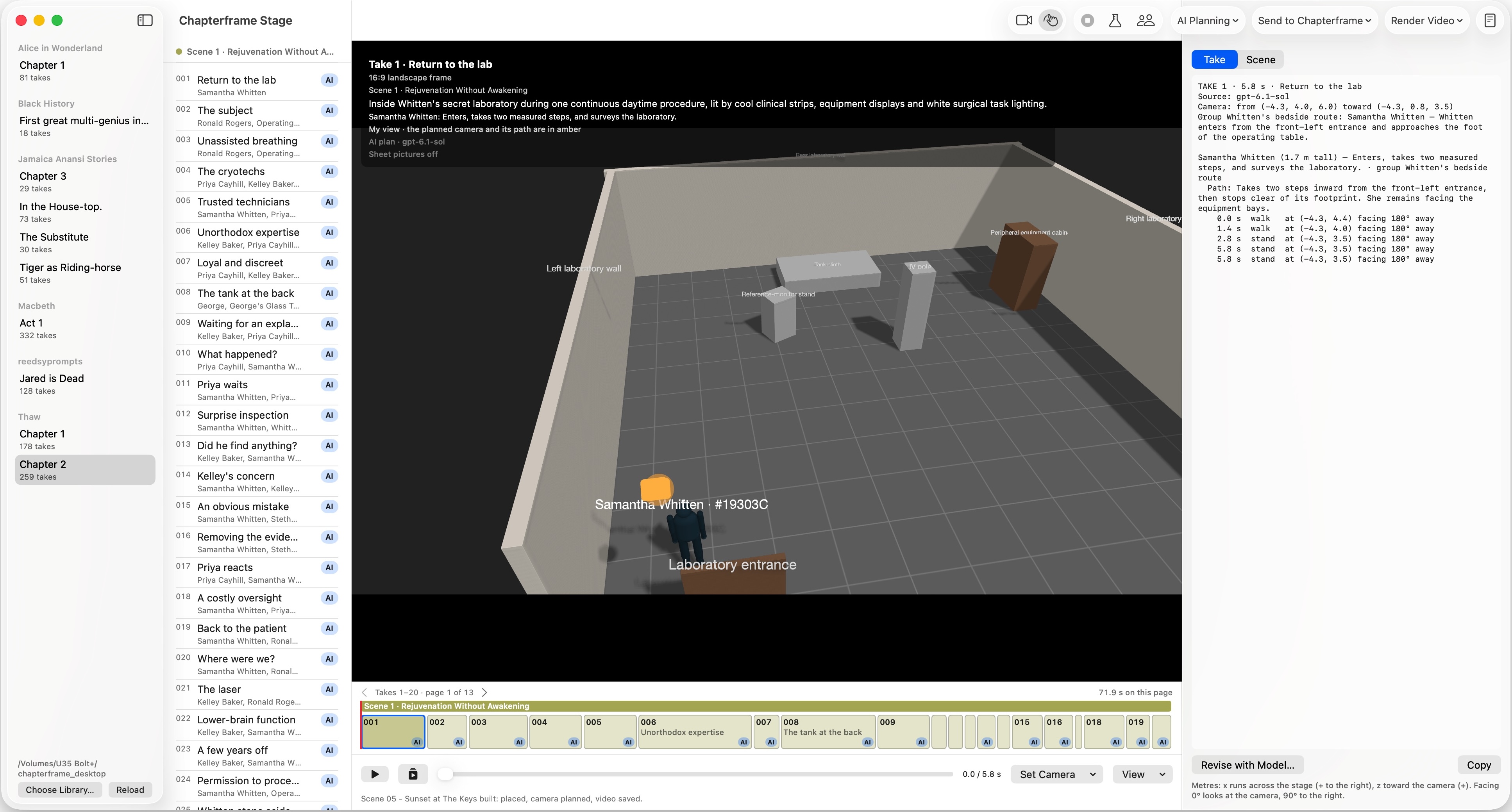
A storyboard can also expose a basic mistake before any video is made. If the doorway is behind the camera, an entrance described in the prompt may never be visible. Move the camera or change the staging, then check the new frame.
Use a 3D video when the movement needs more direction
Return to the platform shot. The opening frame cannot show how long the traveler stays behind the column, or where the camera should be when they emerge. Rehearse that movement in Stage and watch the take through its full duration.
Choose Keyframes and 3D Video when publishing. Stage renders the 3D reference video and opening still on your Mac. Chapterframe then uses the keyframes and the 3D video in its supported 3D rendering workflow, giving the final generation a moving reference for the staging and camera.
The local 3D reference is planning material. The subsequent AI keyframe and final video generation are separate steps with provider or GPU costs. Review the cost shown before generating keyframes, and check your render setup before submitting a batch.
Watch the final result against the rehearsal. The reference gives the model more information about the intended motion, but the finished generation still needs inspection. Check the moment of the reveal and whether the camera follows the route you planned.
Let the scene determine how far you go
A close-up of someone listening may work well from a storyboard keyframe. If their head movement is unimportant to the story, refining a complete 3D performance could add work without resolving a problem you actually have.
A scene with two people crossing paths asks more of the staging. You may need one person to pass in front of the other at a particular moment. A moving 3D reference gives you a way to plan that relationship over time.
Camera movement can create the same need. A slow reveal around a corner depends on when something enters the frame. Inspect that timing in Stage. If the shot would work just as well from a fixed position, try the simpler composition too.
For background on this kind of planning, Epic's introduction to virtual production discusses previsualization and virtual camera work. Chapterframe Stage applies 3D planning to its own take-based workflow.
Adjust a take without rebuilding the chapter
You can begin with a chapter's scene plan, review each scene, then spend more time on the takes that need it. A conversation and the camera move that follows it can use different rendering approaches.
In Chapterframe, Tools → Render from lets you switch takes between storyboard and 3D rendering. A take needs a usable 3D scene for the 3D route; takes without one remain storyboard-based. Locked takes are left alone.
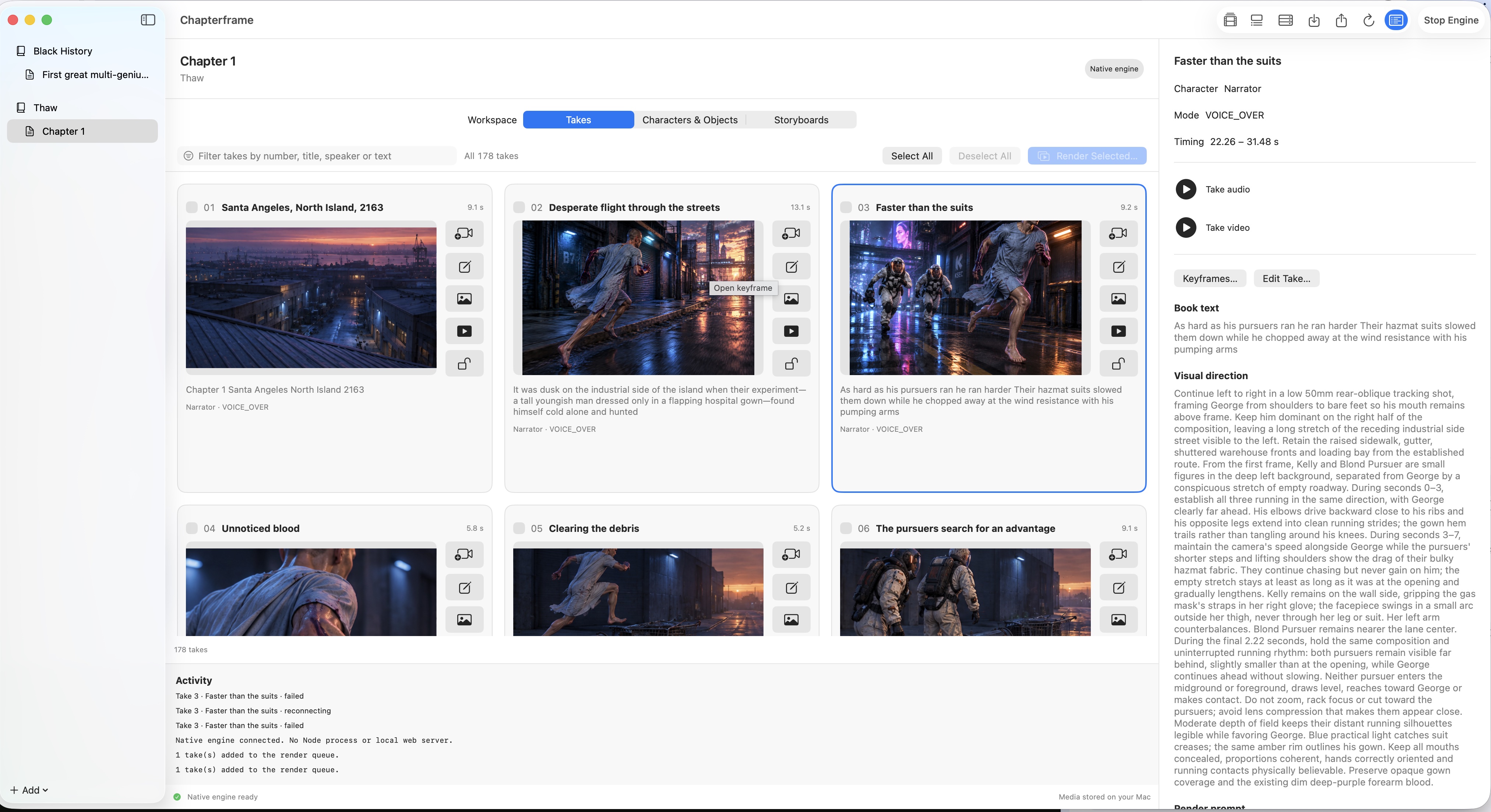
If a storyboard-based render already works, keep it. If the next take repeatedly loses the camera move, develop that take in Stage and try the 3D video route. After changing it, watch the joins with the neighboring shots. The viewer needs to understand where the camera went between them.
Keep appearance references alongside the staging
A 3D plan helps establish where a character is and how they move. Their appearance still needs attention in the generated keyframe and video. Review the character sheets and object references attached to the take, especially when changing the rendering approach.
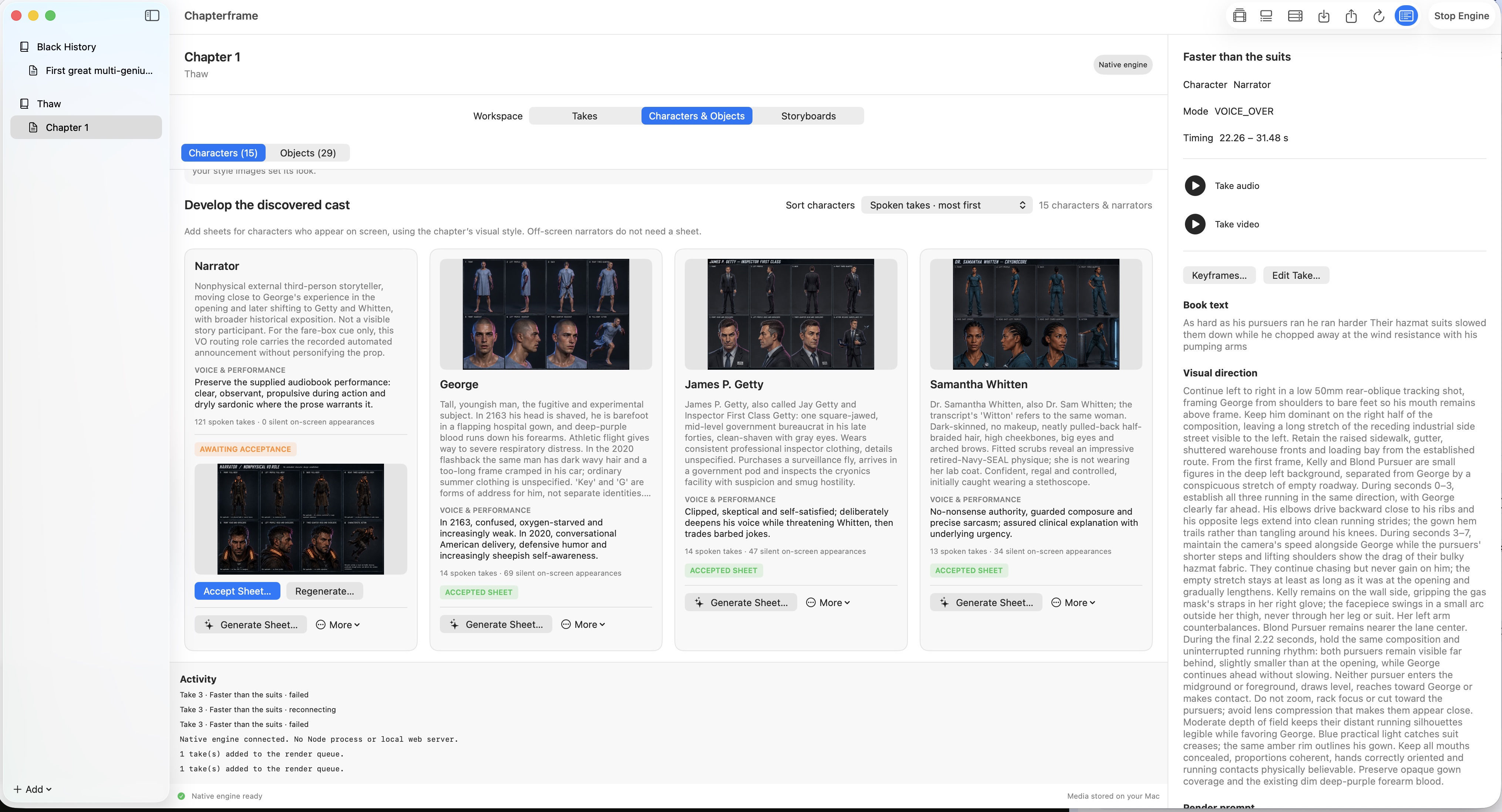
Check both kinds of information in the result. The traveler might follow the planned path while wearing the wrong coat. Or the appearance may match while the camera reveals their face too early. Identify which part failed before changing the input.
Our script-to-storyboard guide covers preparing the audio and characters before this stage. For a longer project, the full-length movie guide explains reviewing those choices across chapters.
Try both routes on a short scene
Chapterframe Stage is included with Chapterframe for Mac. Start with storyboard keyframes, review the result, then use a 3D reference video for a take that needs closer control.
Your free trial starts when you first open the app and lasts seven days. AI provider, GPU rental and storage charges are separate. After the trial, activate a purchased license to keep creating; otherwise the app becomes read-only.
Choose a sample project or see the purchase pricing and subscription details.