Mac filmmaking
AI filmmaking software for Mac, AI movie maker for Mac

After rendering several versions of a shot, you need to know which one belongs in the film. Keeping the selected version beside its direction and audio makes the next review easier, especially when you return to a chapter after a few days.
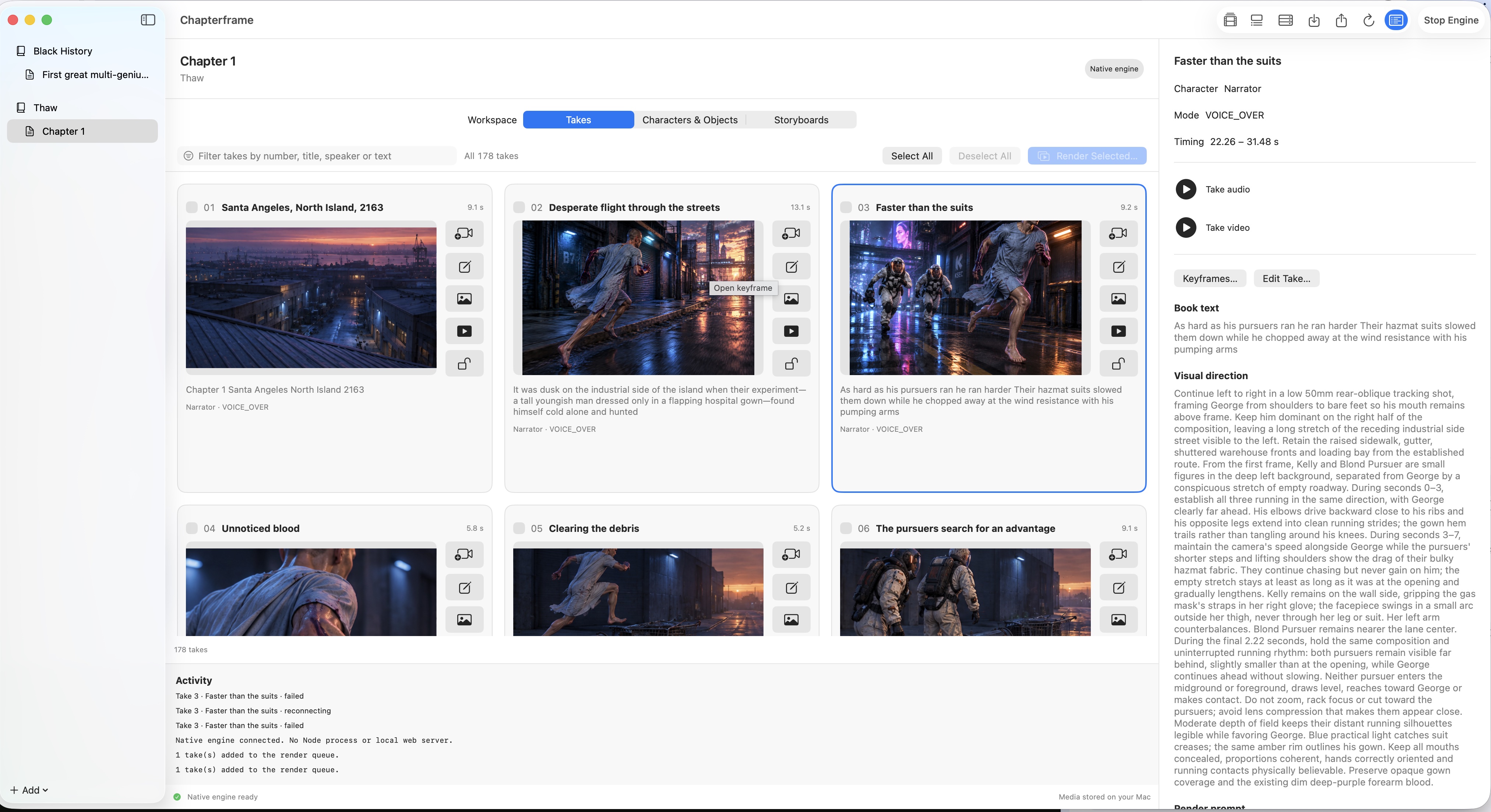
Chapterframe for Mac organizes that work by book and chapter. Each take holds the instructions and media for a shot, and the timeline lets you watch the selected renders in sequence.
What runs on your Mac?
Chapterframe is a native app for Macs with Apple silicon or Intel processors running macOS 15 or later. Its local library uses built-in SQLite, so you do not need to install a database server. You choose a folder for your project media.
You choose the providers and servers that generate your media. Cloud services receive the material needed for their tasks, and rented GPU servers process the renders you send them. Check the setup for the workflow you intend to use before starting a large project.
Connect the provider accounts you intend to use in Settings. Their usage charges are separate from the Chapterframe license.
Start with material you can review
You can begin with chapter text and a matching recording, work on a script and take plan, or import a prepared chapter ZIP. For a first attempt, choose a short scene with a clear action. A person entering a room and delivering a message gives you an entrance to stage and dialogue to time.
Review the planned takes before rendering. If the message is meant to surprise someone, make sure the preceding shot has not already revealed it. If you are using a recording, listen to the take audio and correct boundaries that cut into speech.
The take workspace lets you inspect the words and visual instructions together. You can change the direction of a single shot without rewriting the entire chapter. Our audiobook guide follows the recording-based workflow; the novel adaptation guide covers decisions about scripts and scenes.
Check what survives from one shot to the next
Compare two consecutive shots of the same person. Check the face and jacket, then watch the cut to see whether the person appears to be looking toward the other speaker.
Chapterframe's character and object references give generation a visual starting point. Link the reference sheets to the relevant takes. Inspect the generated keyframes for changes in appearance before making video.
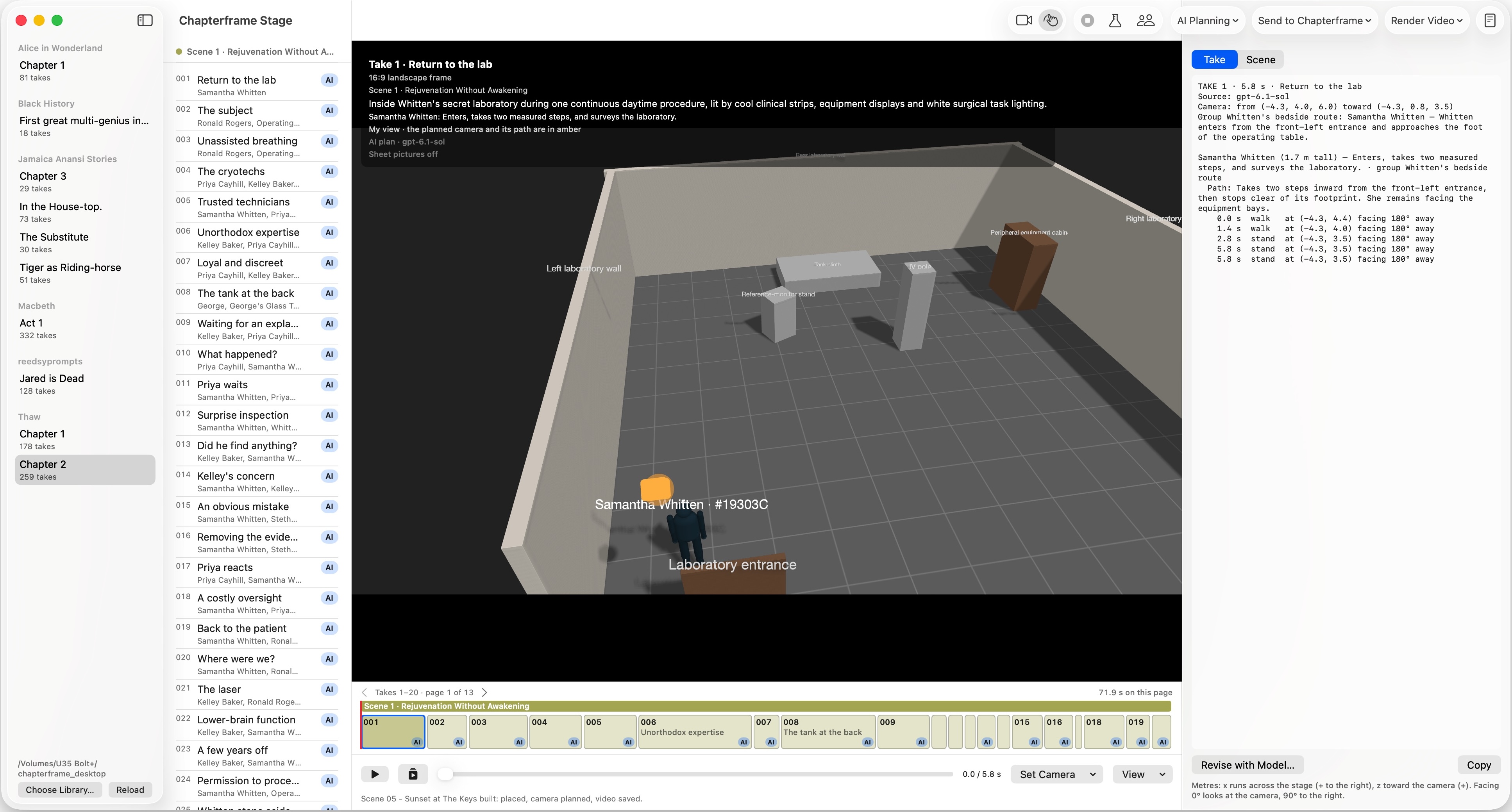
For questions about positions and movement, open Chapterframe Stage. The companion app uses simplified 3D figures and sets to plan where things go and what the camera sees. If an entrance is hard to follow, inspect the camera and movement for that take.
Choose how the video gets rendered
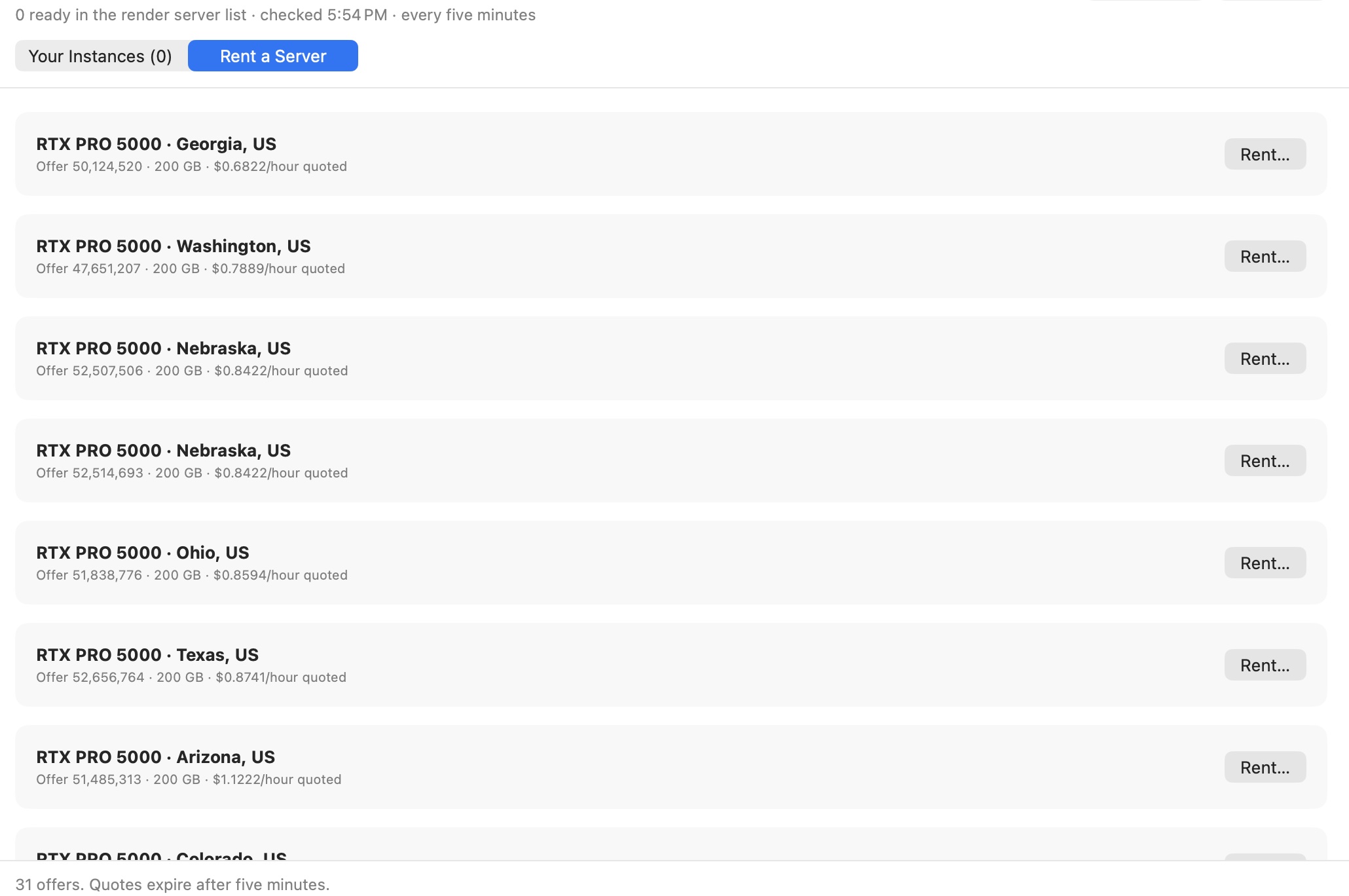
Chapterframe can manage compatible render servers and Vast GPU rentals. The rental browser lists server offers. Once rented and ready, servers can work together in a render pool. The queue gives you a place to follow the work you have submitted.
Start with a small batch. Record how long the batch takes and how many renders you keep. Include the rejected renders when estimating the cost of finishing the chapter. A scene with difficult movement can require more revision than a quiet conversation.
Look at the hourly quote before renting, and check idle settings and running instances when you finish. Use the cost calculator to explore the effect of different assumptions. Check the rental browser for current offers; the screenshot below shows an earlier session.
Review the scene before moving on
Watch consecutive takes with the audio. A shot that looks good by itself may run too long in context, or repeat information the previous shot already gave the audience. Keep the versions that work and render selected takes again where you need a change.
Listen to the effects beneath the voice as well. If a sound distracts from a line, adjust it before assembling the output. You can spend more time on a difficult moment and move quickly through parts of the chapter that are already working.
Keep backups of the library and media folder as the project grows. Use chapter exports for transfers, and back up the library and media separately.
Try a scene on your Mac
Download Chapterframe and open a sample chapter to inspect the takes, references and render workflow. Chapterframe Stage is included.
Your free trial starts at first launch and lasts seven days. AI provider, GPU rental and storage charges are separate. After the trial, activate a purchased license to keep creating; otherwise the app becomes read-only.
Choose a sample project or check the Mac requirements and purchase pricing and subscription details.