Story adaptation
play to movie, turn a stage play into a film
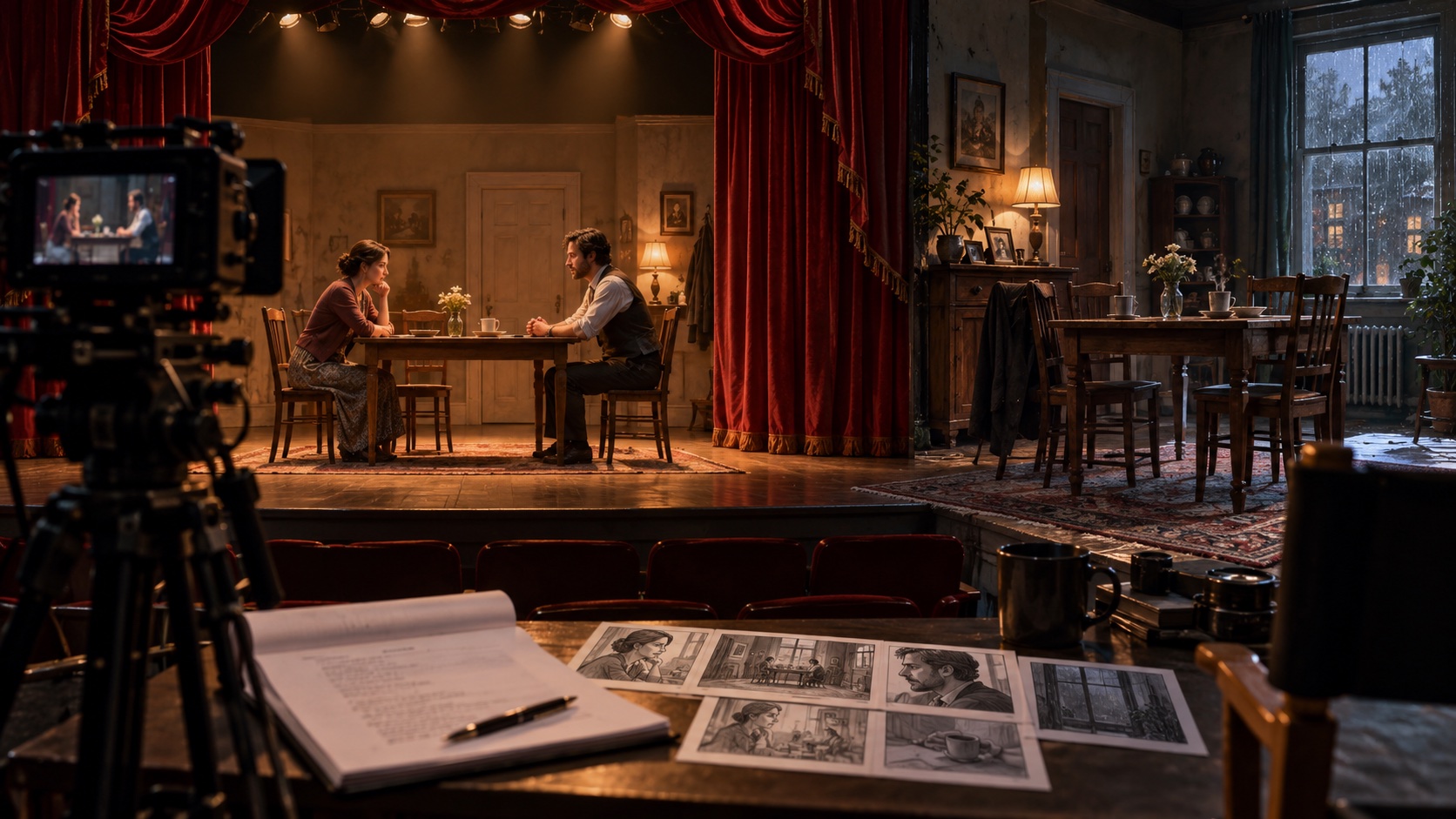
Two people sit at a table. One asks a question; the other takes a long time to answer. In a theatre, the audience can watch either person. In a film, you can hold on the listener, show a hand tightening around a glass, or stay wide enough to keep both people visible.
When you turn a stage play into a film, each shot makes a decision about where the audience looks. Chapterframe gives you a take-by-take workspace for those decisions, with the dialogue audio and visual direction beside the images you generate.
Choose how the play should feel on screen
You might want a film that keeps the intimacy of a single room. You might want to show places the characters only describe on stage. Decide what those changes would do to the scene before adding locations.
If a character reports hearing a struggle outside, showing the struggle answers questions that the play may deliberately leave open. Staying inside with the listeners can keep the uncertainty. Choose the version that serves the exchange you want the audience to follow.
For adaptations to explore, the BFI's Shakespeare on Film collection brings together screen versions of the plays. Watch how a scene uses framing and performance, then consider which choices would suit your own material.
Build from the dialogue performance
If you have an acted recording, bring it into Chapterframe with matching text. Listen for the pauses and interruptions that shape the exchange. A hesitation can tell you where to hold a shot; a sudden reply can change when you want to cut.
If you are starting with a script alone, Chapterframe can generate audio first. That recording becomes the source for processing the chapter into characters and timed takes. Generated speech can attempt emotion through delivery instructions and expression cues, but it does not match a well-acted recording of the play.
Listen before moving on to images. In the table scene, a polite reply might conceal anger. If the generated voice sounds warmly sincere, the scene has already changed. Correct the performance or use an acted reading before planning pictures around it.
Review which text is spoken. A character name or a direction such as "she crosses to the window" belongs in the planning material unless you deliberately want it read aloud. The script-to-storyboard guide follows the audio-first workflow in more detail.
Translate stage directions into visible action
A direction that works for a theatre company may leave the film camera unresolved. "He turns away" tells the actor what to do. For the shot, decide whether the audience should still see his face and whether the other character notices.
Write that choice into the take's visual direction. For example, he could turn toward the window while the camera stays beside the table, leaving the listener in the foreground. Check whether the action fits the duration of the recorded line.
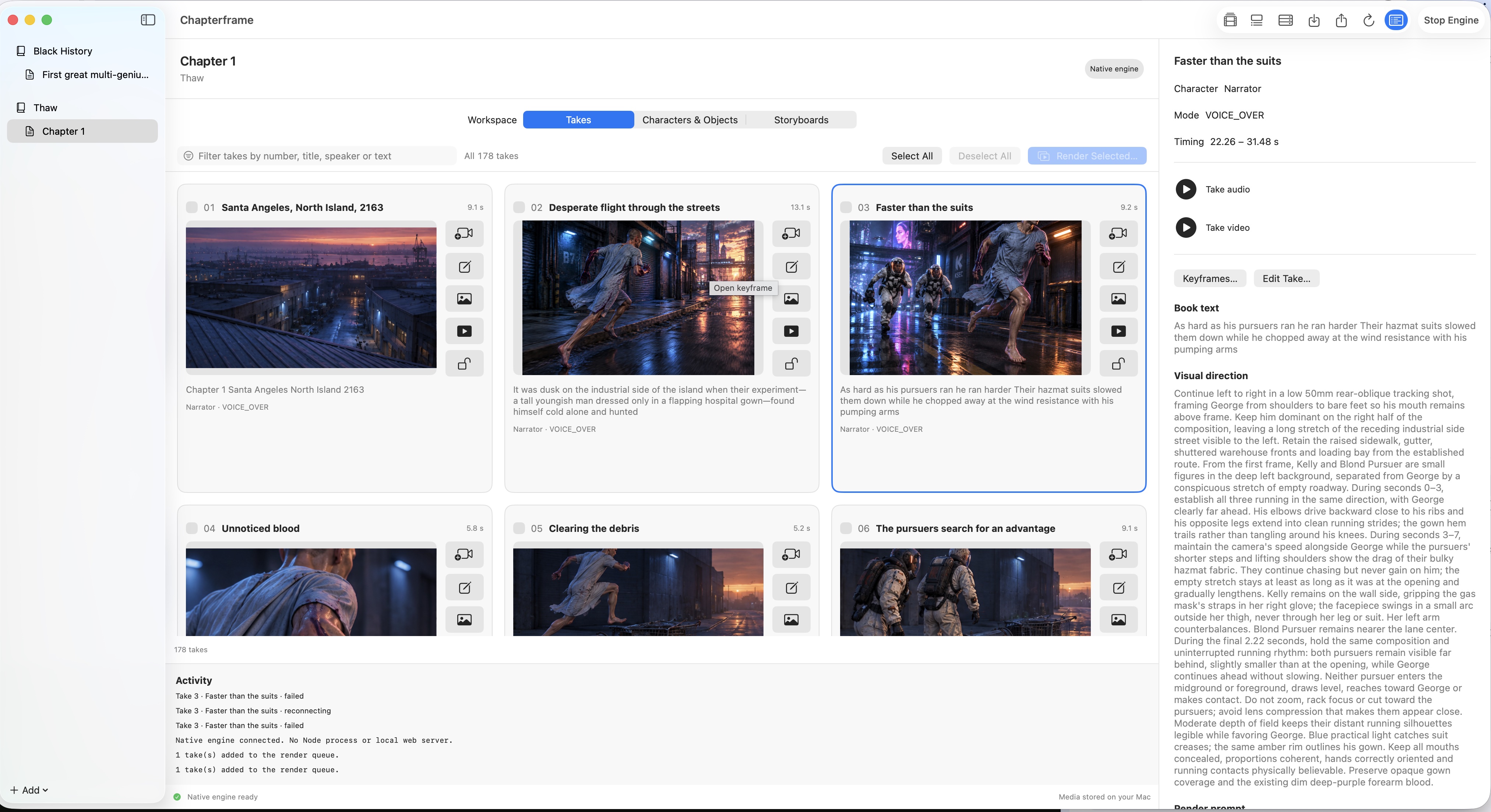
Check the speaker assigned to each take. Keep narration separate from visible speech, and review characters who appear silently. Someone listening at the table may belong in the image even though they have no line in that passage.
Settle the cast and the room
A play may describe someone mainly through what they say. A close-up needs visual choices too. Develop the character descriptions and inspect the reference sheets before using them throughout the scene.
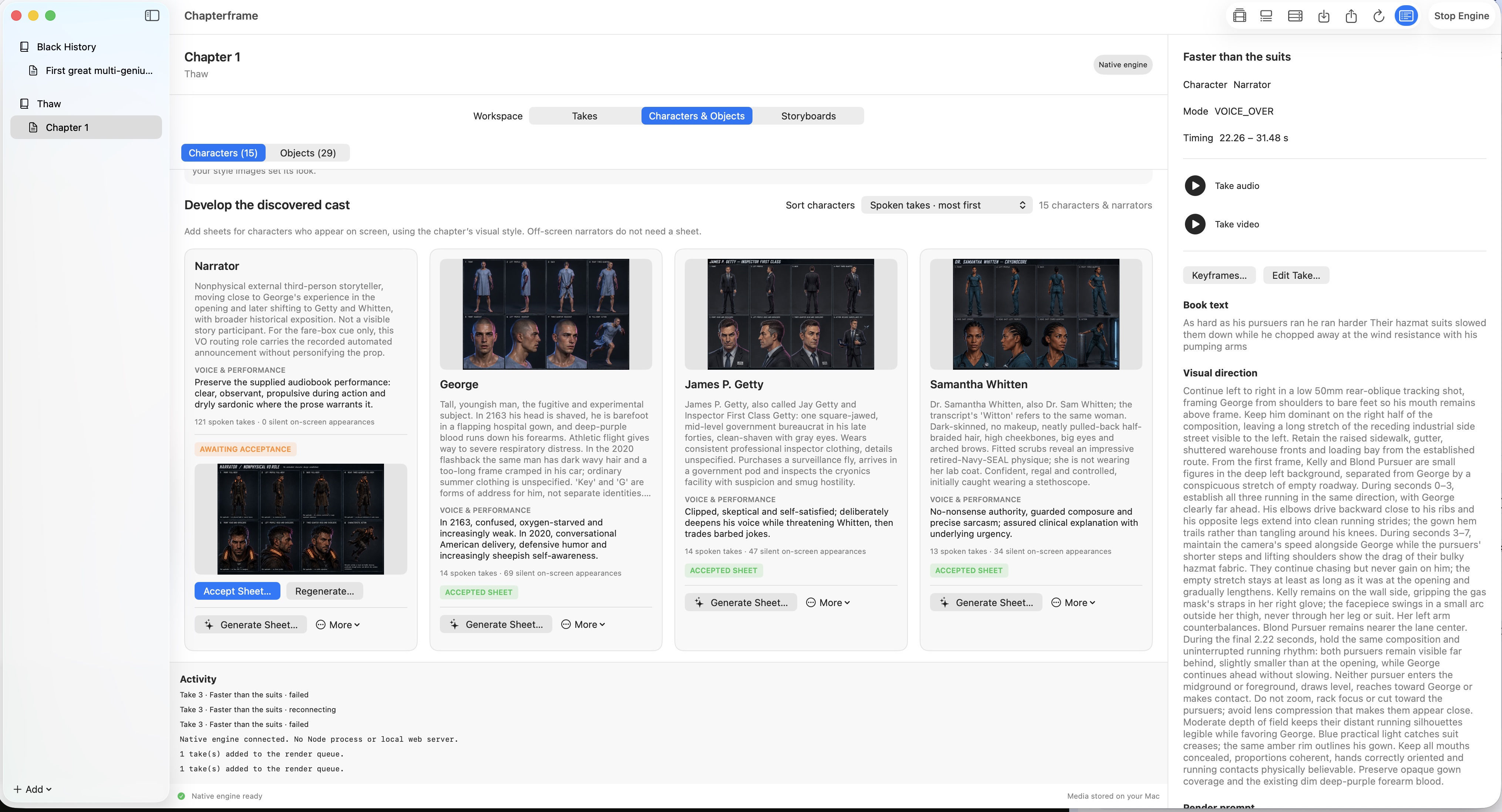
Keep track of objects that carry the action. If someone removes a ring during an argument, it should remain off their hand afterward. Link the relevant object references to the takes and check the generated images. A reference gives the model guidance; the finished shot still needs review.
Establish where the doors and furniture are before making several angles of the same room. The audience needs to understand an entrance even when the camera is facing a different direction.
Rehearse the difficult moments in Stage
Chapterframe Stage lets you inspect the room with simplified 3D figures and set pieces. Place the two characters around the table and look through the planned camera. Check what happens when one stands up or moves toward the door.
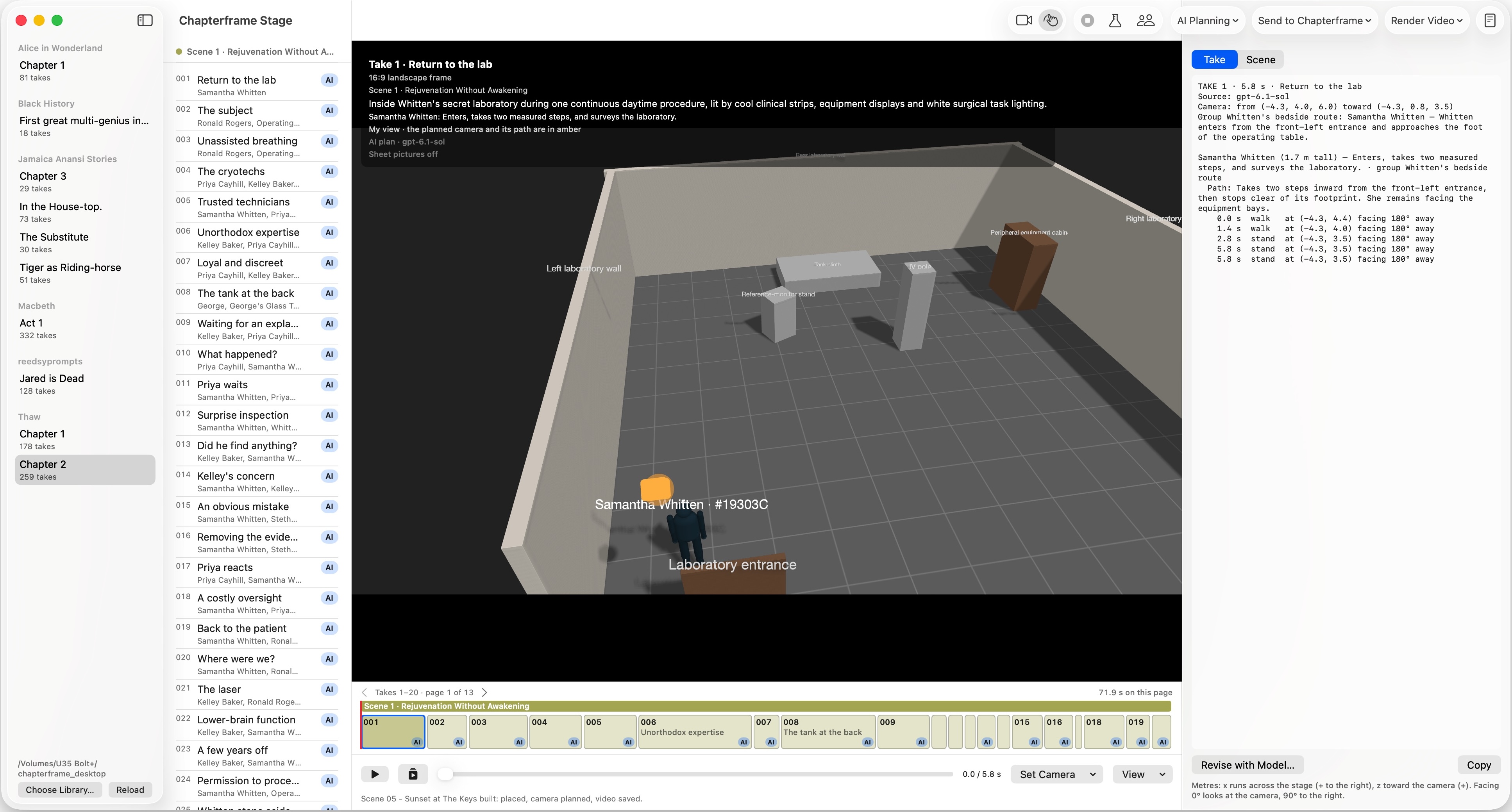
Try publishing keyframes for the storyboard approach first. A seated exchange may need little more. If the scene depends on someone crossing behind another person at a precise moment, develop that take's movement and publish the 3D video as well. The Stage workflow guide explains both routes.
Watch the exchange before rendering an act
Render a short sequence and listen to the dialogue as you watch. Check whether a cut interrupts a pause that should feel uncomfortable. A reaction shot can give the audience something to read, but cutting to it too early may explain a feeling the performance is still withholding.
Keep the takes that work and revise the ones that change the meaning of the scene. Chapterframe lets you render selected takes and compare earlier versions. Review each replacement with its neighbors.
Once the exchange works, continue through the act. Watch the assembled sequence again before export. A scene that held your attention in isolation may need a shorter opening after the scene that precedes it.
Try one scene from your play
Download Chapterframe for Mac and work through a short exchange, from its audio to the planned shots. Chapterframe Stage is included.
Your free trial starts when you first open the app and lasts seven days. AI provider, GPU rental and storage charges are separate. After the trial, activate a purchased license to keep creating; otherwise the app becomes read-only.
Open a sample project to explore the workflow, or see the purchase pricing and subscription details.