In the app’s walkthrough: Welcome · Your library · Your next step
Before you begin
Install Chapterframe on a supported Mac. Have enough free space for the sample download and extracted media. A trial or active license is needed to import and edit.
Open a chapter and inspect a take
51 seconds · Screen recording · Captioned · No audio
Recorded in the Chapterframe Mac app on October 16, 2026. Each step’s instructions appear below the picture. Nothing in these recordings starts a paid job. Labels may vary by build.
Read the video steps and view the images
Choose a chapter
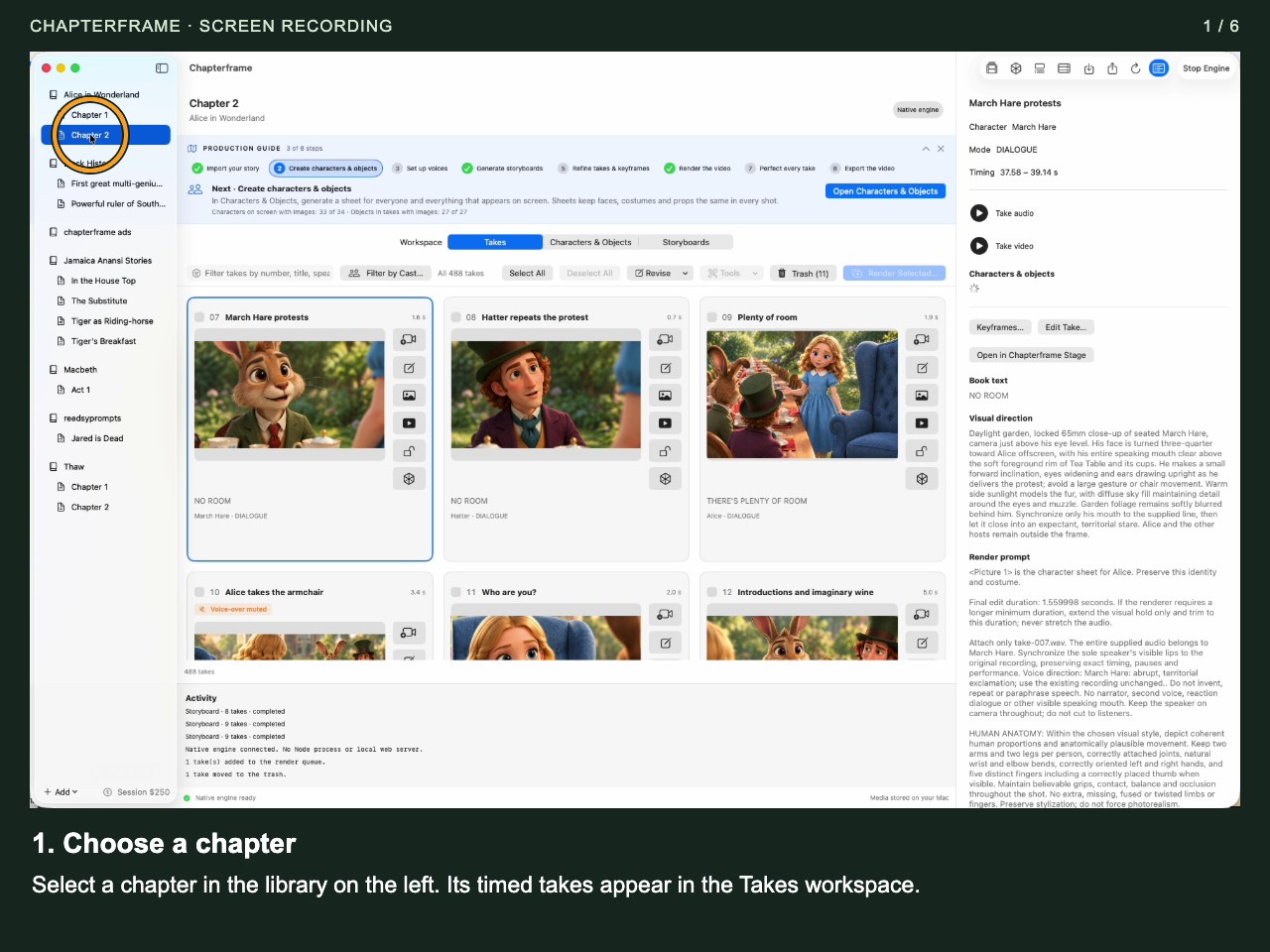
Select a chapter in the library on the left. Its timed takes appear in the Takes workspace.
 Open image full size ↗
Read the next step
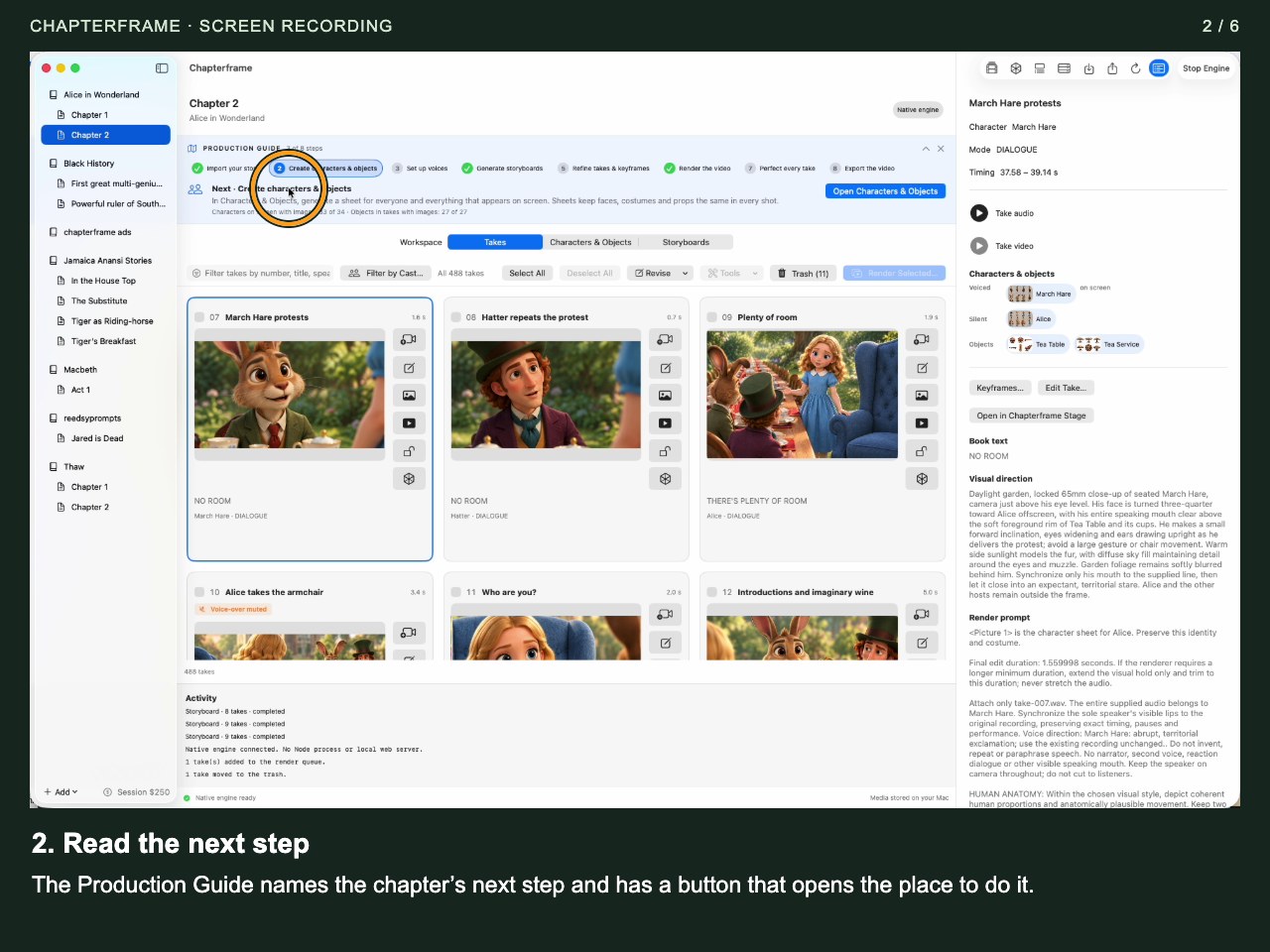
The Production Guide names the chapter’s next step and has a button that opens the place to do it.
 Open image full size ↗
Open one take
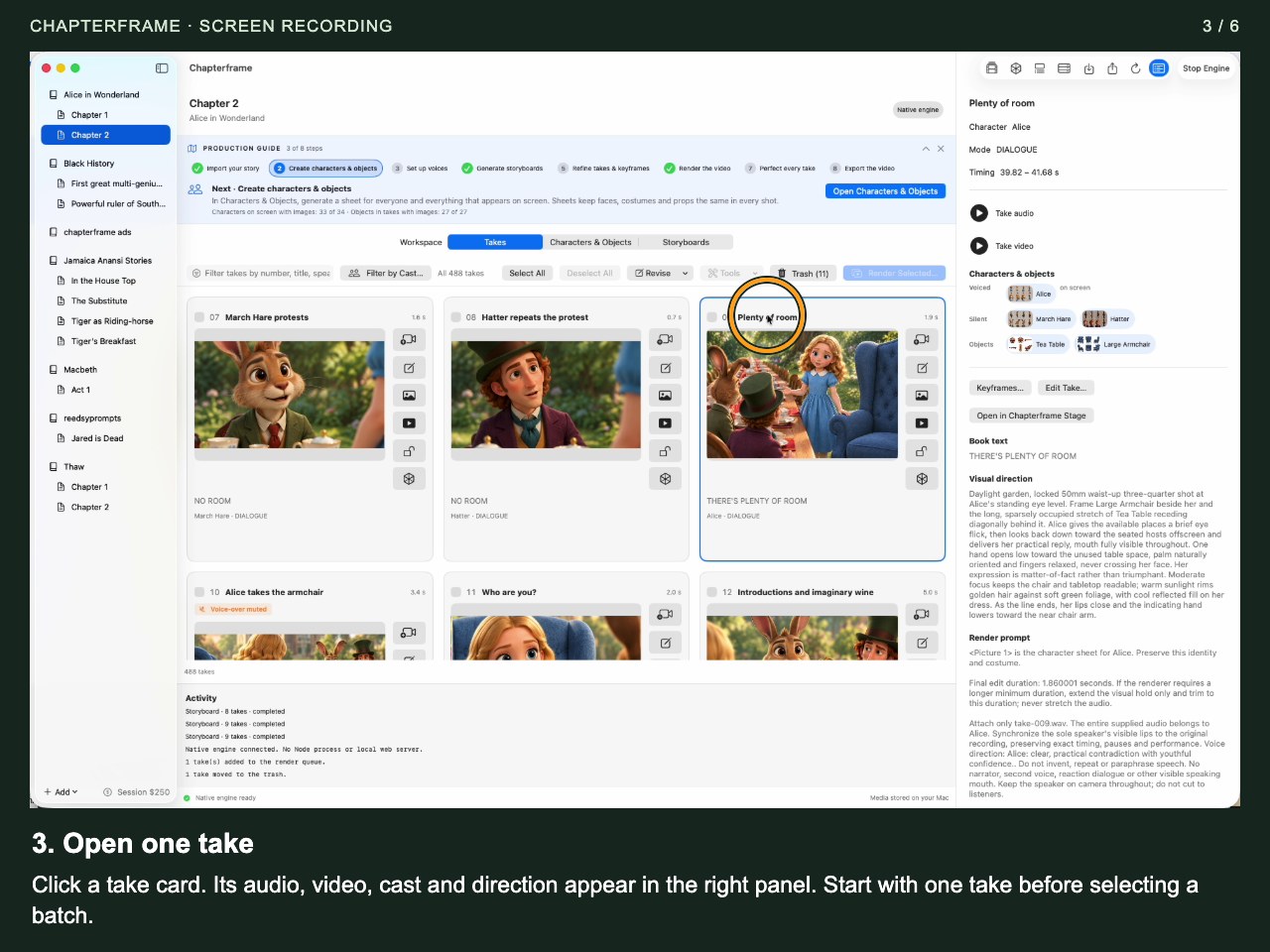
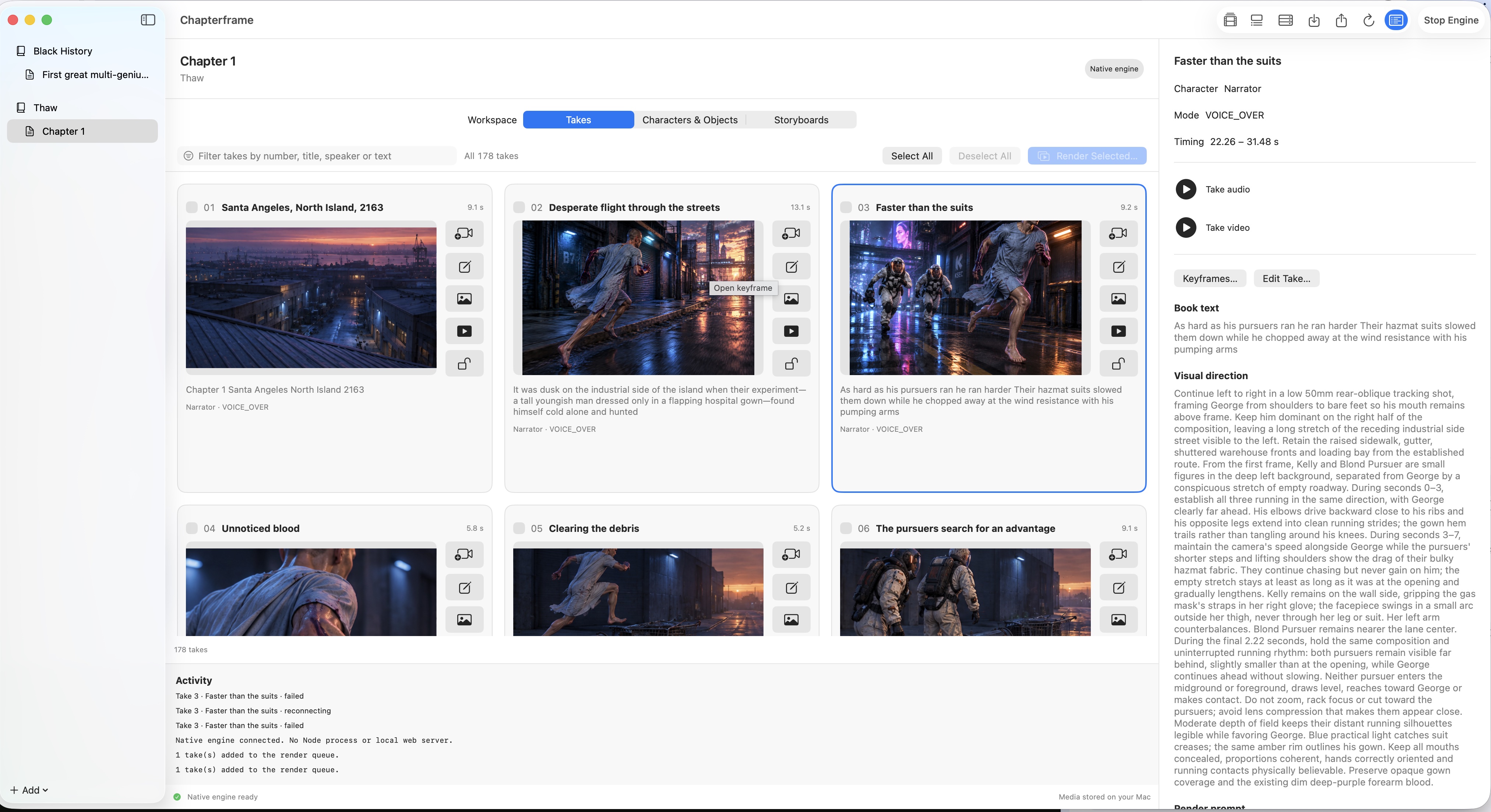
Click a take card. Its audio, video, cast and direction appear in the right panel. Start with one take before selecting a batch.
 Open image full size ↗
Play the take video
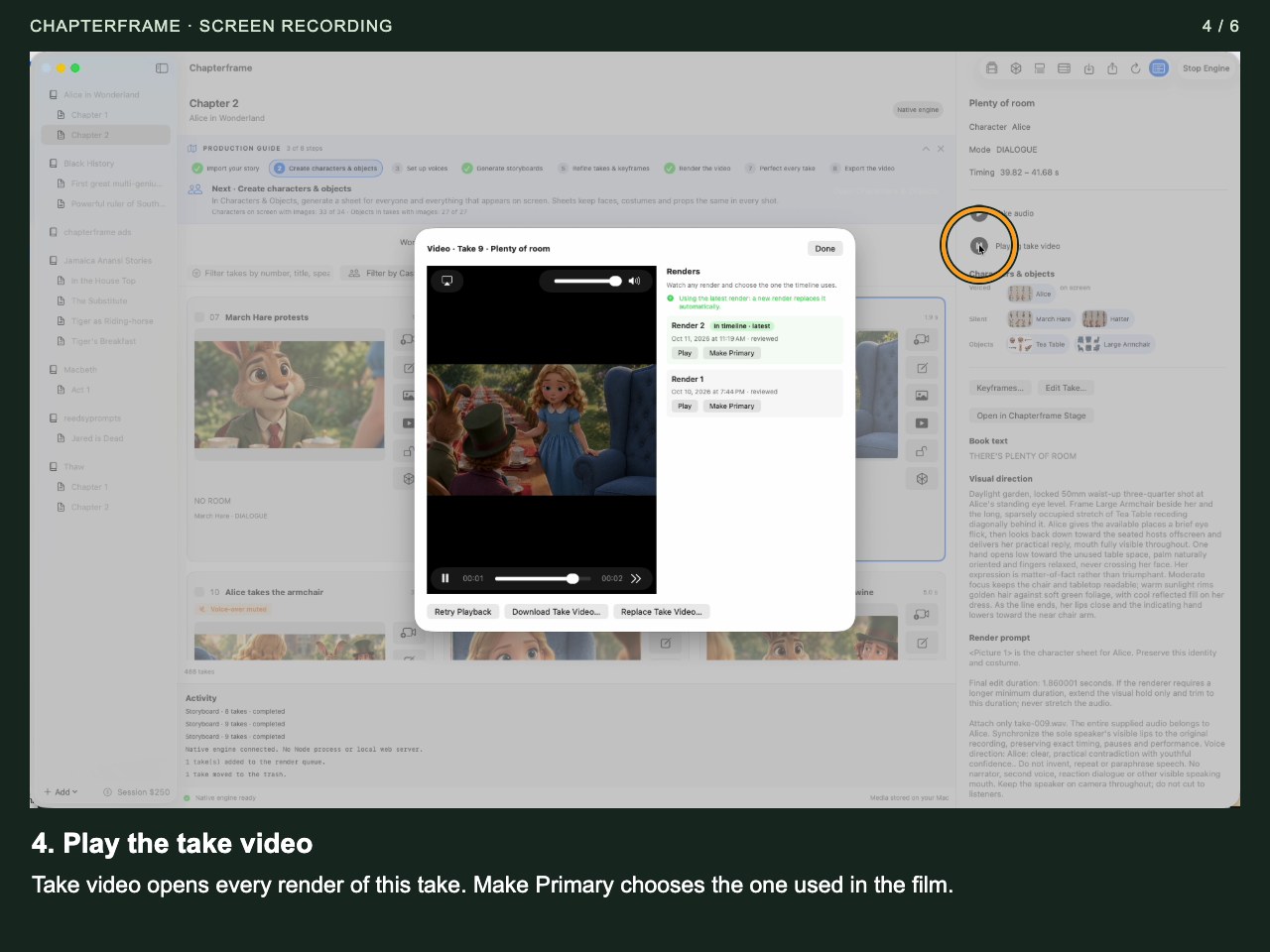
Take video opens every render of this take. Make Primary chooses the one used in the film.
 Open image full size ↗
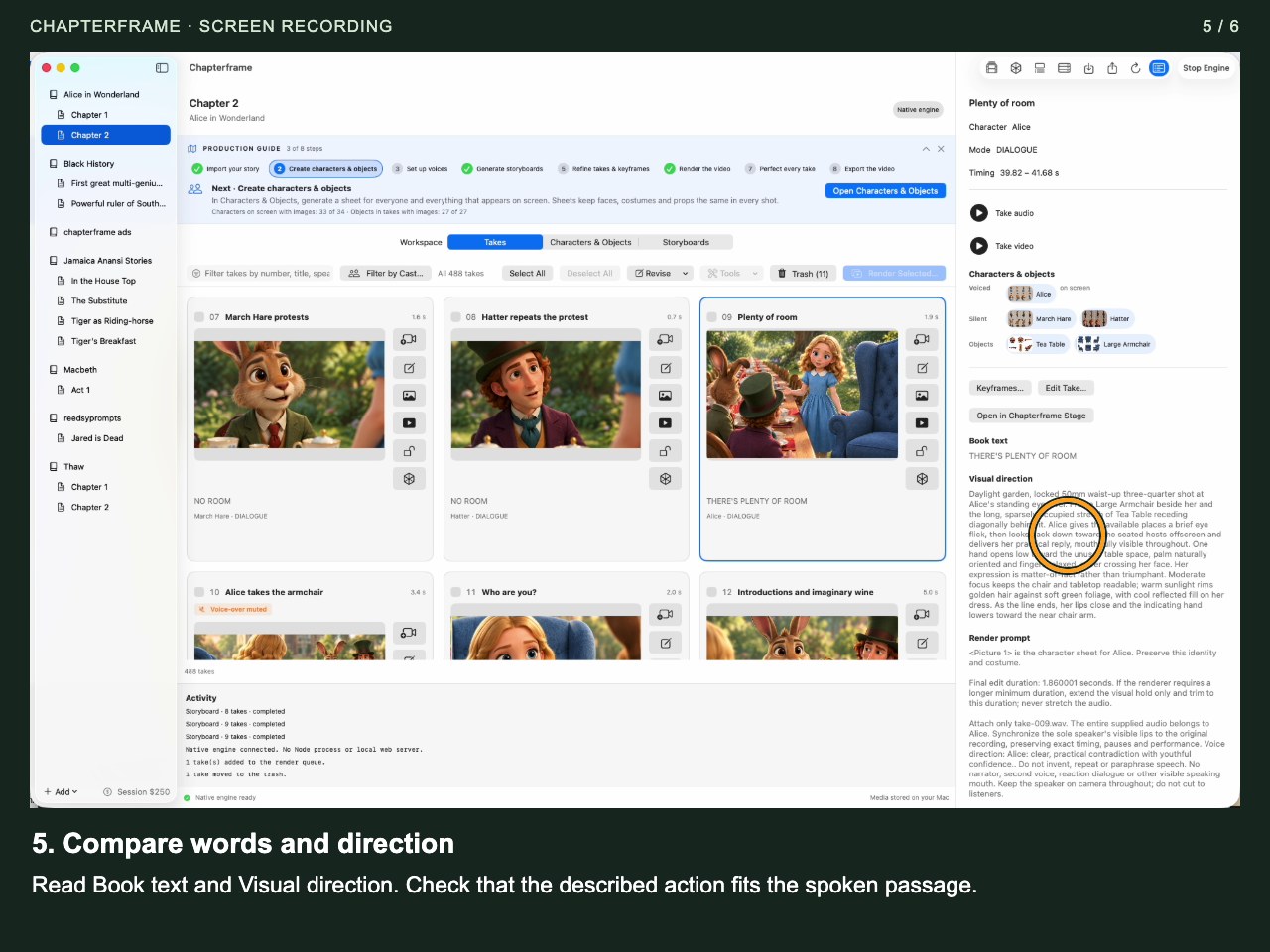
Compare words and direction
Read Book text and Visual direction. Check that the described action fits the spoken passage.
 Open image full size ↗
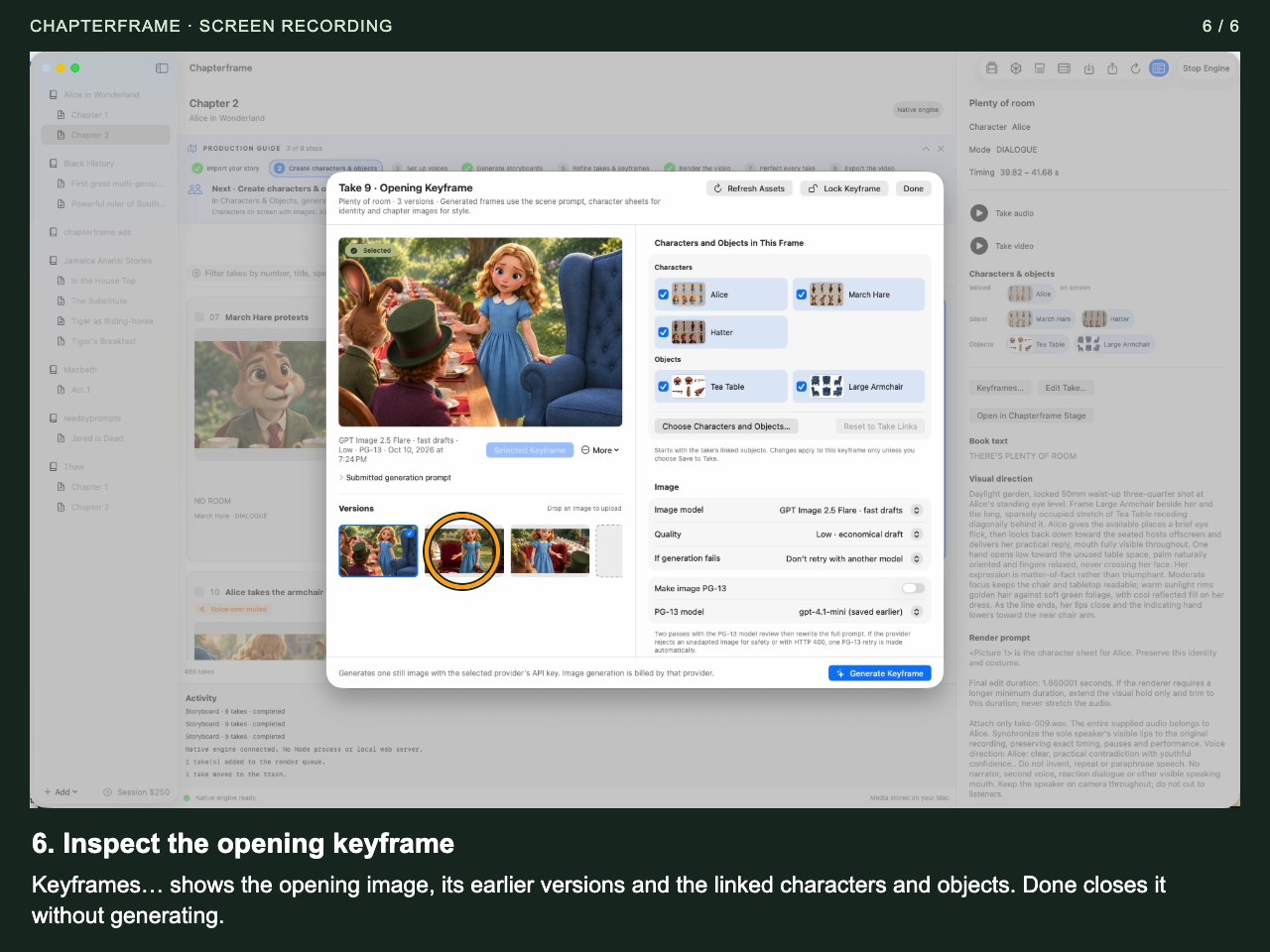
Inspect the opening keyframe
Keyframes… shows the opening image, its earlier versions and the linked characters and objects. Done closes it without generating.
 Open image full size ↗
Work through it
Open Chapterframe
Choose a local media folder you can keep available. The current Mac app stores its library with SQLite; there is no MongoDB installation to perform. If your library is on an external disk, connect it before starting the engine.
Choose Sample Projects…
The welcome screen offers samples before you start the engine. You can also reach Sample Projects from the library’s Add menu. Mai Idris Alooma, Jared is Dead and Thaw — Chapter 1 are available.
Download & Import one sample
Keep Show Walkthrough after importing selected. Use Start Engine if needed, then let the download and import finish. Importing a sample does not start paid rendering jobs. You can also download a ZIP from the sample-projects page and use File → Import Chapter….
Follow the walkthrough
Use Next and Back to inspect each area. The tour opens panels but does not generate or render anything. Reopen it later with Help → Show Walkthrough.
Find the production guide
Choose View → Show Production Guide if it is hidden. Its steps lead from importing the story to exporting a video. Some creative review steps need you to choose Mark as Done yourself.
Try it in your chapter
Open one sample take and play its audio. Find its visual direction and render prompt. Open a keyframe without generating a replacement.
Check before moving on
Your chapter appears in the library, its take cards are visible, and you can replay the walkthrough.
If something goes wrong
The tour does not start
It needs a chapter with takes. Wait for the sample import to finish, select the chapter, then choose Help → Show Walkthrough.
The engine cannot start
Confirm the media folder exists and is writable, and that its external disk is connected. Check the app’s error message before changing the library location. A new folder may simply open a different, empty library.
Still stuck? Contact support with the exact message and the operation you were running.