In the app’s walkthrough: Production guide: Set up voices
Before you begin
Have a chapter with source audio. Voice-generation operations need their provider connection and may incur charges.
Open a chapter and inspect a take
51 seconds · Screen recording · Captioned · No audio
Recorded in the Chapterframe Mac app on October 16, 2026. Each step’s instructions appear below the picture. Nothing in these recordings starts a paid job. Labels may vary by build.
Read the video steps and view the images
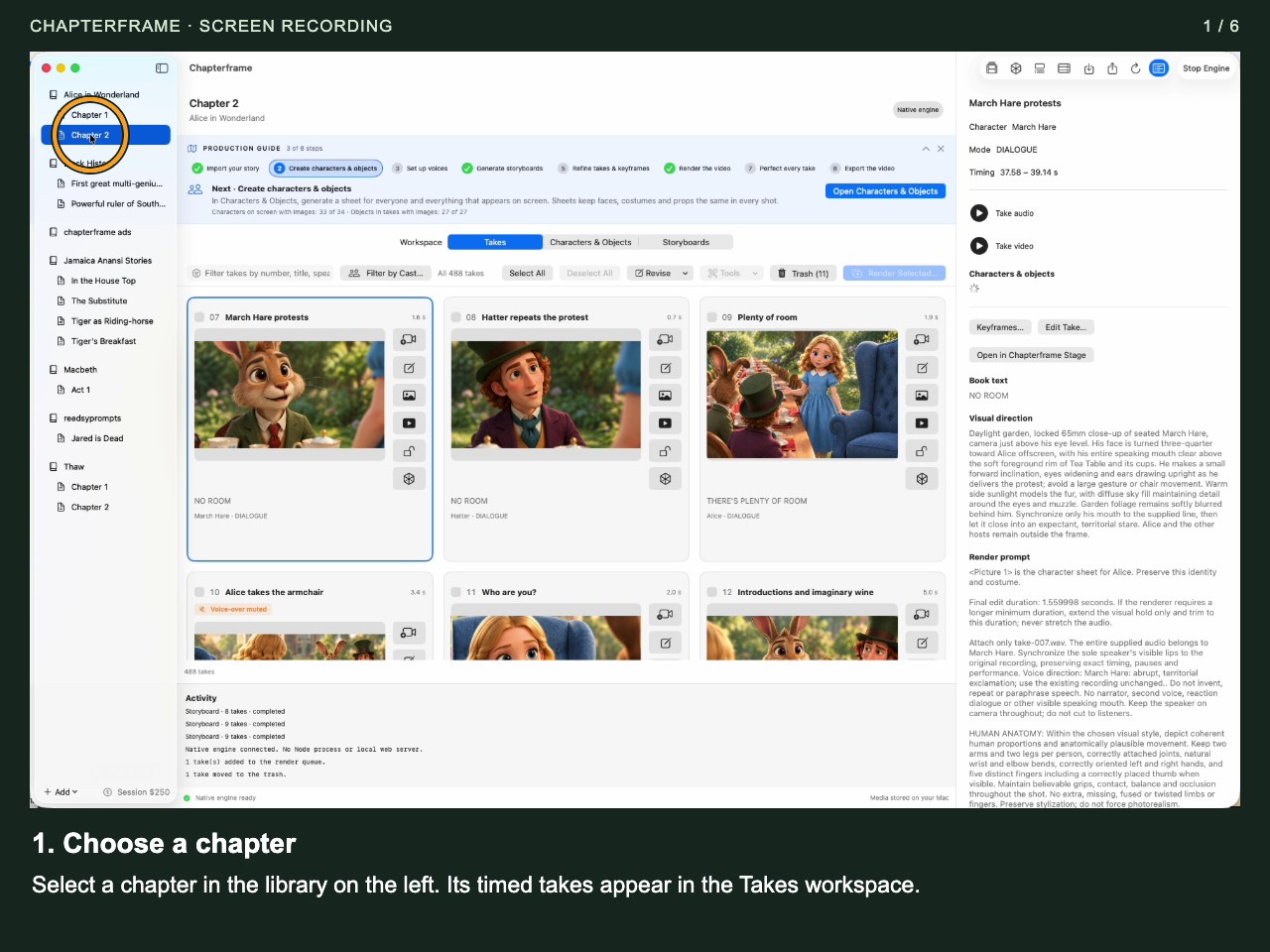
Choose a chapter
Select a chapter in the library on the left. Its timed takes appear in the Takes workspace.
 Open image full size ↗
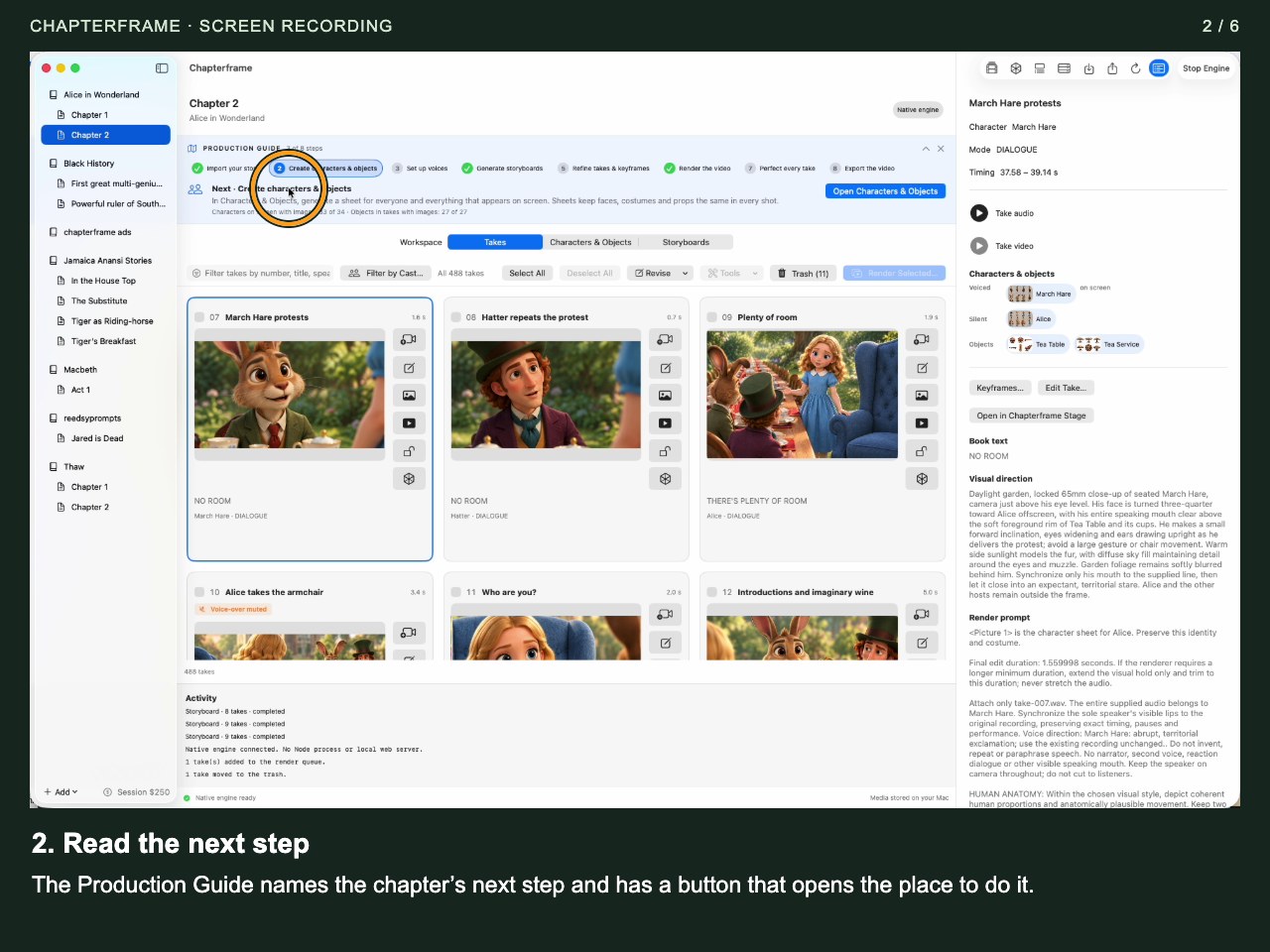
Read the next step
The Production Guide names the chapter’s next step and has a button that opens the place to do it.
 Open image full size ↗
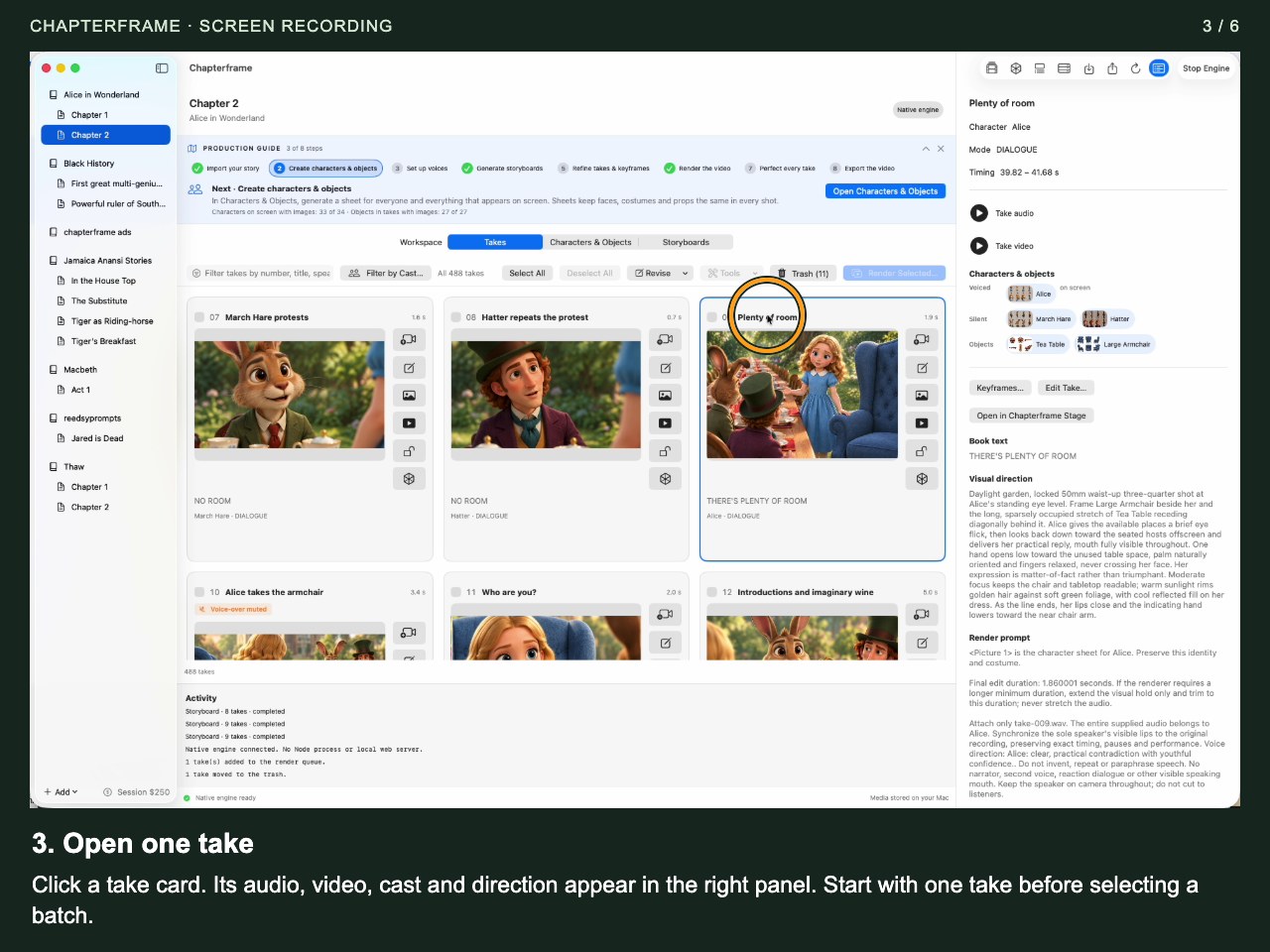
Open one take
Click a take card. Its audio, video, cast and direction appear in the right panel. Start with one take before selecting a batch.
 Open image full size ↗
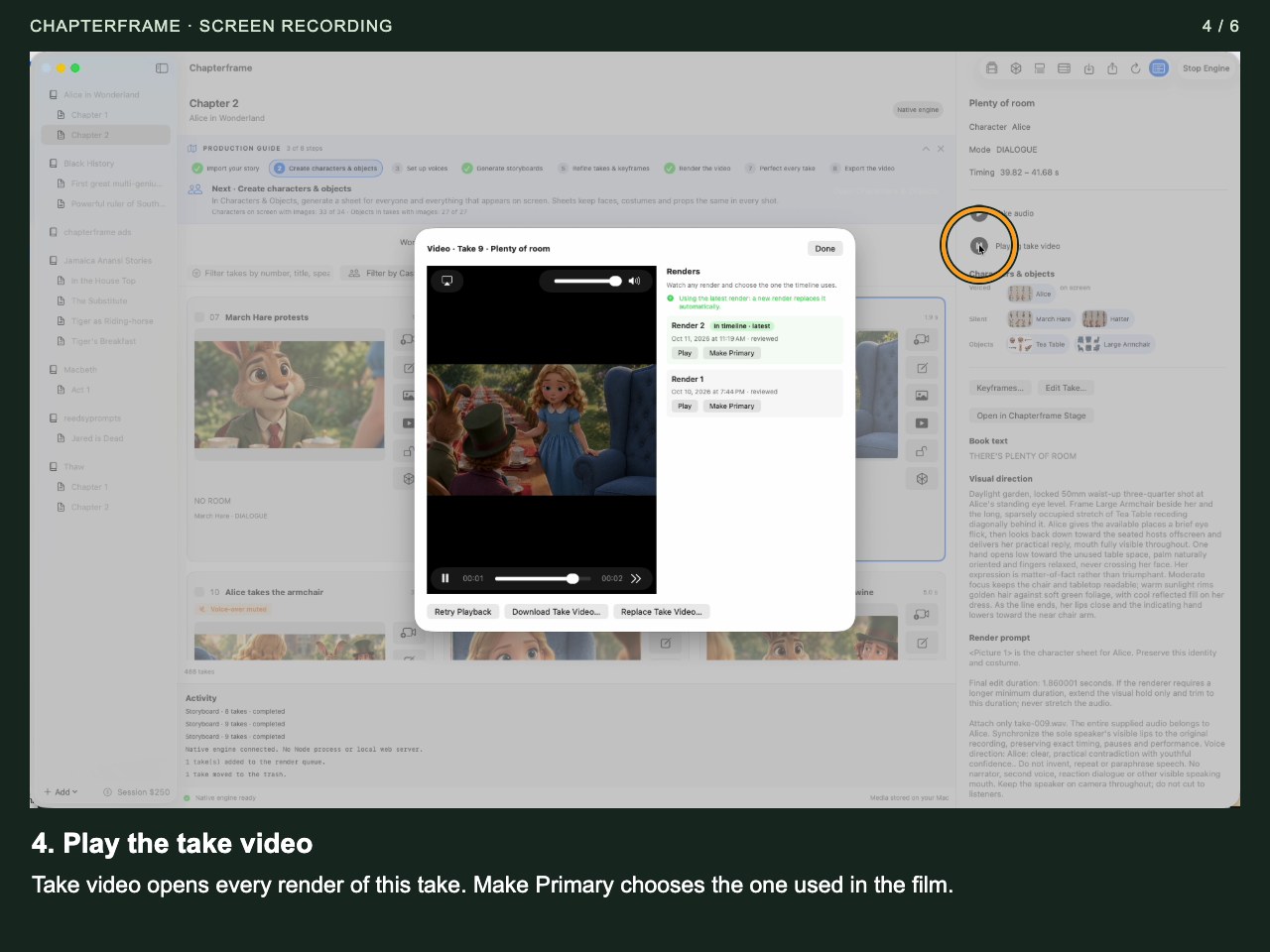
Play the take video
Take video opens every render of this take. Make Primary chooses the one used in the film.
 Open image full size ↗
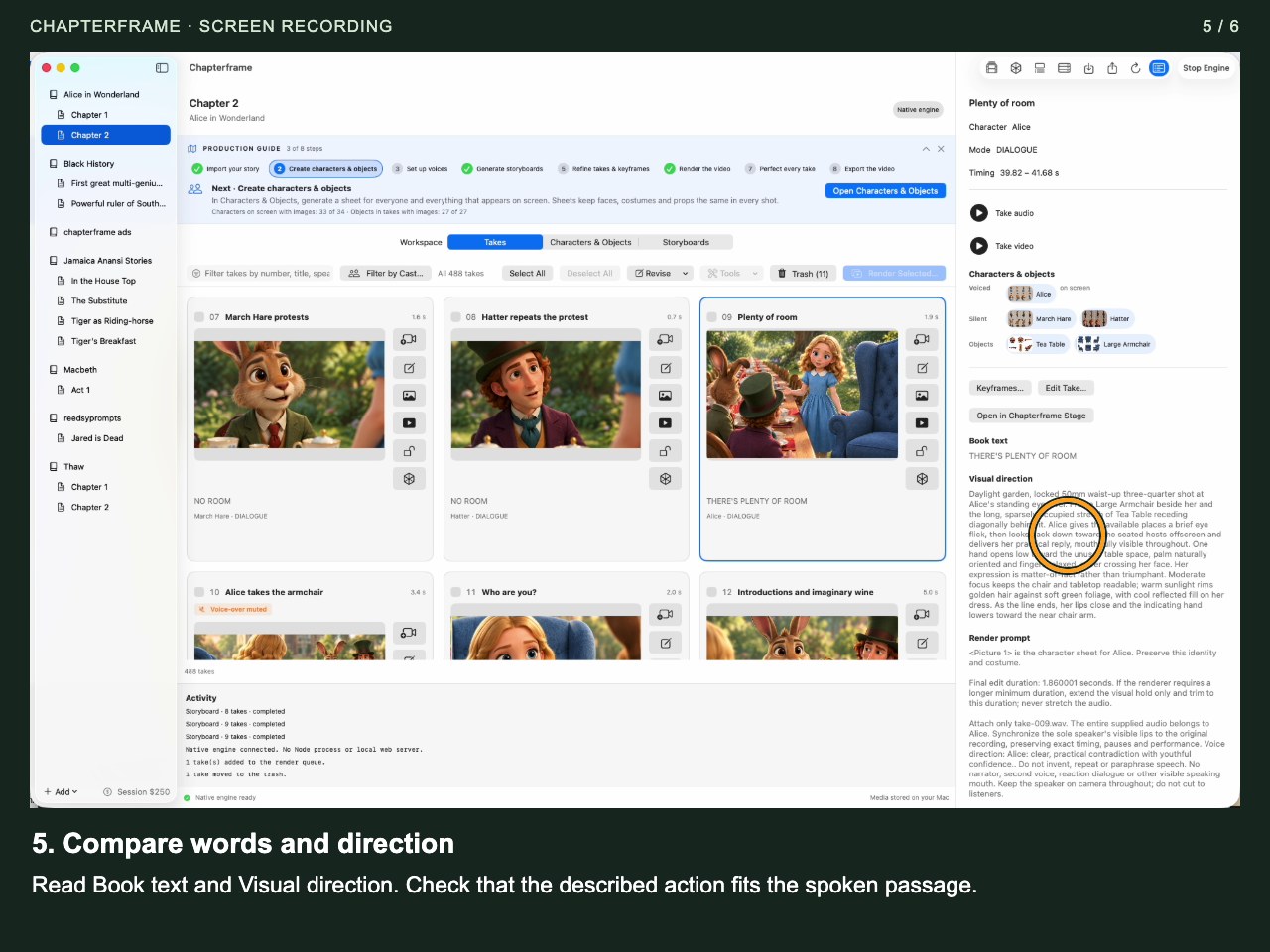
Compare words and direction
Read Book text and Visual direction. Check that the described action fits the spoken passage.
 Open image full size ↗
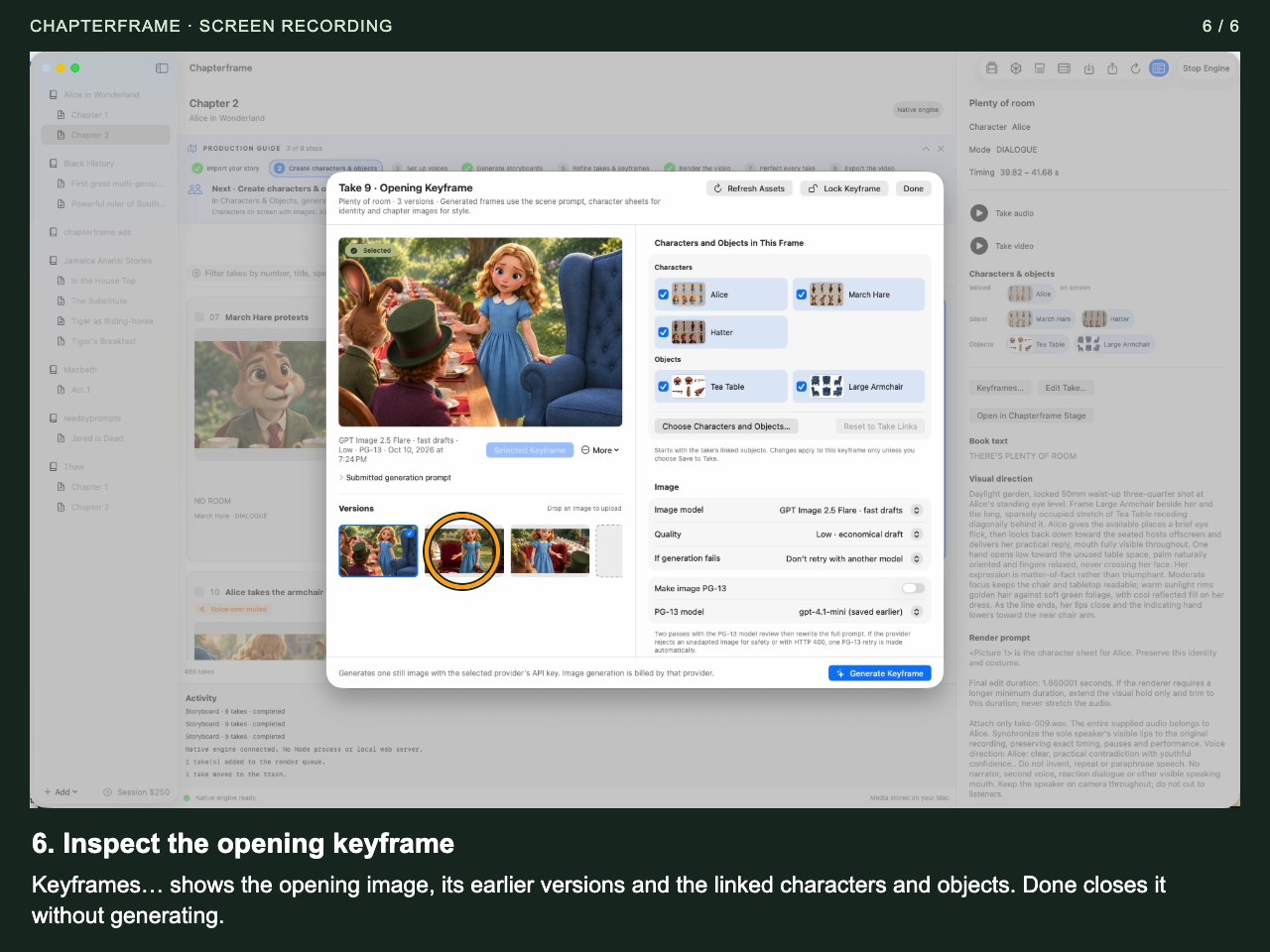
Inspect the opening keyframe
Keyframes… shows the opening image, its earlier versions and the linked characters and objects. Done closes it without generating.
 Open image full size ↗
Work through it
Listen before changing anything
Play a take with dialogue and one with narration. Check pronunciation, pauses and whether a sentence has been cut at the boundary.
Keep the original when it works
In the production guide, mark the voice step done if you are keeping the original performance. You can move on to storyboards without replacing voices.
Choose replacement voices when needed
In Characters & Objects, use the voice controls to browse and sample ElevenLabs voices or choose them automatically. Review existing voice assignments before using any replace option.
Apply and review a small change
Change one take’s voice first, listen to the result, and accept only the version you want. Check the current take recording before processing a large selection.
Correct timing early
Use the take editor for boundary corrections and re-extract the audio clip when required. Replay neighboring takes to make sure the cut does not lose a word or repeat a phrase.
Try it in your chapter
Play two consecutive takes with your eyes closed. Check that the spoken passage still flows across their boundary.
Check before moving on
You have chosen the performance to keep, and the take durations suit the passage.
If something goes wrong
The generated voice lacks emotion
A voice assignment cannot guarantee an acted performance. Try a different reading or use an acted source recording.
Audio levels jump between takes
Review voice loudness controls and the export’s Equalize voice loudness option. Listen again after processing; do not judge from waveform size alone.
Still stuck? Contact support with the exact message and the operation you were running.