In the app’s walkthrough: Rent GPUs on Vast.ai
Before you begin
Save your Vast.ai key in Settings → Connections and have a funded provider account. Know which GPU and workflow your project requires.
Work through it
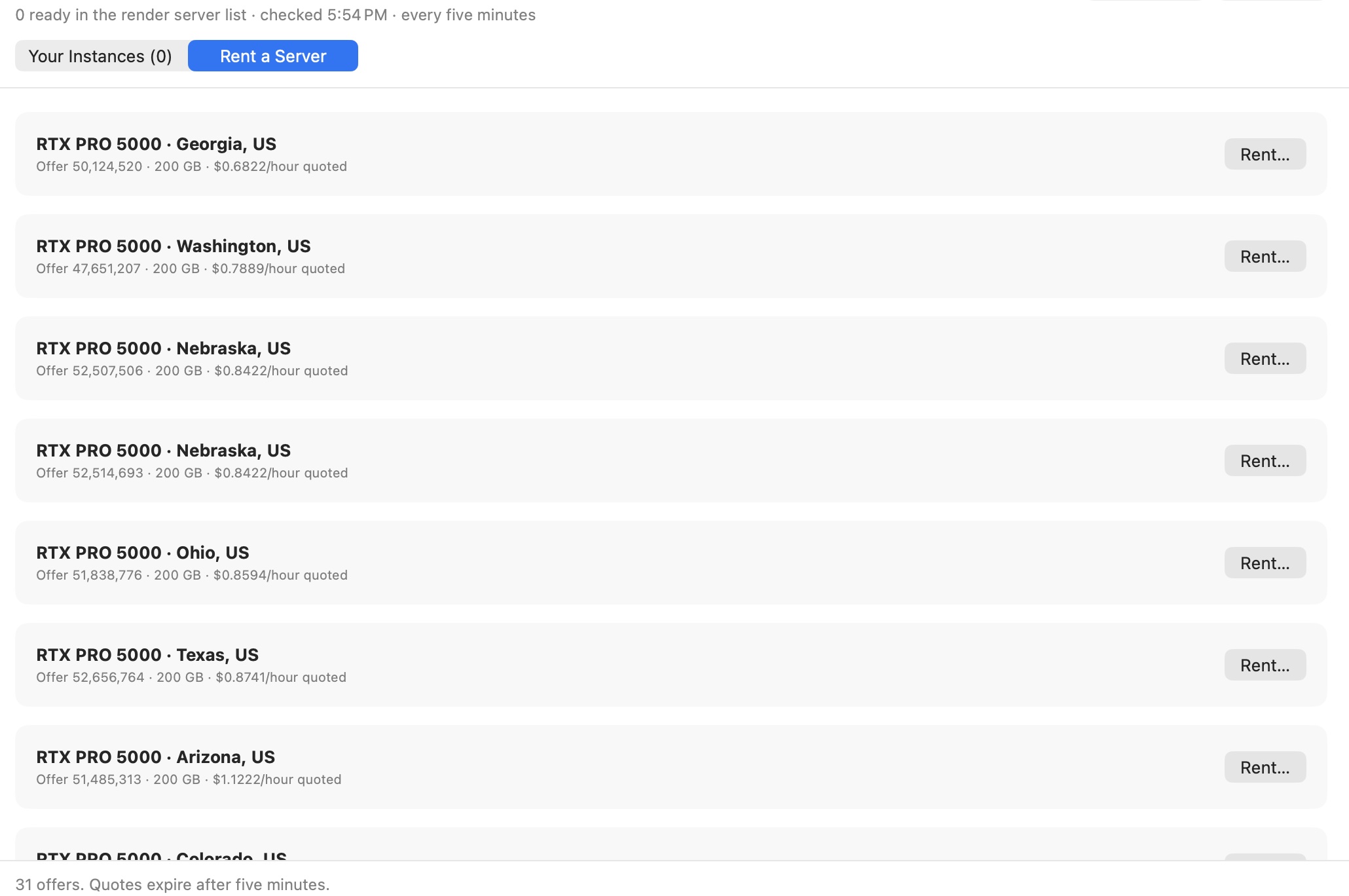
Open the Vast rental window
Choose Rent a Server and search offers. Compare GPU memory, hourly price, reliability and any record of previous successful readiness. An earlier success is useful history, not a promise about this rental.
Set the pool controls
Enter a Render pool name and Concurrent jobs per server. The default concurrency is 2. Set Destroy node after idle hours; the default is 0.5 hours (30 minutes). Zero disables automatic destruction.
Select offers and rent
You can select more than one offer. Chapterframe initializes rentals in sequence and tracks their setup. Start with one until you have verified the workflow and throughput.
Wait for verified readiness
Chapterframe uploads and sets up the server. Follow its status and latest logs; an instance being “running” is not the same as its render service being ready.
Refresh one server if its details are stale
Use the server’s Refresh action to reload inventory details, readiness and logs. Check instance IDs when comparing the app with Vast’s dashboard.
End rentals deliberately
Inspect idle-termination status. If you are done, use Delete… and refresh to confirm destruction in both Chapterframe and Vast. Closing the app is not a command to destroy a rented server. Keep the app and engine running for its local idle-management checks.
Try it in your chapter
Before renting, calculate the hourly cost of the whole selected pool. After your test, confirm that every unneeded rental has been destroyed.
Check before moving on
Every server you intend to use is ready; every server you no longer need is confirmed destroyed.
If something goes wrong
A server is stuck waiting for SSH or installing
Refresh that server and read its logs. Check the Vast account and instance status before retrying setup.
An idle server has not disappeared
Inspect the saved idle limit and whether active or remote work is holding termination. If it should be gone, use Delete… again and verify in Vast. “Scheduled for termination” is not confirmation of destruction.
Still stuck? Contact support with the exact message and the operation you were running.