In the app’s walkthrough: Three workspaces · Takes · Find and select takes · Work on one take · Revise the script
Before you begin
Open a chapter with takes. Keep the original text nearby if you are correcting the interpretation of a scene.
Open a chapter and inspect a take
51 seconds · Screen recording · Captioned · No audio
Recorded in the Chapterframe Mac app on October 16, 2026. Each step’s instructions appear below the picture. Nothing in these recordings starts a paid job. Labels may vary by build.
Read the video steps and view the images
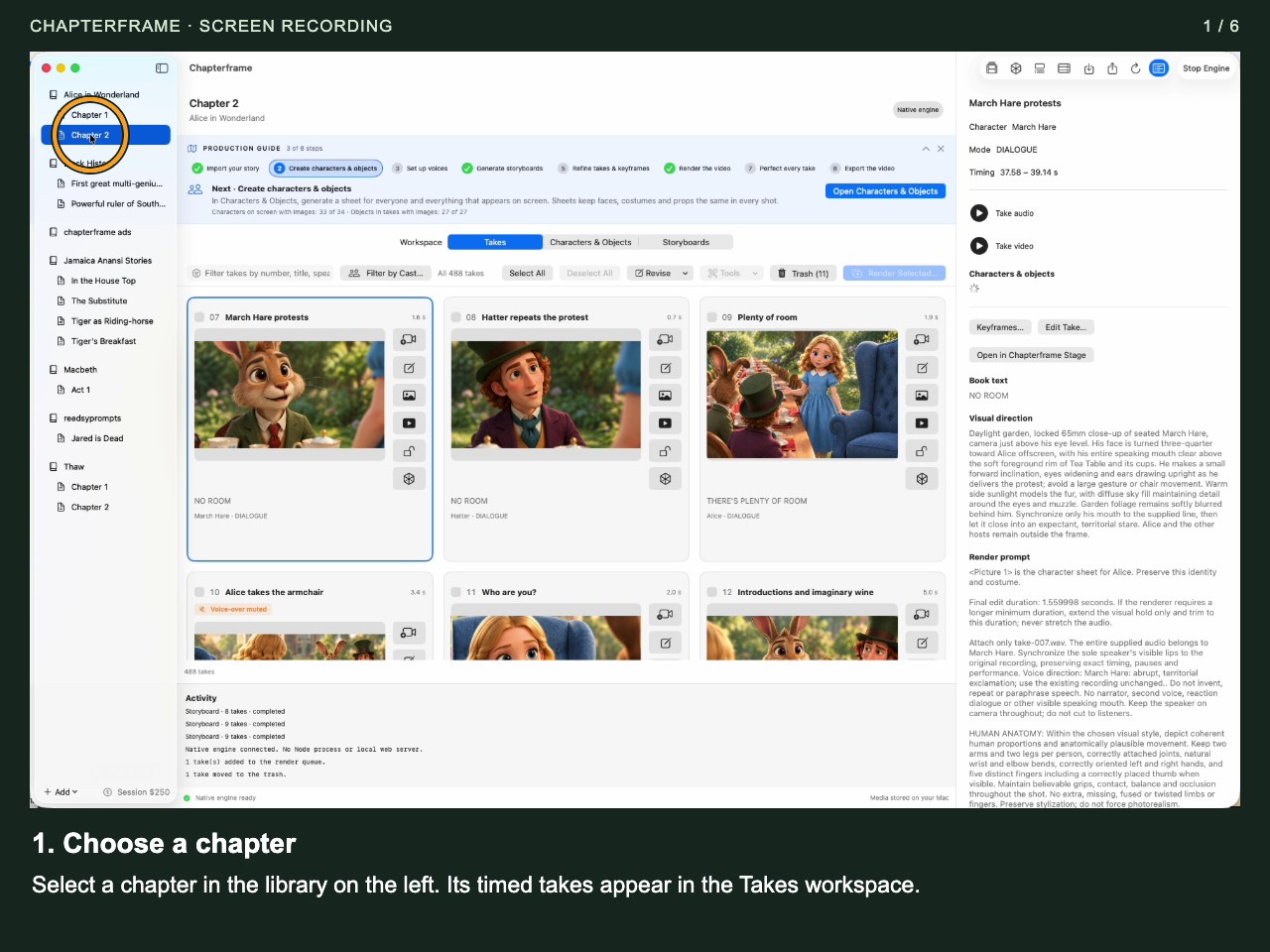
Choose a chapter
Select a chapter in the library on the left. Its timed takes appear in the Takes workspace.
 Open image full size ↗
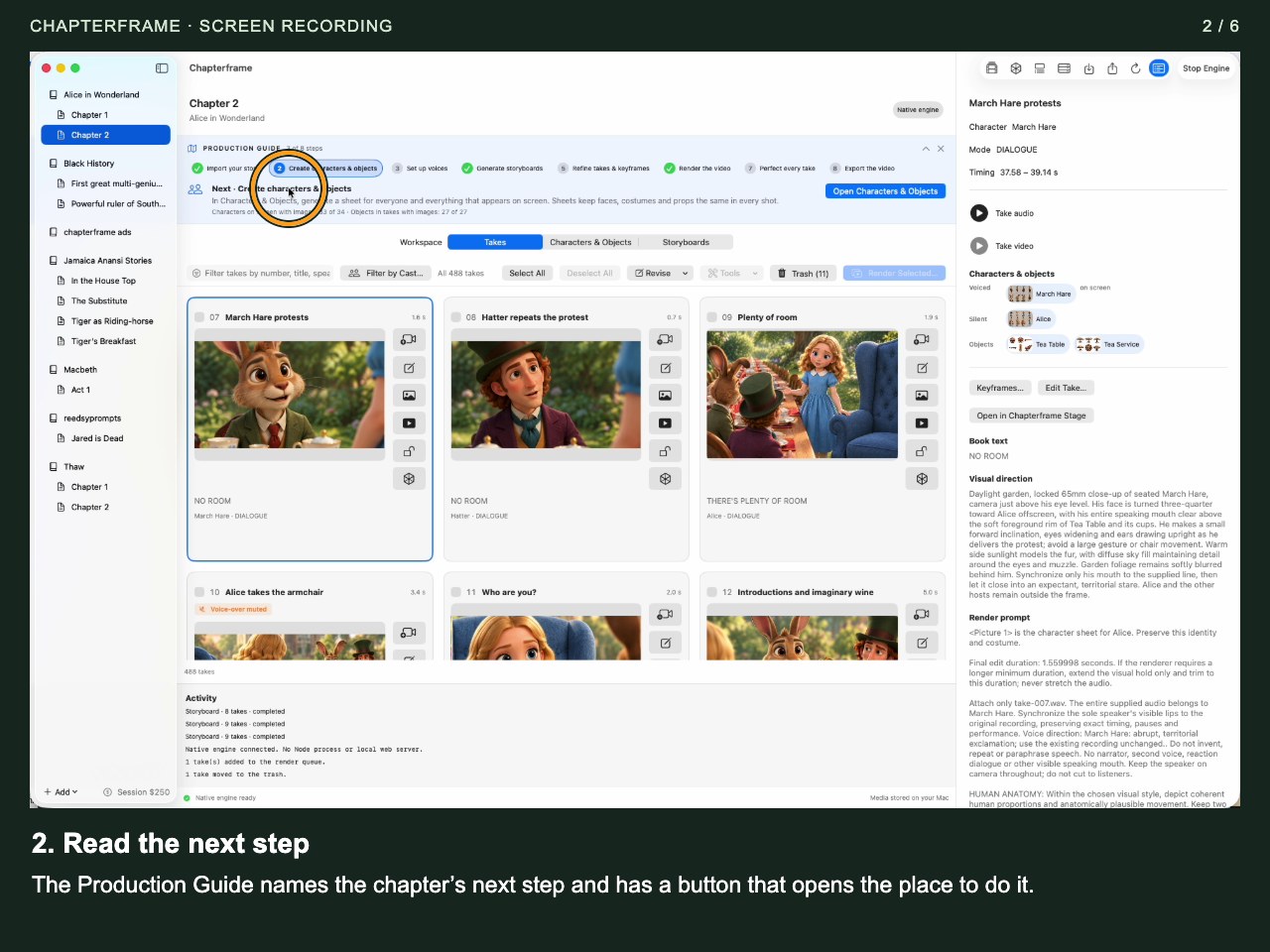
Read the next step
The Production Guide names the chapter’s next step and has a button that opens the place to do it.
 Open image full size ↗
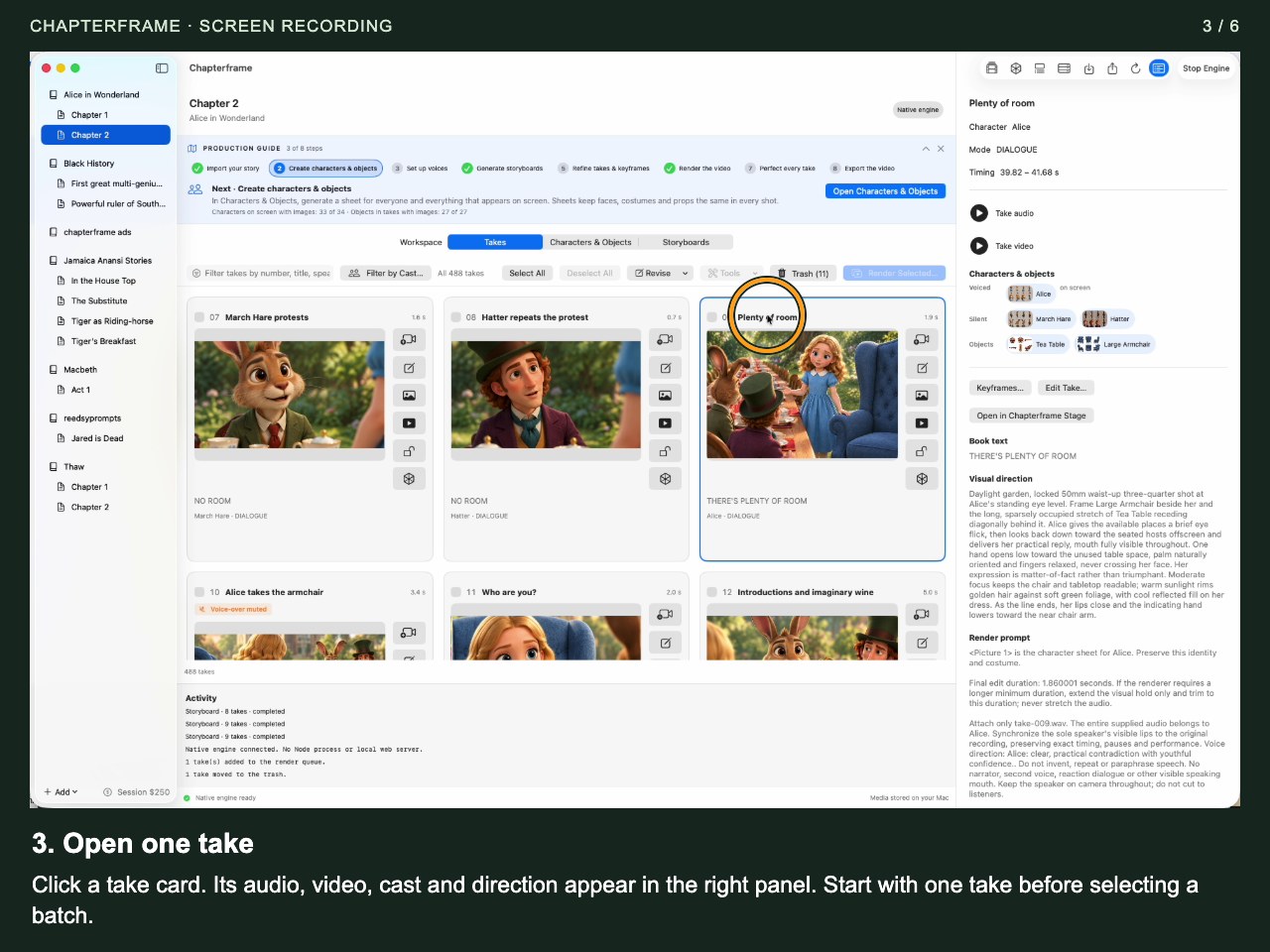
Open one take
Click a take card. Its audio, video, cast and direction appear in the right panel. Start with one take before selecting a batch.
 Open image full size ↗
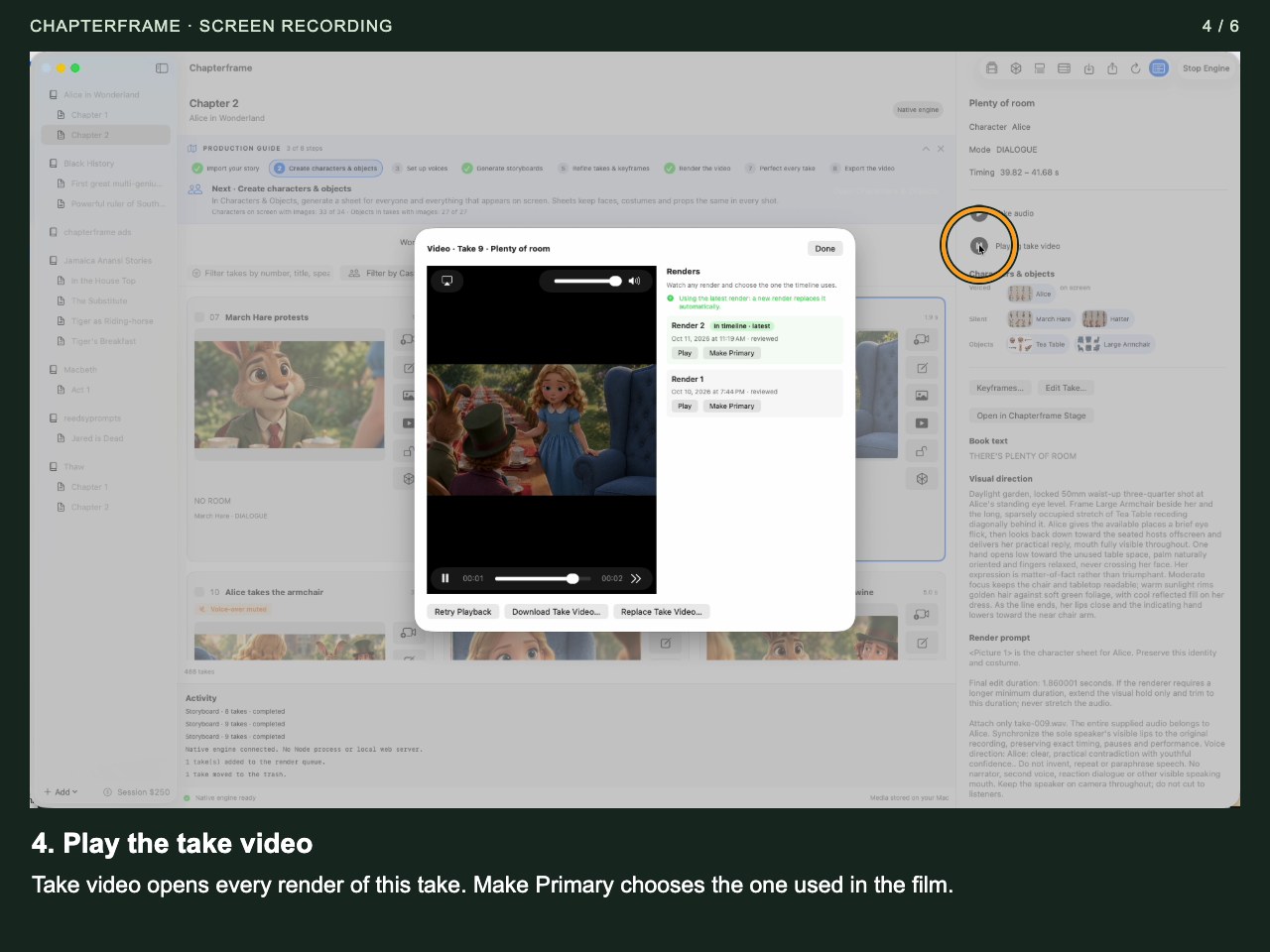
Play the take video
Take video opens every render of this take. Make Primary chooses the one used in the film.
 Open image full size ↗
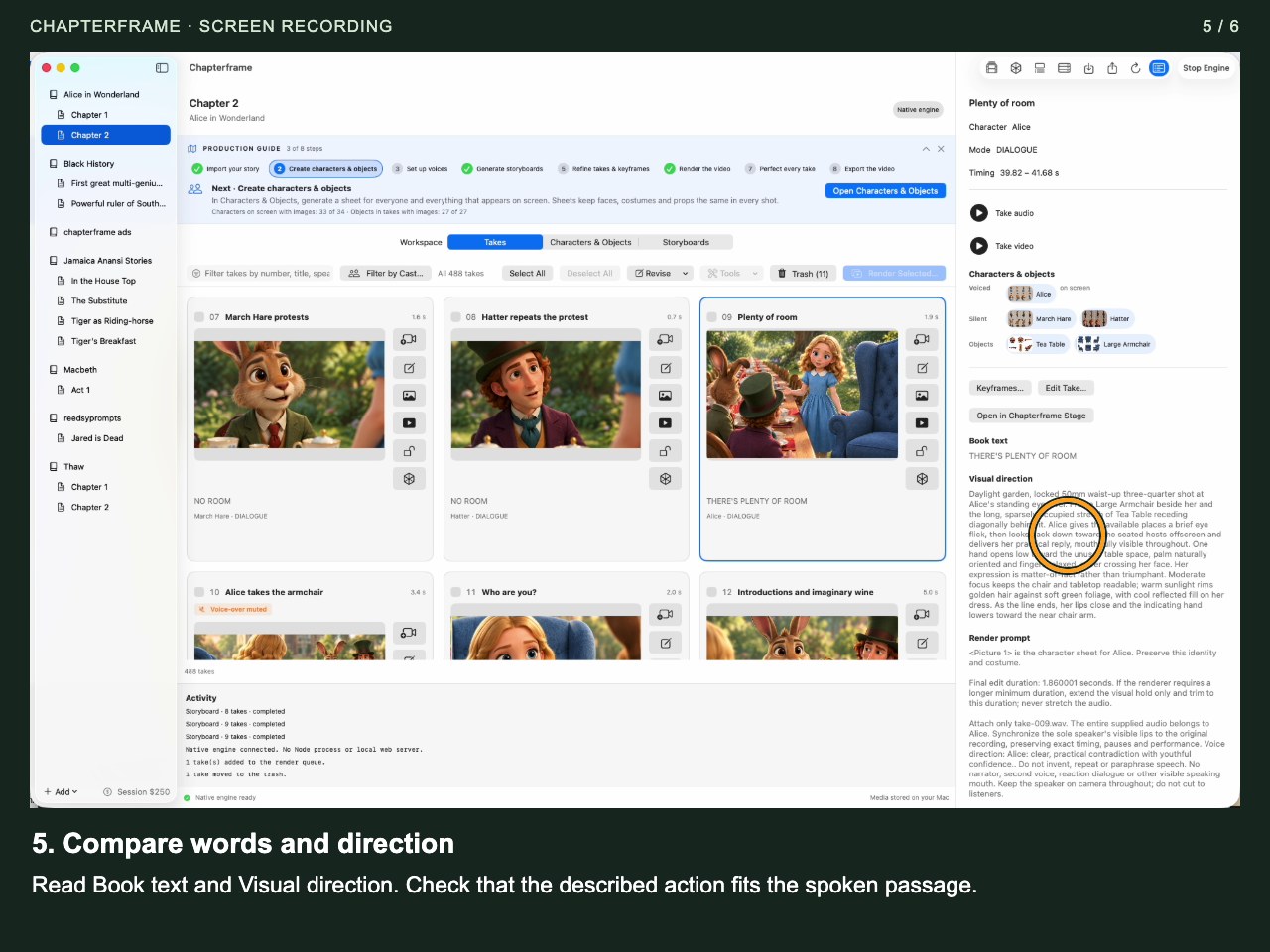
Compare words and direction
Read Book text and Visual direction. Check that the described action fits the spoken passage.
 Open image full size ↗
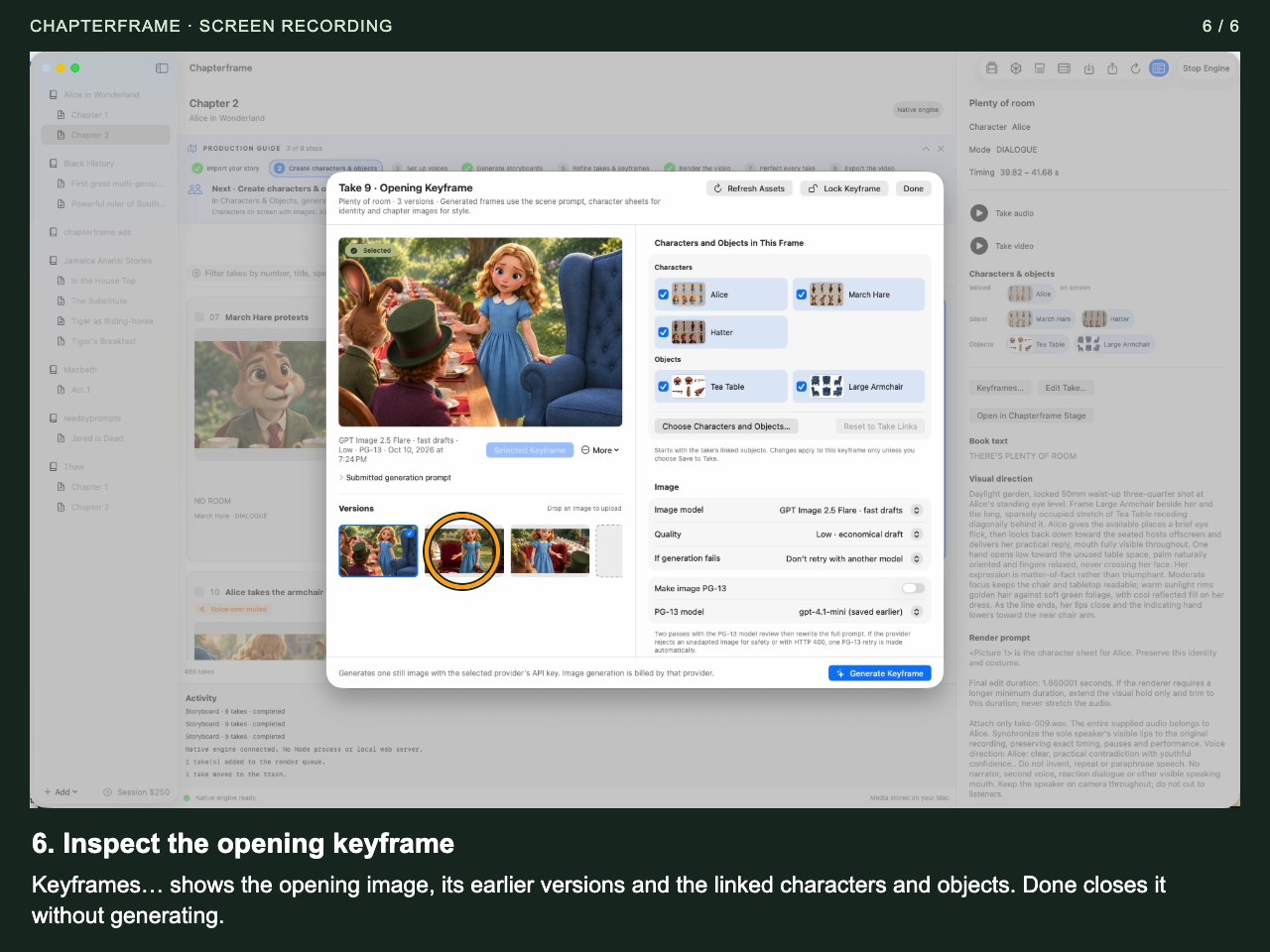
Inspect the opening keyframe
Keyframes… shows the opening image, its earlier versions and the linked characters and objects. Done closes it without generating.
 Open image full size ↗
Work through it
Find your take
Use Takes for shot work, Characters & Objects for references, and Storyboards for grouped visual planning. Search take text or filter by a character or object to narrow the list.
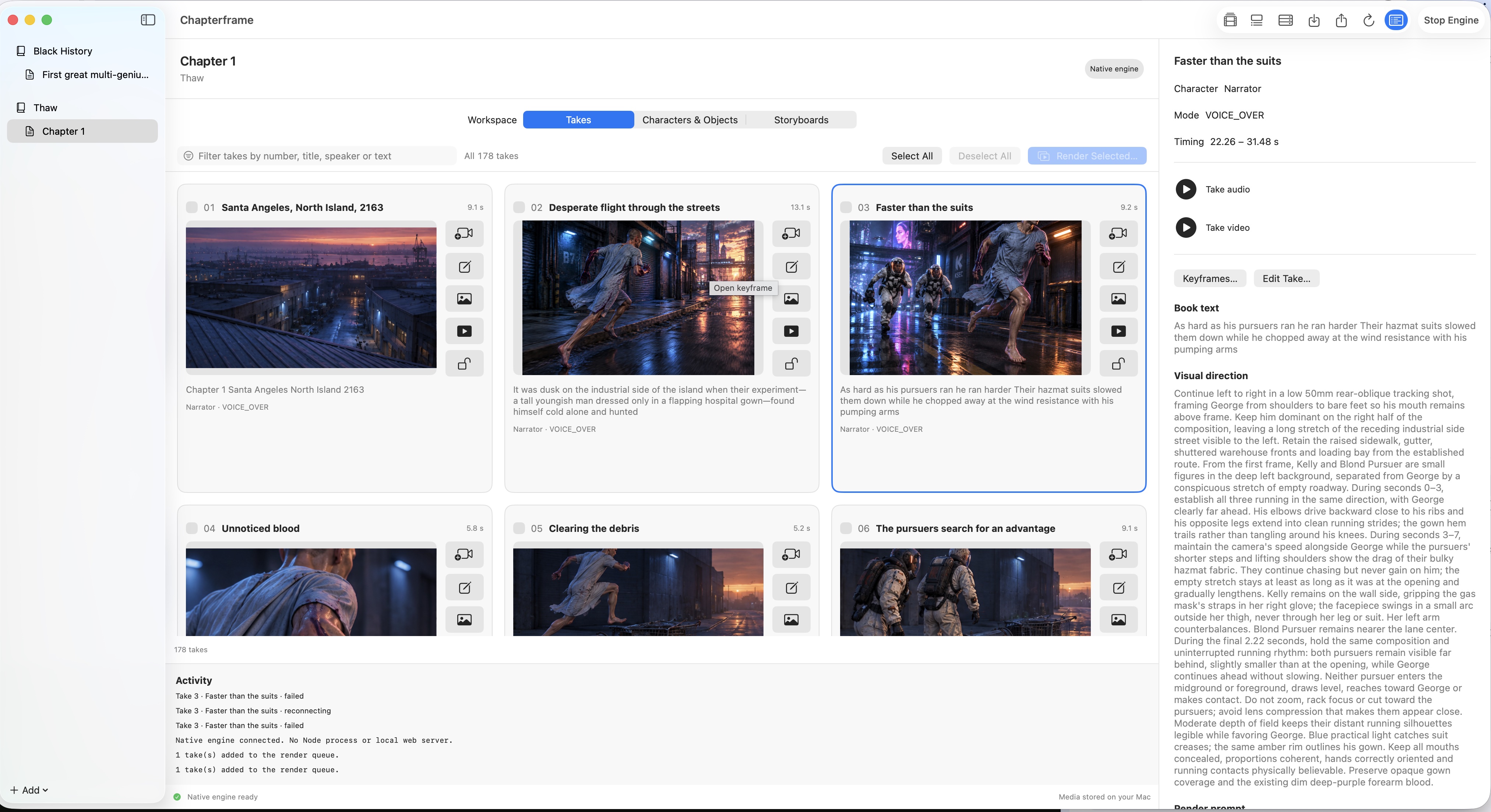
Inspect the take detail
Click a card. Play the audio, read the book text and compare the visual direction with the render prompt. The spoken words and the camera instructions have different jobs.
Select a small batch
Shift-click or Command-click to select several takes. Review the selected count before using Revise, Tools or Render Selected. When using Select All, check the current search and filters first.
Revise with a specific instruction
Open Revise for the selected takes. For example: “Keep the camera outside the doorway and show Mara entering from the left.” Choose a script model and review its proposed wording take by take.
Use direct editing when you know the wording
Choose Edit Script Directly to type your own changes. Keep character names aligned with the linked cast. Check the saved prompt after accepting a revision.
Control the linked-subject prompt block
Tools → Remove Linked Scene Subjects removes that section from the selected takes’ saved render prompts. It does not delete character or object links. Tools → Add Linked Scene Subjects builds the block again from those links. Locked takes are skipped by these tools.
Try it in your chapter
Filter to one character, select two takes and inspect their linked objects. Revise the camera instruction for only one take.
Check before moving on
The saved direction says what you intended, and the batch contains only the takes you meant to change.
If something goes wrong
The tool reports skipped takes
Check whether the takes are locked. Unlock only work you intend to change.
A revision mentions the wrong person
Correct the cast links and names, then review or rewrite the prompt. Repeating a vague revision request may reproduce the same mistake.
Still stuck? Contact support with the exact message and the operation you were running.