In the app’s walkthrough: The Timeline · Production guide: Perfect every take · Export the video
Before you begin
Have completed video renders for the range you intend to export. Decide whether you want complete takes or a condensed visual edit.
Review a sequence in the Timeline
40 seconds · Screen recording · Captioned · No audio
Recorded in the Chapterframe Mac app on October 16, 2026. Each step’s instructions appear below the picture. Nothing in these recordings starts a paid job. Labels may vary by build.
Read the video steps and view the images
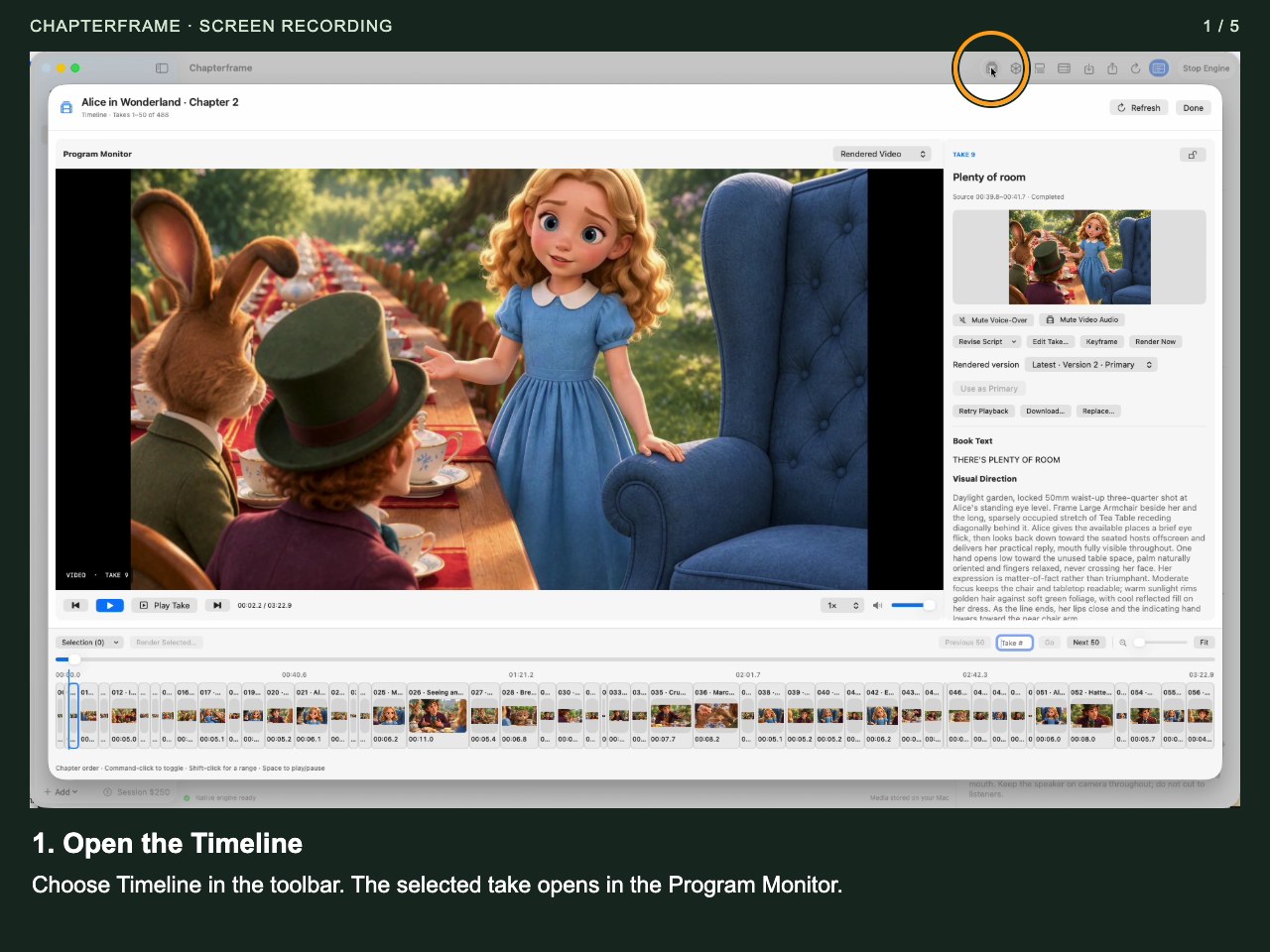
Open the Timeline
Choose Timeline in the toolbar. The selected take opens in the Program Monitor.
 Open image full size ↗
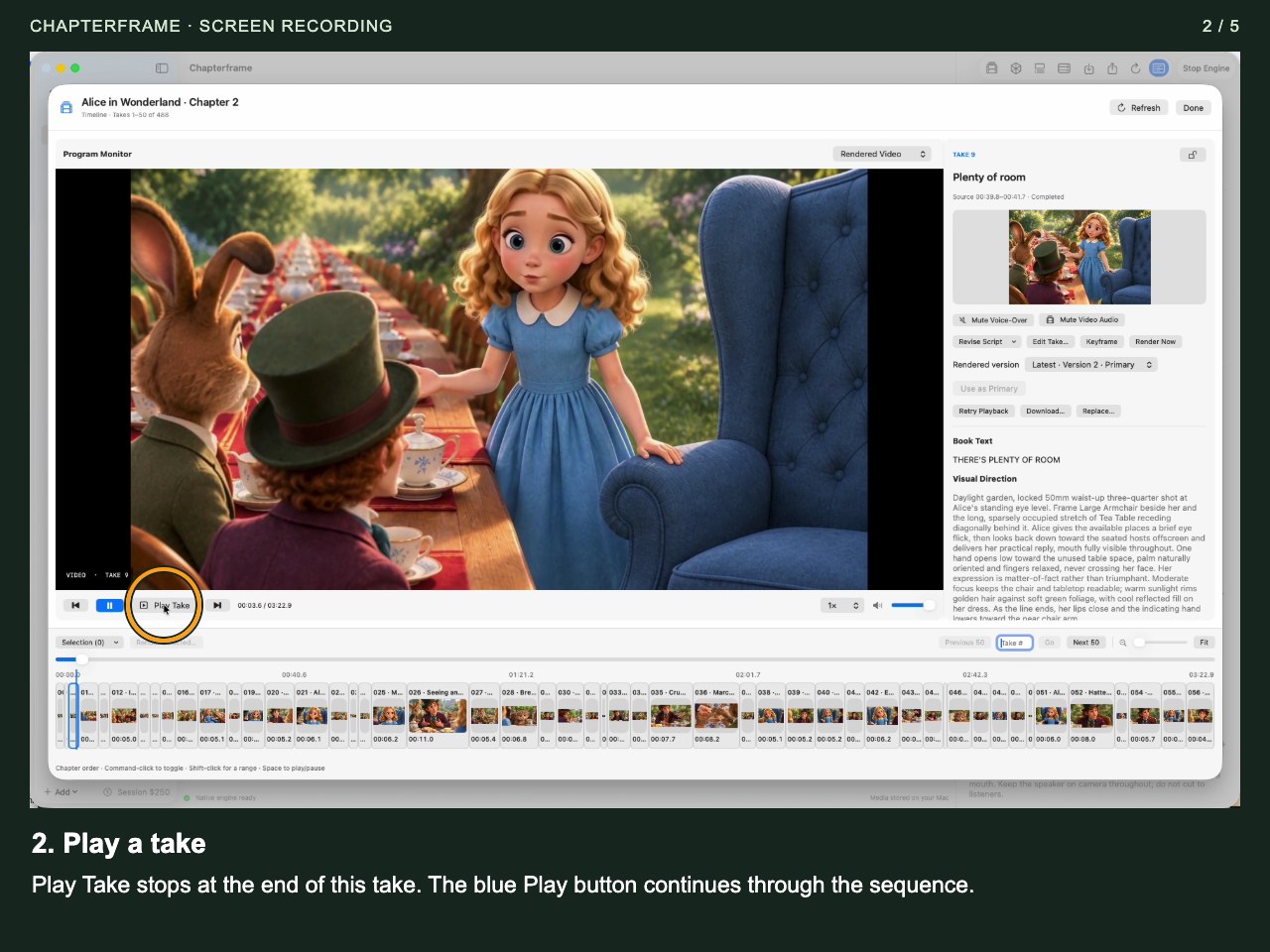
Play a take
Play Take stops at the end of this take. The blue Play button continues through the sequence.
 Open image full size ↗
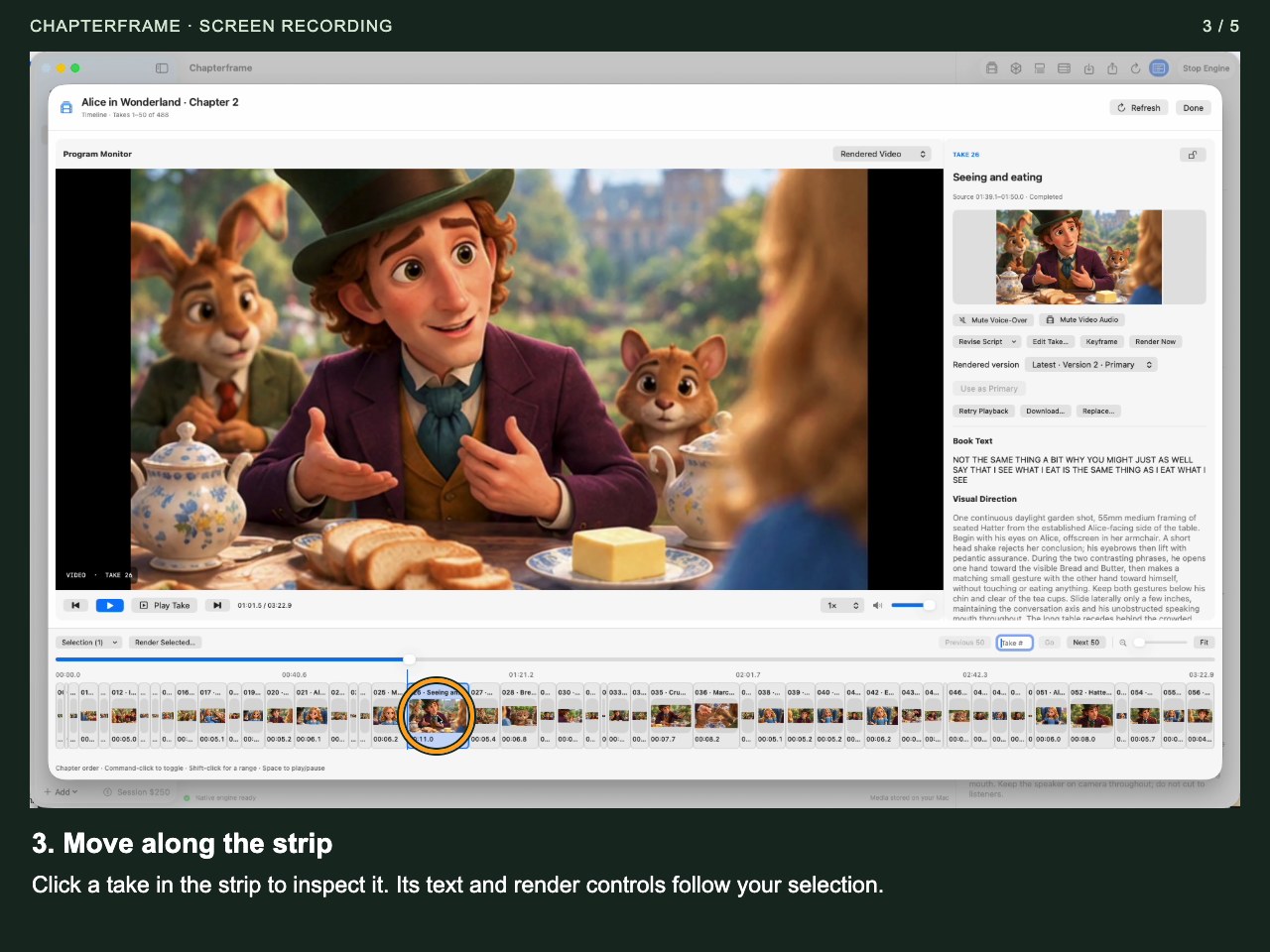
Move along the strip
Click a take in the strip to inspect it. Its text and render controls follow your selection.
 Open image full size ↗
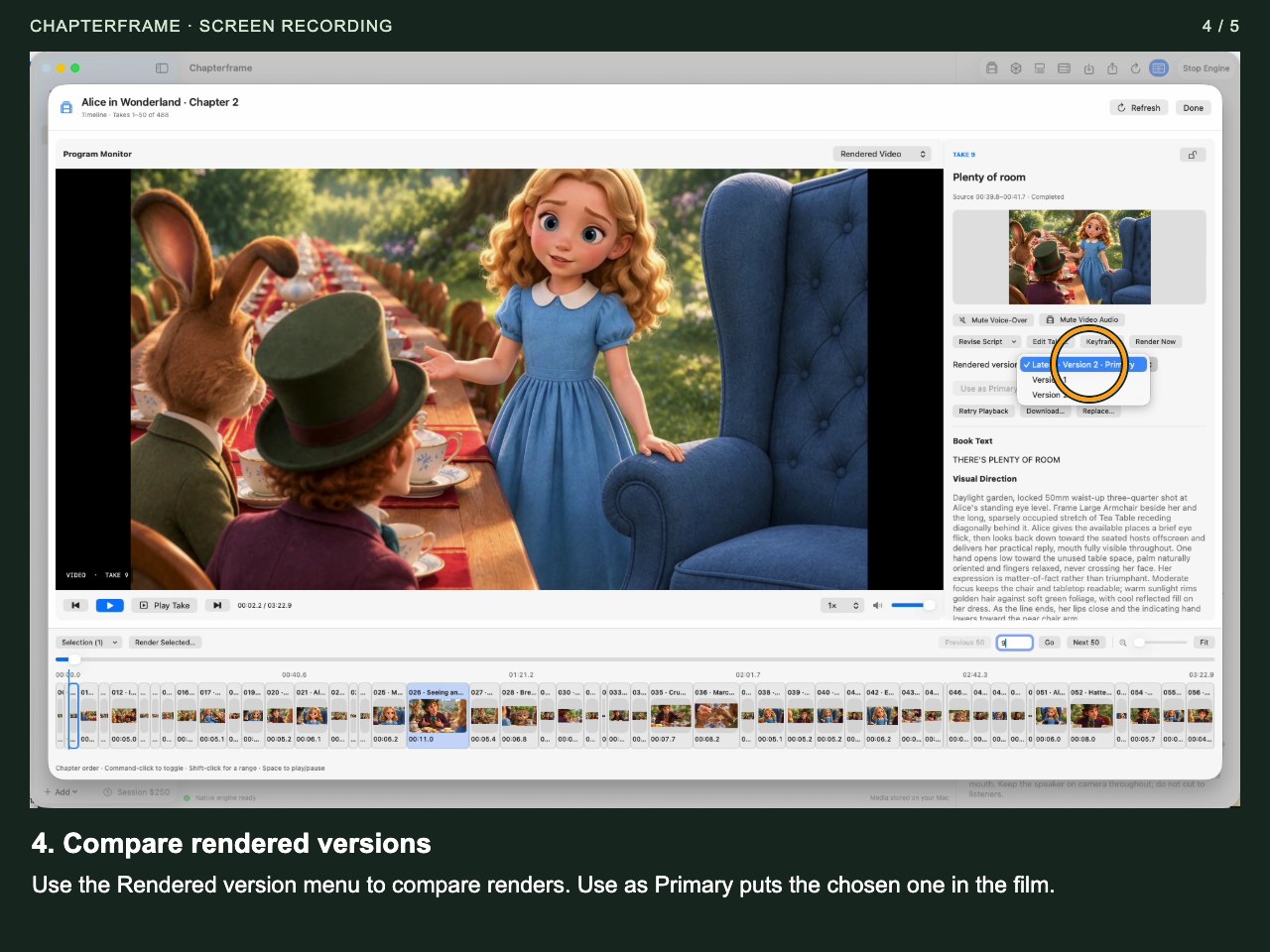
Compare rendered versions
Use the Rendered version menu to compare renders. Use as Primary puts the chosen one in the film.
 Open image full size ↗
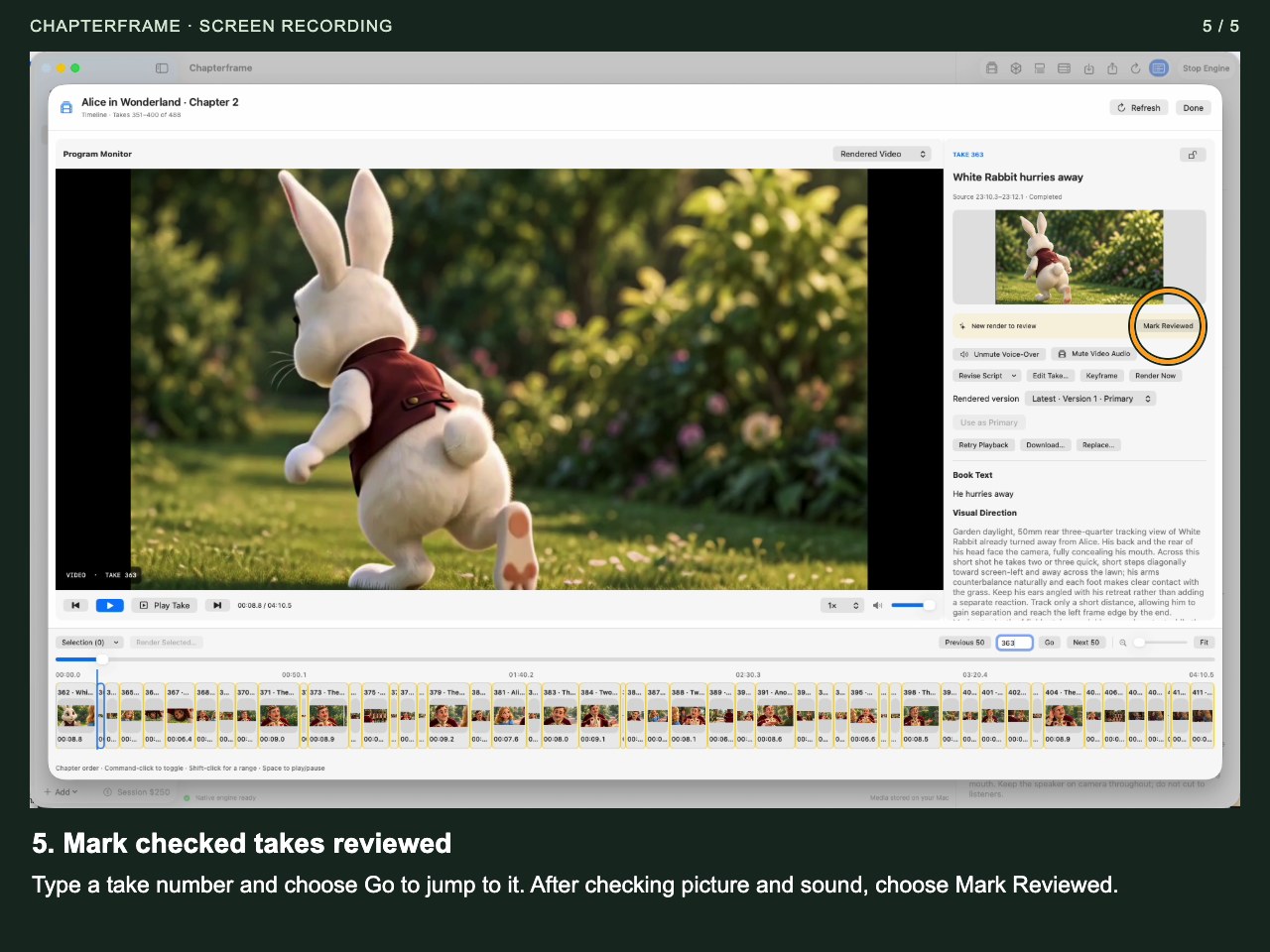
Mark checked takes reviewed
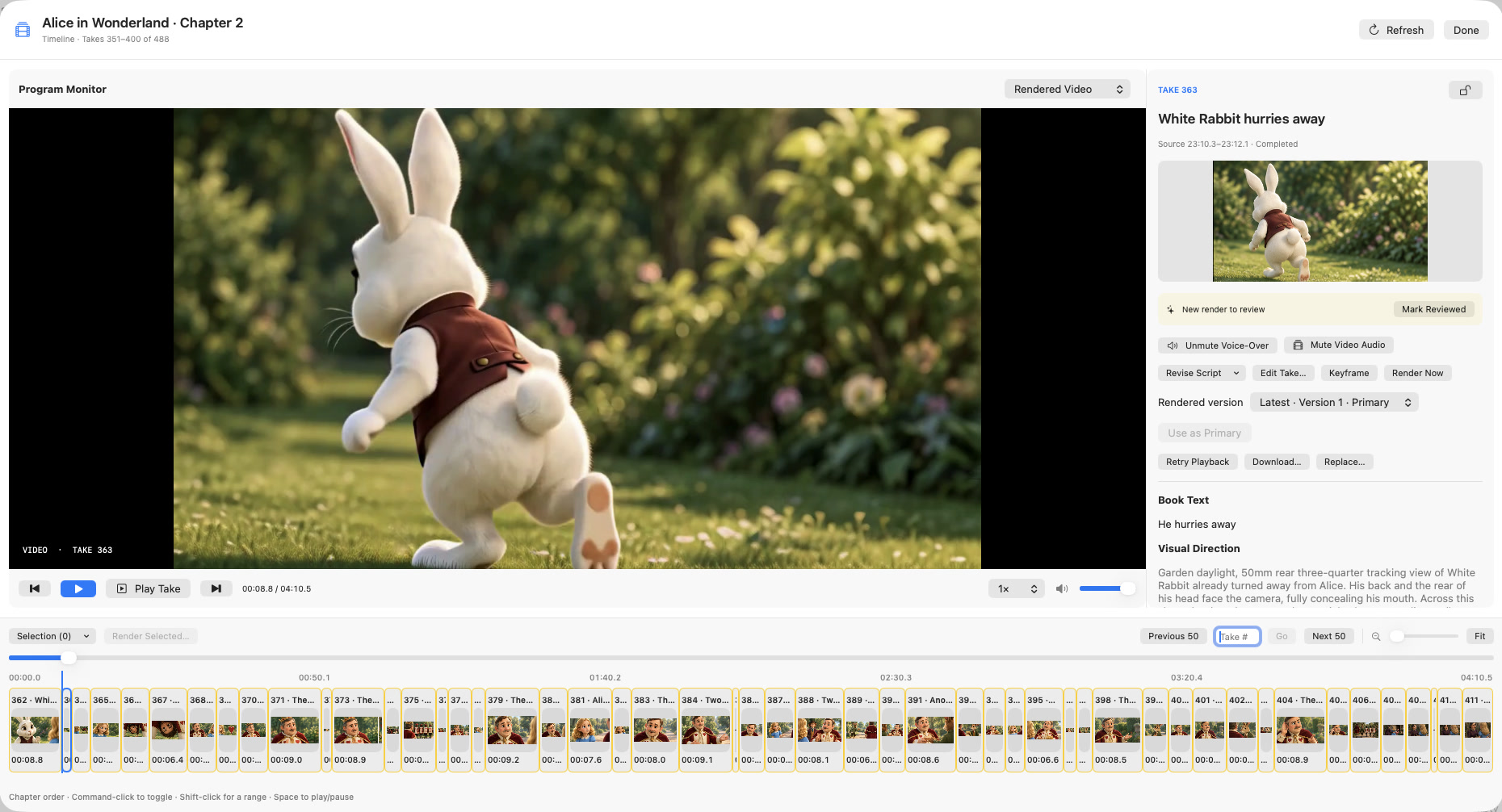
Type a take number and choose Go to jump to it. After checking picture and sound, choose Mark Reviewed.
 Open image full size ↗
Work through it
Play the chapter in the Timeline
Watch transitions between takes. Listen for clipped words and changes in volume. Note a take that needs another version and request only that work.
Choose the primary versions
Compare render versions and select the one you want used in the film. Recheck a newly completed render before changing the primary selection.
Open File → Export Video…
Choose This chapter or Whole book. For a chapter, set the inclusive take range; for a book, review chapter order. Missing takes are skipped with a warning, so check that the requested range is complete.
Choose Standard or Movie Mode
Standard joins complete takes. Movie Mode asks the selected editing model for timed cuts with a target length and optional directions. Dialogue takes stay complete; retained narration and action pictures keep video music and effects without overlaid narration.
Review output and audio settings
Choose the folder, filename and landscape or portrait format. In Standard export, Video audio uses encoded sound and falls back to take audio for missing or silent tracks; Original audio uses the current take recording. Equalize voice loudness is optional. Test a short range to confirm the mix.
Export and inspect the saved file
Start Export Joined Video or Create Movie Mode Export. Use Show in Finder when it completes. Watch the beginning, transitions and ending in a separate player, then review the full film before publishing.
Try it in your chapter
Export a short sequence of two or three takes. Compare its sound and primary render choices with the Timeline.
Check before moving on
The exported MP4 contains the intended range, picture order and audio, without unnoticed missing takes.
If something goes wrong
The film is shorter than expected
Check the export mode, take range and missing-take warnings. Movie Mode deliberately condenses the visual story.
Effects disappear in the export
Check the audio-source choice and whether effects exist in the finished render. Original audio uses the take recording; review a short Video audio export when you want the encoded mix.
Still stuck? Contact support with the exact message and the operation you were running.