In the app’s walkthrough: The Render Queue
Before you begin
Have the engine running and a render job to inspect. Do not start an extra job just to create a queue entry.
Prepare a render and review the result
40 seconds · Screen recording · Captioned · No audio
Recorded in the Chapterframe Mac app on October 16, 2026. Each step’s instructions appear below the picture. Nothing in these recordings starts a paid job. Labels may vary by build.
Read the video steps and view the images
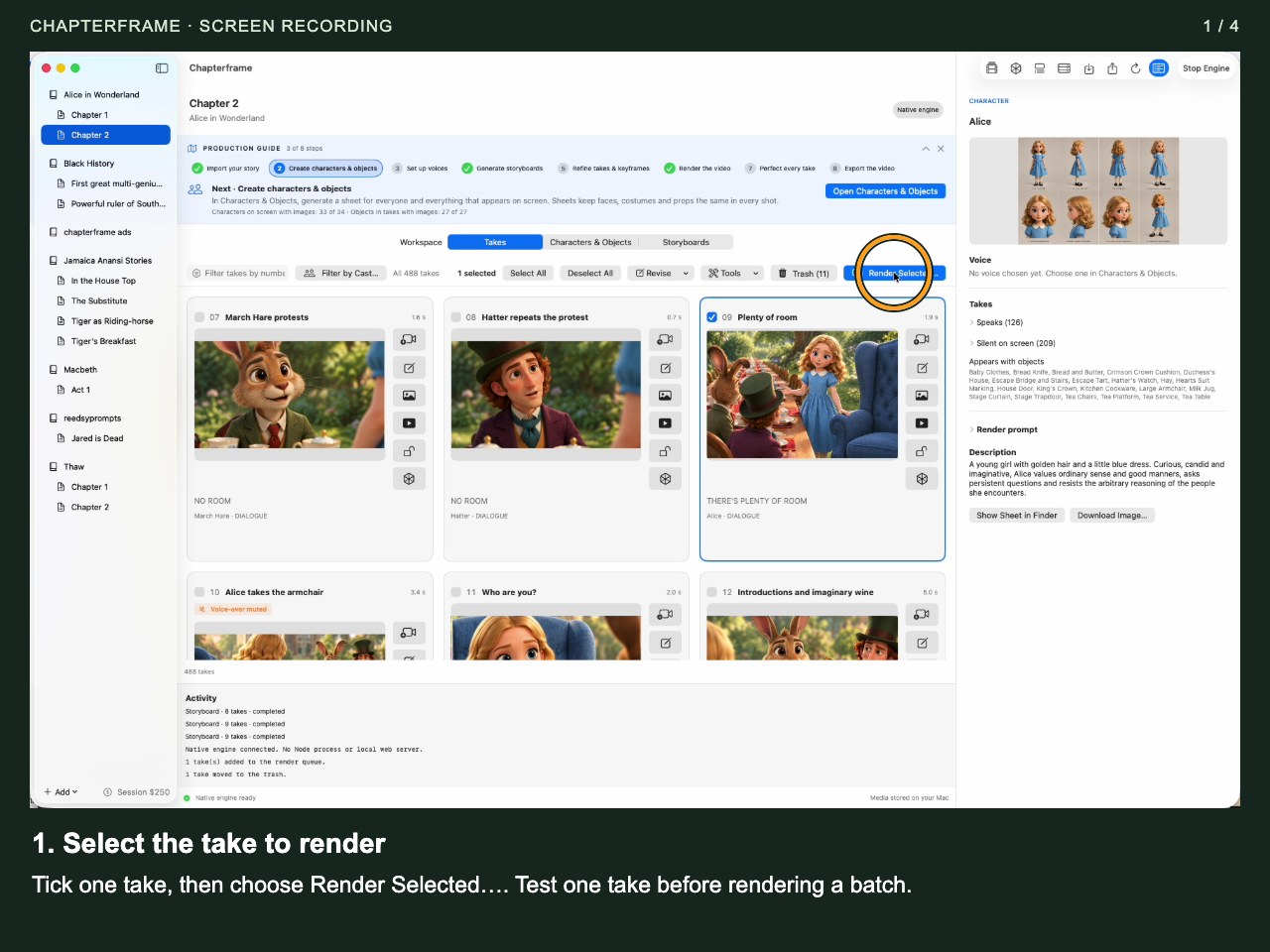
Select the take to render
Tick one take, then choose Render Selected…. Test one take before rendering a batch.
 Open image full size ↗
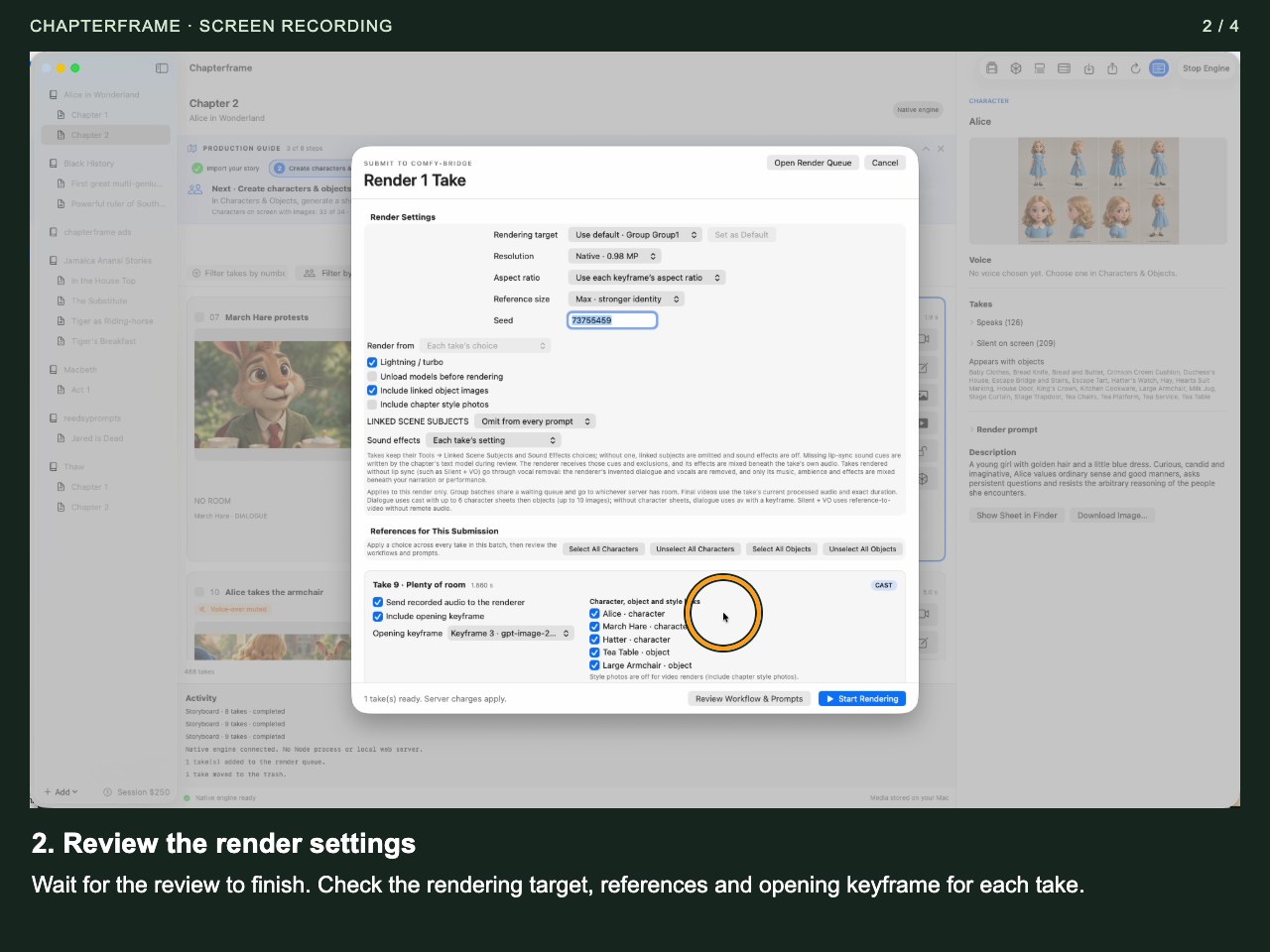
Review the render settings
Wait for the review to finish. Check the rendering target, references and opening keyframe for each take.
 Open image full size ↗
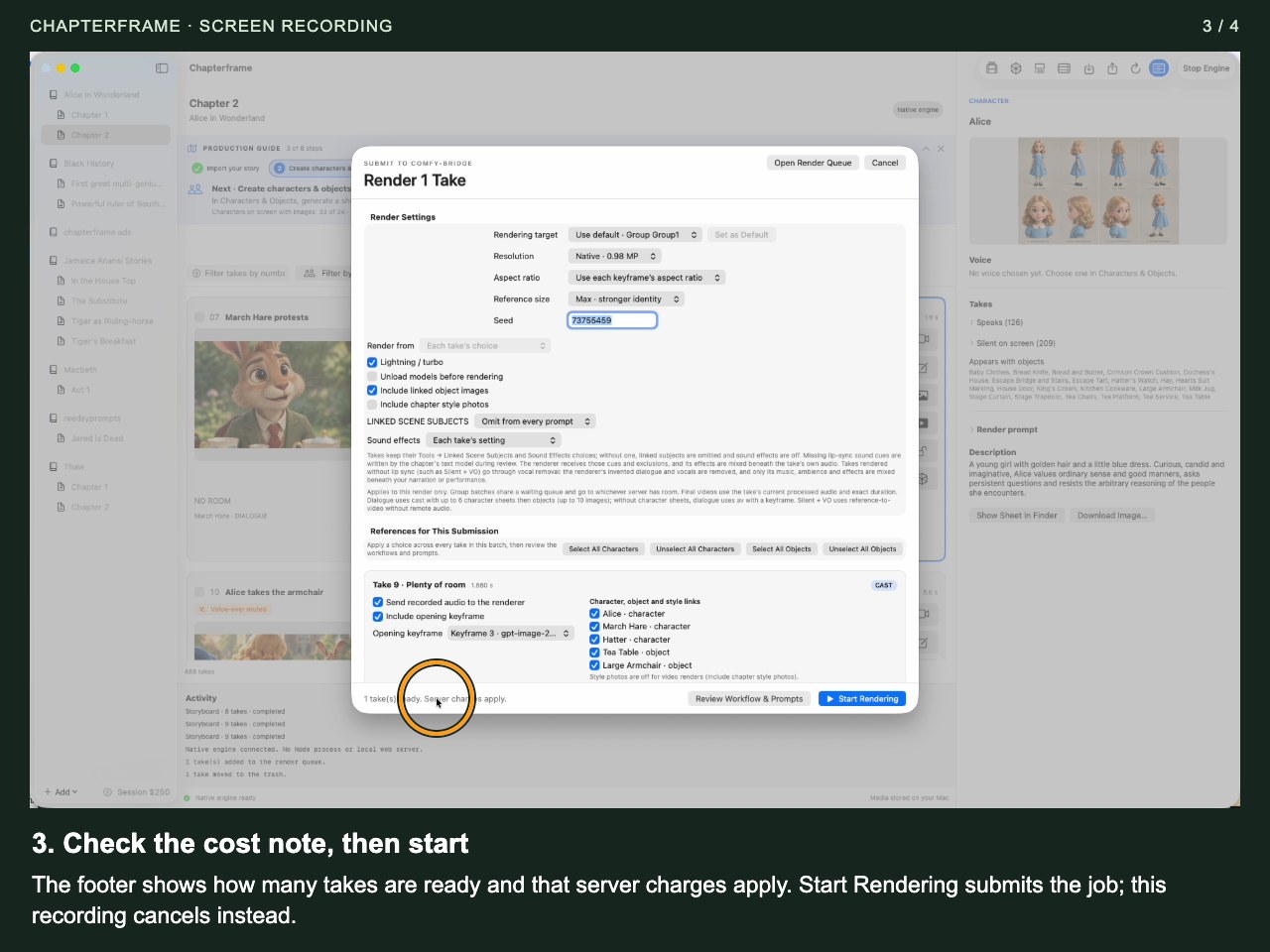
Check the cost note, then start
The footer shows how many takes are ready and that server charges apply. Start Rendering submits the job; this recording cancels instead.
 Open image full size ↗
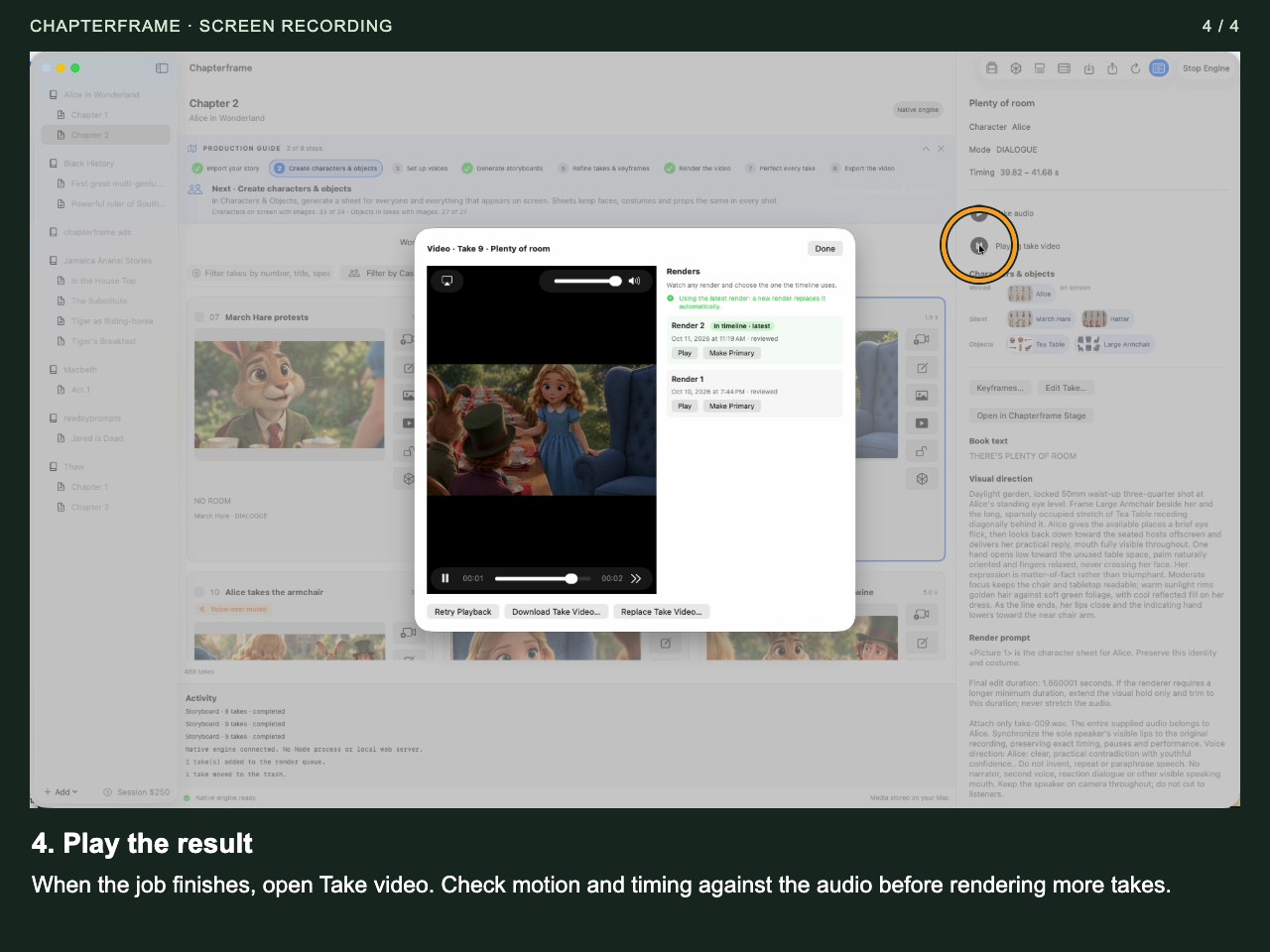
Play the result
When the job finishes, open Take video. Check motion and timing against the audio before rendering more takes.
 Open image full size ↗
Work through it
Open Render Queue
Use the toolbar button. Find the take and inspect which server owns the job, its current state and progress.
Separate waiting from failure
Queued work is waiting for capacity. Running work has started. Reconnecting means the app is trying to recover status. Read the message before treating a slow job as failed.
Check the server when several jobs stall
Refresh the affected server’s details and logs. Compare the job with the provider’s own status when possible. A local network interruption does not prove a remote task stopped.
Retry with the outcome understood
Use the queue’s retry or cancel actions for the job you intend to change. Verify uncertain remote work before creating another paid request.
Review the finished result
Open the completed render and compare versions. Use the Timeline to choose the primary result you want in the film.
Record useful details for support
Keep the chapter name, take number, job state, server instance ID and exact error text. Remove API keys or credentials from anything you share.
Try it in your chapter
Follow one existing job from submission through finishing, or inspect its saved history. Identify the server and final result.
Check before moving on
You can account for each submitted take without accidentally sending the same uncertain job twice.
If something goes wrong
Deleting a chapter says work is active
Inspect its active jobs and stop the work you no longer want before deleting. Preserve an export or backup first if you might need the chapter later.
Progress seems frozen everywhere
Check the engine status, available disk space and the latest task errors. Share the specific messages with support rather than deleting the library or repeatedly restarting paid operations.
Still stuck? Contact support with the exact message and the operation you were running.