In the app’s walkthrough: Keyframes · Storyboards · Production guide: Refine takes & keyframes
Before you begin
Review the cast, objects, style and take direction for the scene you are about to storyboard.
Open a chapter and inspect a take
51 seconds · Screen recording · Captioned · No audio
Recorded in the Chapterframe Mac app on October 16, 2026. Each step’s instructions appear below the picture. Nothing in these recordings starts a paid job. Labels may vary by build.
Read the video steps and view the images
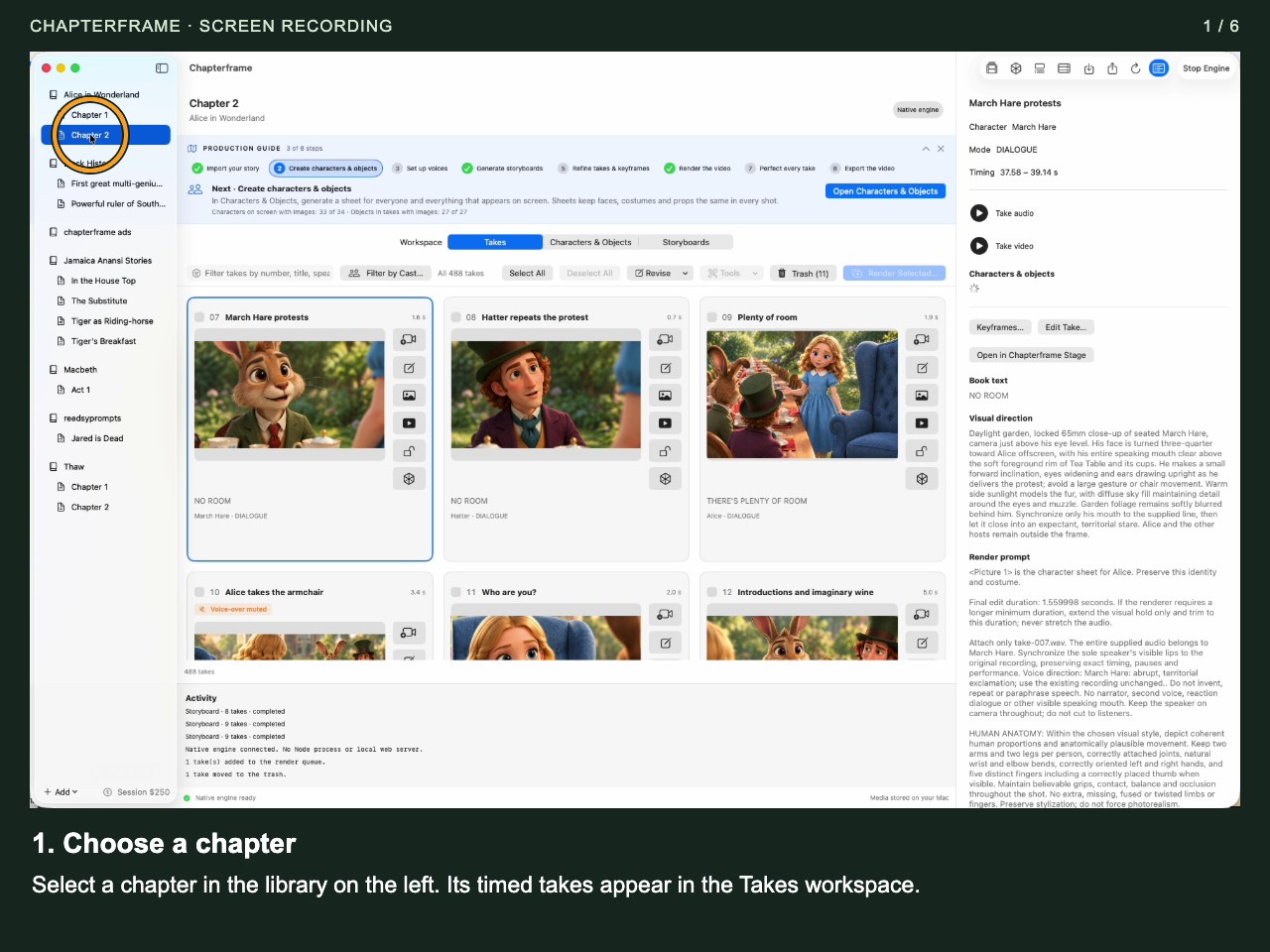
Choose a chapter
Select a chapter in the library on the left. Its timed takes appear in the Takes workspace.
 Open image full size ↗
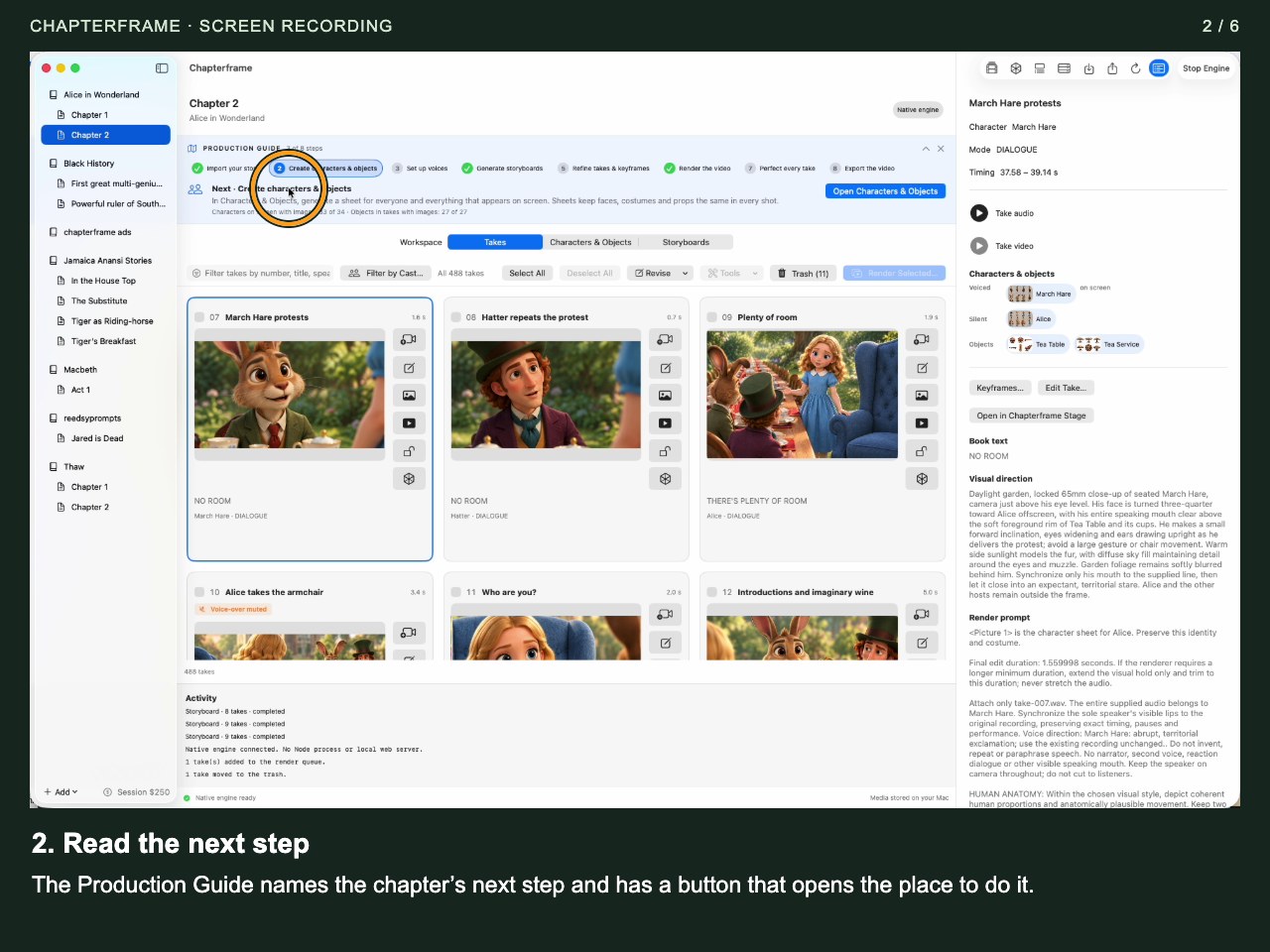
Read the next step
The Production Guide names the chapter’s next step and has a button that opens the place to do it.
 Open image full size ↗
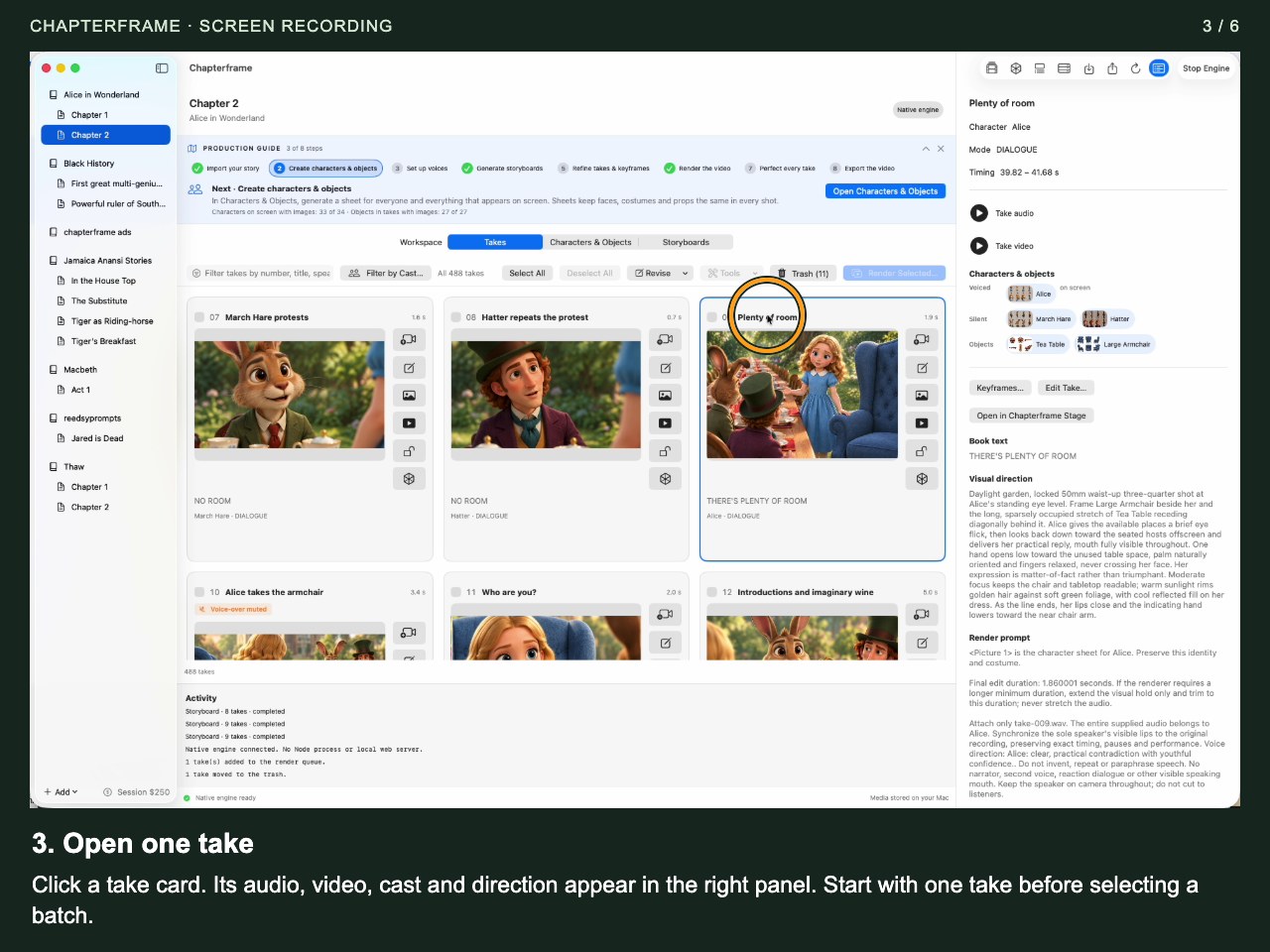
Open one take
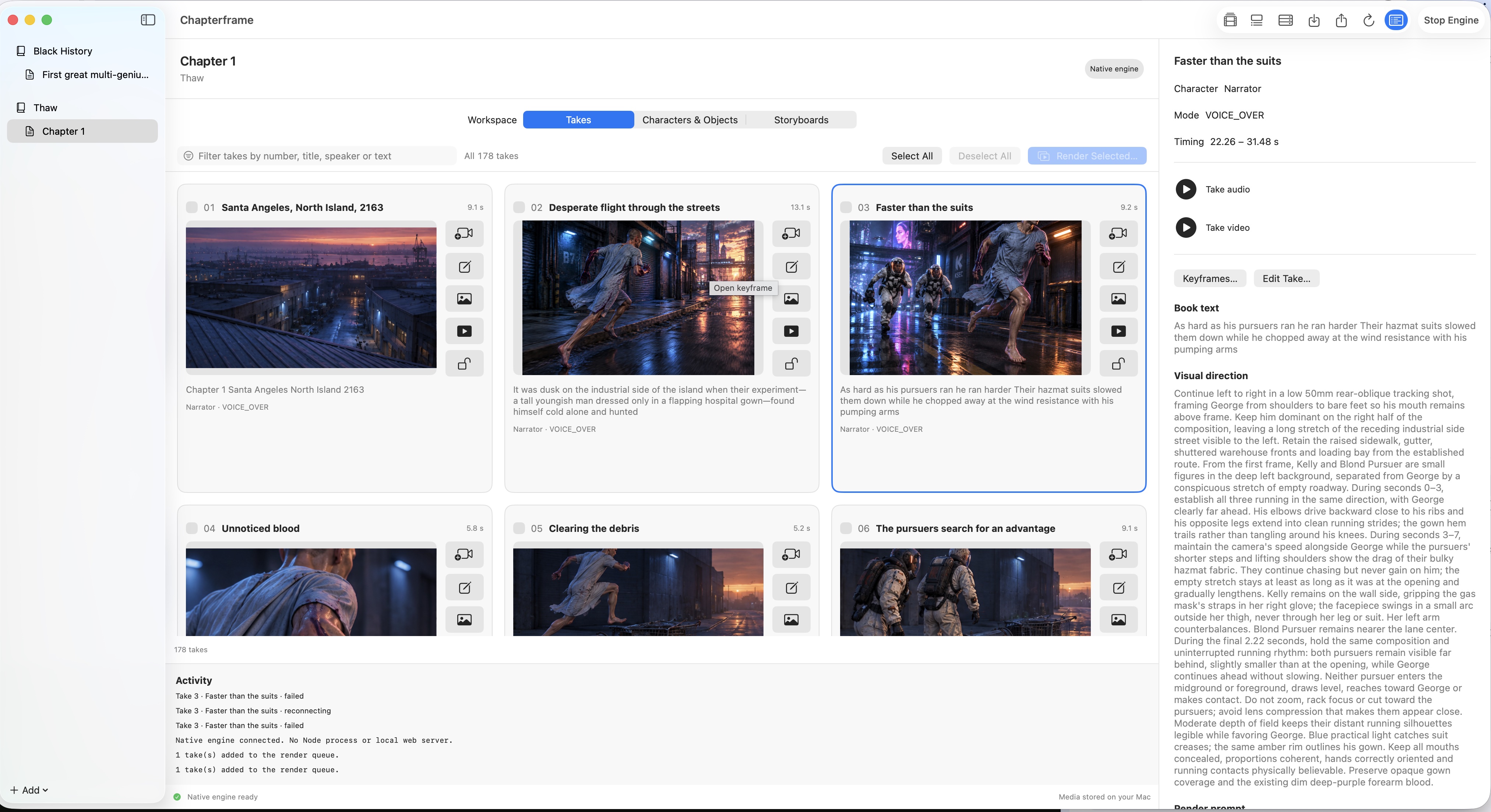
Click a take card. Its audio, video, cast and direction appear in the right panel. Start with one take before selecting a batch.
 Open image full size ↗
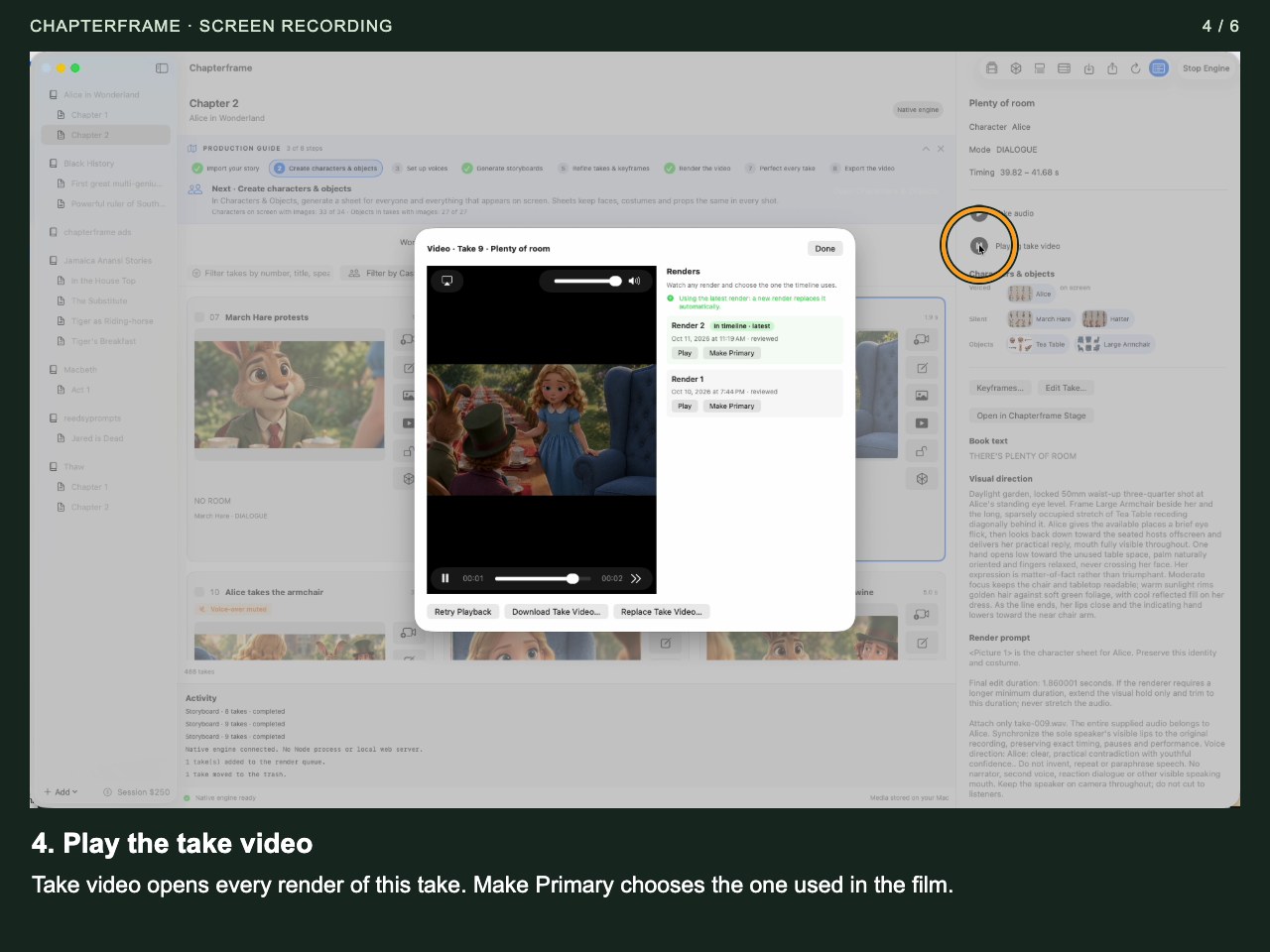
Play the take video
Take video opens every render of this take. Make Primary chooses the one used in the film.
 Open image full size ↗
Compare words and direction
Read Book text and Visual direction. Check that the described action fits the spoken passage.
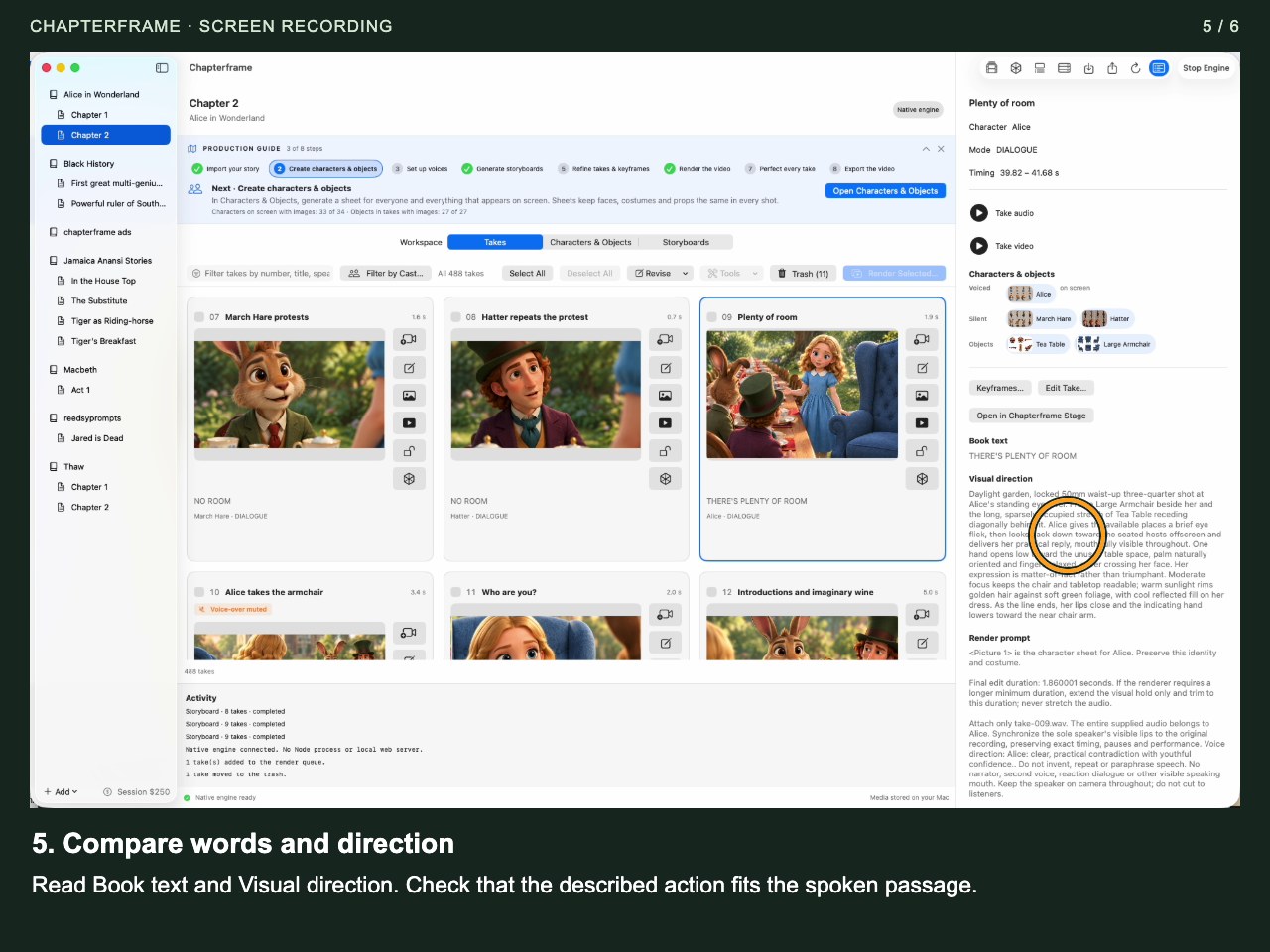 Open image full size ↗
Inspect the opening keyframe
Keyframes… shows the opening image, its earlier versions and the linked characters and objects. Done closes it without generating.
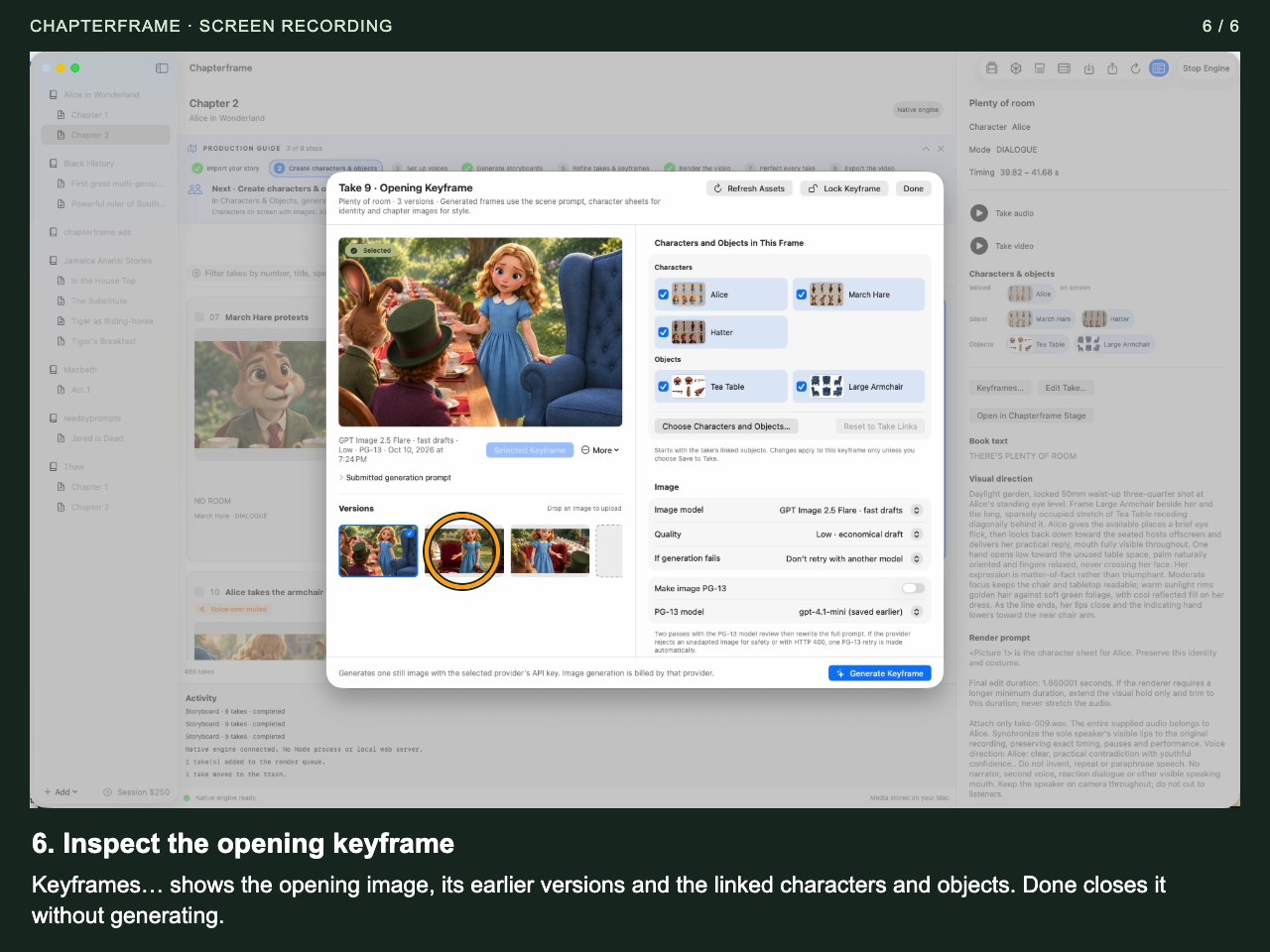 Open image full size ↗
Work through it
Open Storyboards
Work through a small group first. The production guide uses groups of nine. Review the takes included in the group and their aspect ratios.
Review generation settings
Choose the available image model and style references. If a storyboard already exists, inspect the redo option before replacing it.
Generate and inspect the group
Compare each panel with the corresponding take. Look for the right person, prop, action and shot size. A visually attractive panel can still tell the wrong part of the story.
Accept the storyboard
Accepting supplies the opening keyframes for its takes. Open a take’s Keyframes panel to inspect or improve an individual image.
Refine one opening image
Generate a new keyframe, upload an image you have permission to use, or choose an existing version. Select the version you intend to send to the renderer.
Lock deliberate choices
Lock the keyframe you want to keep before running broader image work. Check lock status when a later operation appears to skip a take.
Try it in your chapter
Inspect a storyboard group and identify one panel that needs a change. Refine just that take’s keyframe.
Check before moving on
Each take in your test scene has the intended opening keyframe, with matching references and framing.
If something goes wrong
Accepting a storyboard did not change an image
Check whether the take’s keyframe is locked.
The opening picture is good but the action is impossible
Review the starting position and direction together. An opening image needs room for the movement you are asking the video model to perform.
Still stuck? Contact support with the exact message and the operation you were running.