In the app’s walkthrough: Render takes · Production guide: Render the video
Before you begin
Have an accepted keyframe, reviewed direction, usable audio and a configured rendering service or ready server.
Prepare a render and review the result
40 seconds · Screen recording · Captioned · No audio
Recorded in the Chapterframe Mac app on October 16, 2026. Each step’s instructions appear below the picture. Nothing in these recordings starts a paid job. Labels may vary by build.
Read the video steps and view the images
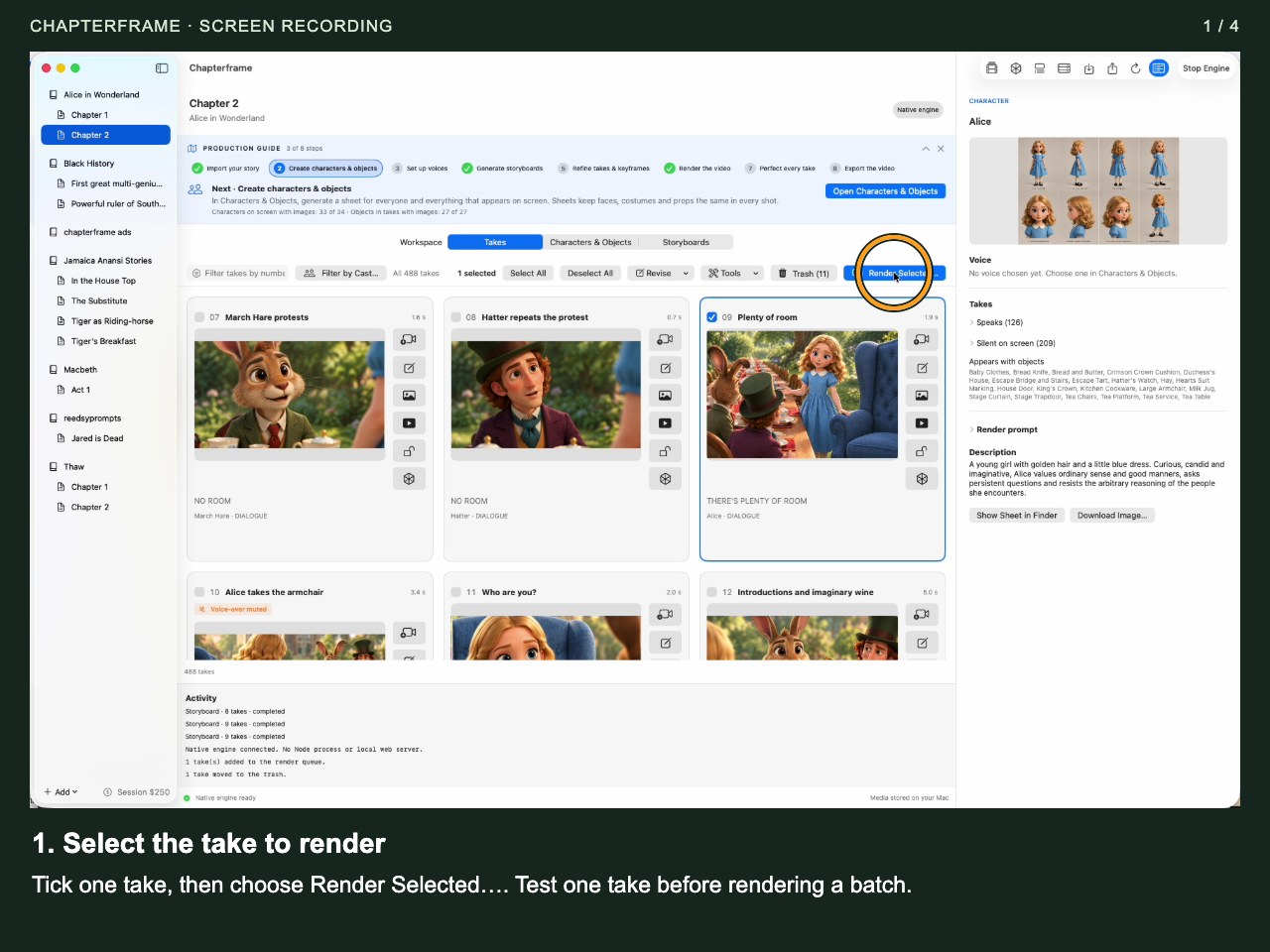
Select the take to render
Tick one take, then choose Render Selected…. Test one take before rendering a batch.
 Open image full size ↗
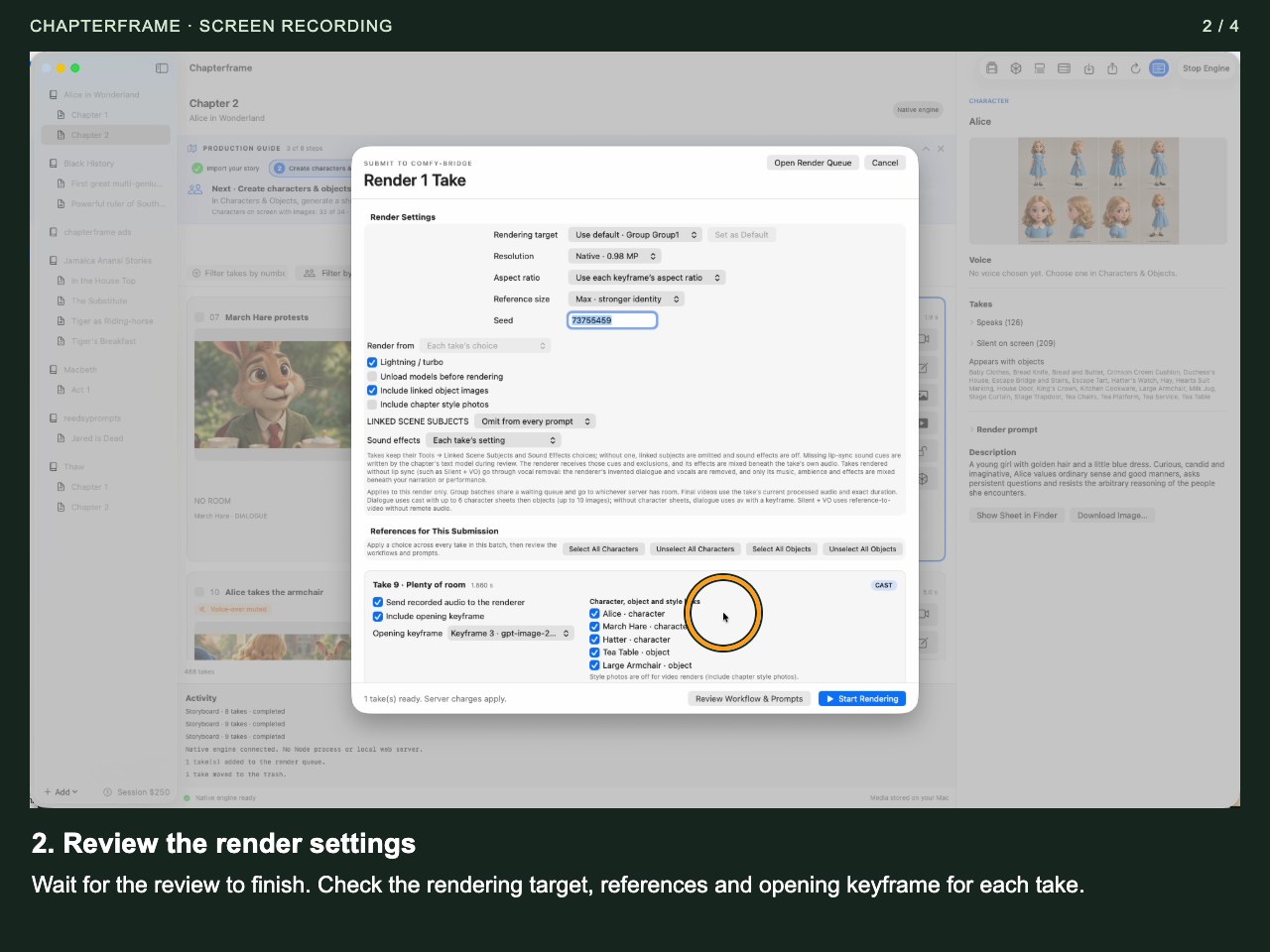
Review the render settings
Wait for the review to finish. Check the rendering target, references and opening keyframe for each take.
 Open image full size ↗
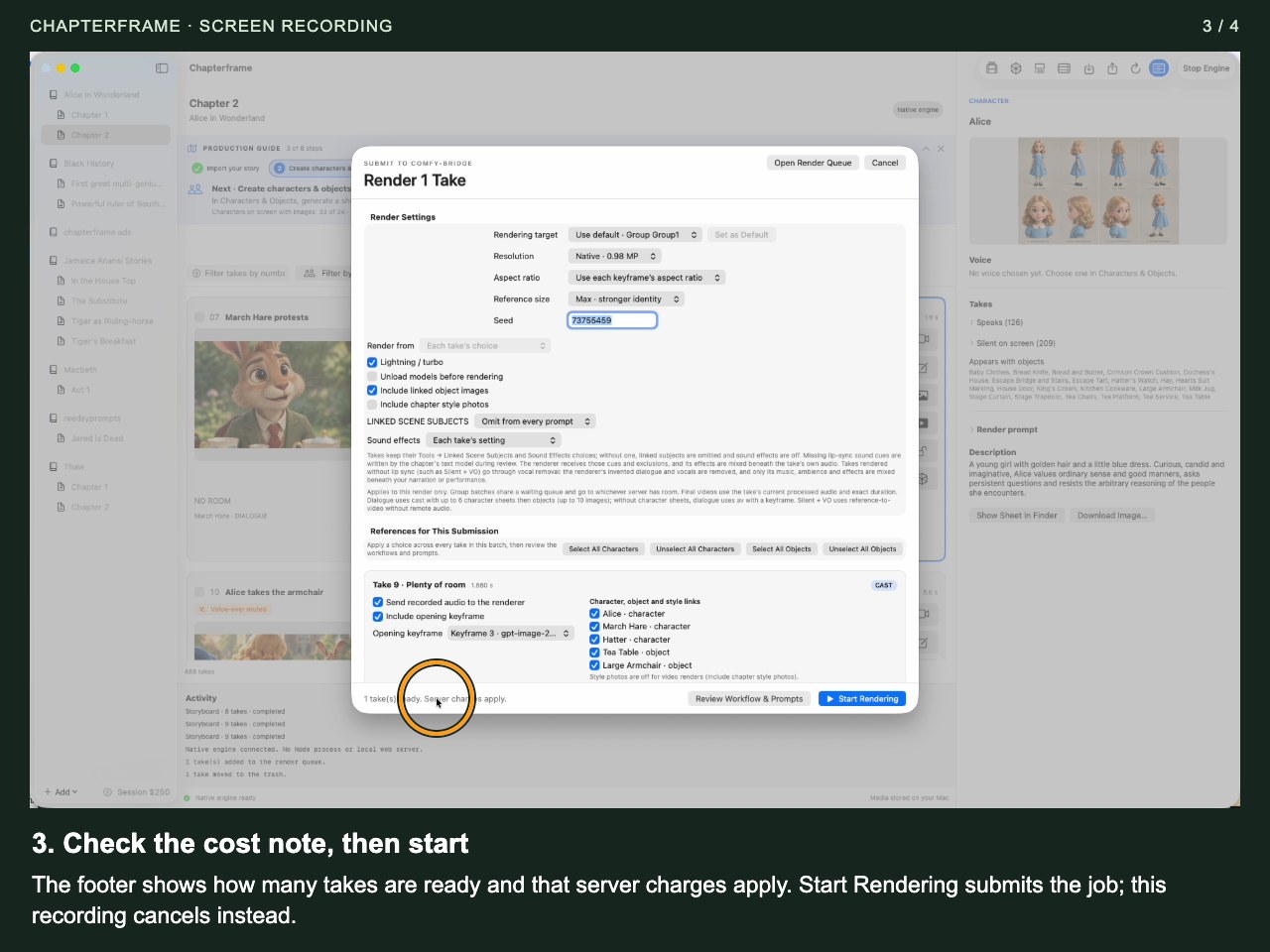
Check the cost note, then start
The footer shows how many takes are ready and that server charges apply. Start Rendering submits the job; this recording cancels instead.
 Open image full size ↗
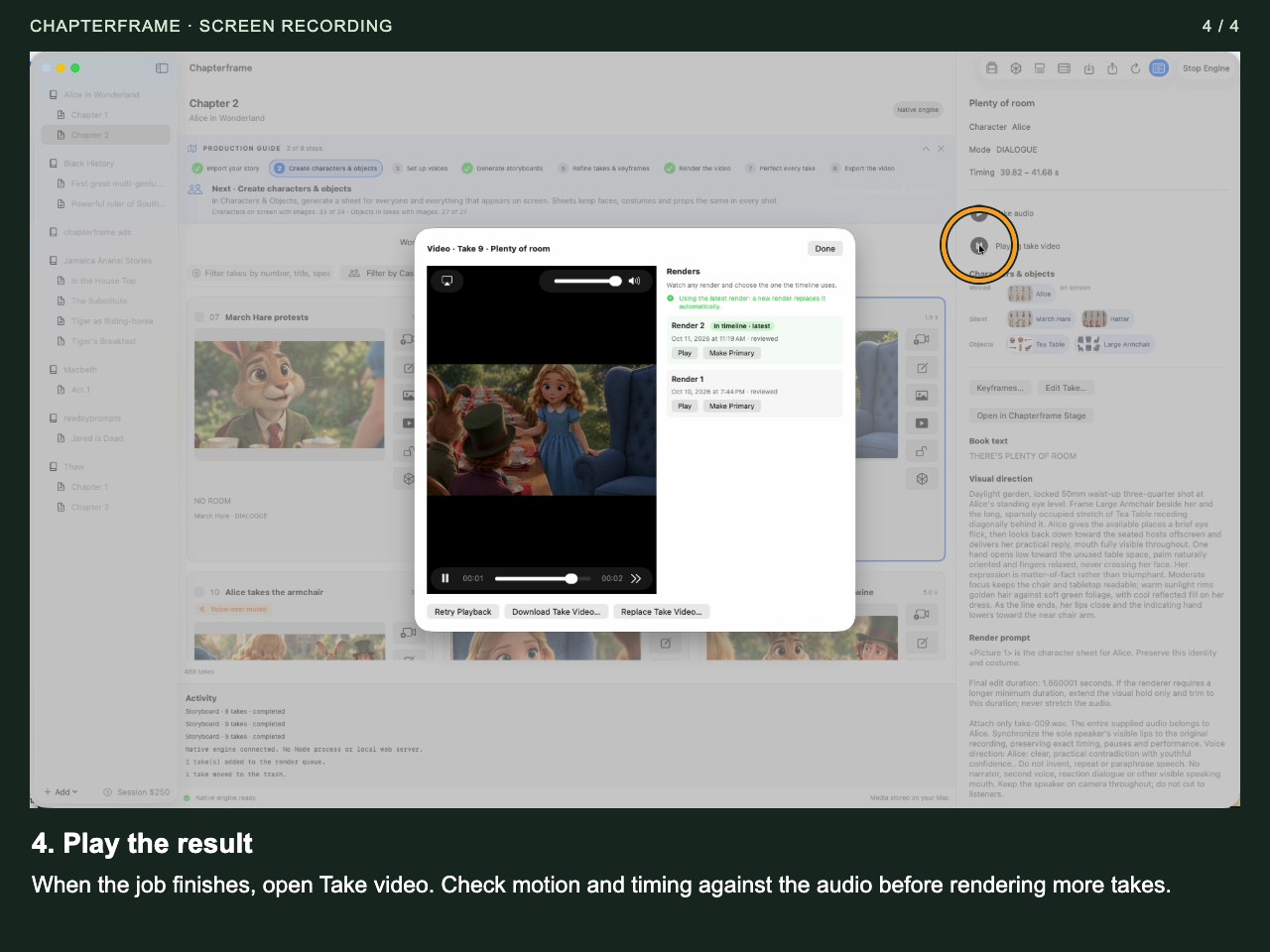
Play the result
When the job finishes, open Take video. Check motion and timing against the audio before rendering more takes.
 Open image full size ↗
Work through it
Select one take
Use its render action or Render Selected… after selecting just that card. Check the count in the render review.
Choose the workflow
Pick a supported workflow for the take. Dialogue with lip sync and silent pictures with voice-over need different handling. Review the workflow’s duration and reference requirements.
Inspect what will be sent
Read the prompt, selected keyframe and reference images in the render panel. Check your saved linked-subject and sound-effect choices before submission.
Choose the server or service
Use a ready, compatible target. Review the estimate and your provider account before starting. A server that is still installing models is not ready just because it appears in inventory.
Start and follow the job
Open Render Queue to follow the request. Wait for rendering and local finishing to complete before judging the final audio.
Watch the whole take
Check the face, movement, timing and sound. If something is wrong, adjust the relevant prompt or keyframe and generate a new version.
Try it in your chapter
Render one short take, then write down the one change that would most improve it before attempting another version.
Check before moving on
One complete take plays correctly, and you know which request produced it.
If something goes wrong
The job is reconnecting
Check whether the remote provider already accepted the request. An uncertain submission can still be running and billable; do not immediately send a duplicate.
The take uses an unexpected picture
Reopen the render review and inspect the selected keyframe and references. Choose the intended version before submitting again.
Still stuck? Contact support with the exact message and the operation you were running.