In the app’s walkthrough: Optional extension: Chapterframe Stage
Before you begin
Have a chapter with takes and references. Open Chapterframe Stage and select the library that contains the chapter.
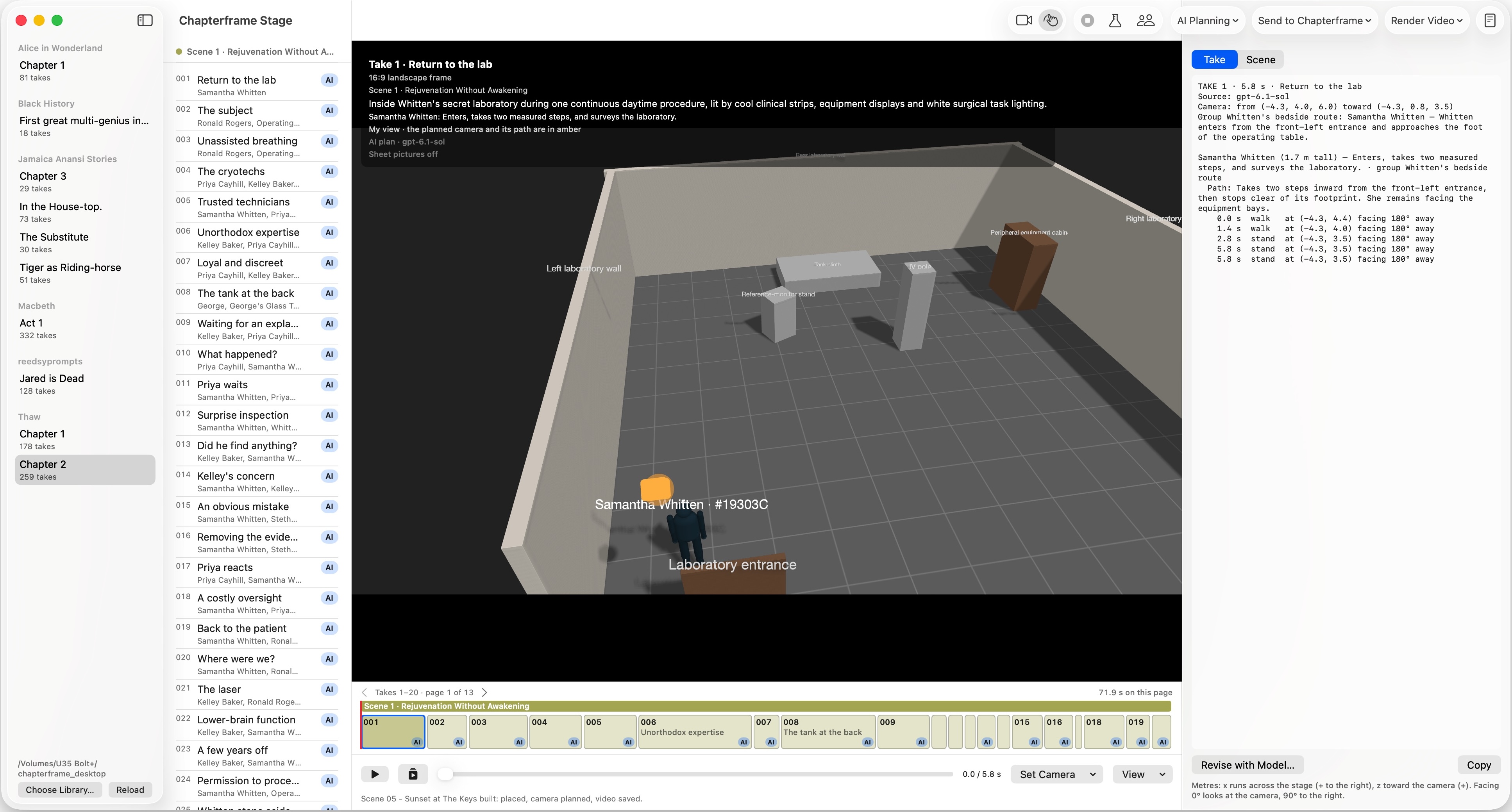
Work through it
Choose the chapter, scene and take
Use the chapter list and take list to find your scene. For an unplanned chapter, choose AI Planning → Plan Whole Chapter… and review the estimate. Finish the Chapter Plan resumes missing planning work. Check the intended take before revising it.
Inspect the scene layout
Review the set, character positions and recurring objects. Use AI Planning → Revise with Model… to describe changes to a take, selection or scene, such as moving an entrance to the other side of the room.
Plan the camera
Use Set Camera and View to inspect framing. AI Planning → Direct the Camera… changes camera coverage for a take or scene. Play the take to review the planned movement and timing; inspect its camera view before publishing.
Try the storyboard route first
Choose Publish to Chapterframe (called Send to Chapterframe in older builds) and select the scene or changed takes. It creates a local opening still and 3D video. In Chapterframe, review the offer to generate keyframes and its cost. Try those keyframes as your storyboard starting point before committing to a motion-guided render.
Use a 3D video reference for motion
When a camera move or interaction depends on timing, inspect the published 3D video and choose a supported 3D-guided rendering workflow in Chapterframe. Stage’s Render Video menu also lets you export the local 3D take, a selection or the chapter. These planning videos are references, not the final AI pictures.
Compare the generated shot
Check positions and movement against your plan. Simple stage geometry guides the scene; the final model can still change a face, prop or trajectory. Refine only the takes that need more planning.
Try it in your chapter
Plan a character entering a room. First inspect one camera frame; then play the motion and decide whether a still reference is enough.
Check before moving on
You can explain why this take needs a storyboard reference or a moving 3D reference.
If something goes wrong
Stage shows the wrong library
Use Choose Library… and select the library used by Chapterframe, then Reload.
The final render ignores a movement
Check the reference actually sent to the selected workflow and simplify competing directions. Review the camera view of the reference video before another paid render.
Still stuck? Contact support with the exact message and the operation you were running.